

How I Connected NotebookLM to Claude and Changed How I Do Research Forever
And I built a Claude Skill to automate research into a presentation deck.


If there’s one AI tool I keep coming back to because it has such unique value for my research workflow, it’s NotebookLM. In fact, I’ve written about it twice, and both pieces are among my all-time favorite posts:
Anyway, I spent 6 hours researching Claude Cowork last month to find use cases that would actually resonate with my audience.
20+ blog posts. 10+ YouTube tutorials. 10+ Reddit threads. And the rest comes from X. All loaded into NotebookLM because that’s where I do deep research—20+ million token context window, 50 sources, custom outputs ranging from briefing docs to presentation deck.
Then I hit the same wall I always hit:
All this research lived in NotebookLM. My actual work happened in Claude. And the gap between them killed my momentum.
Here's what the back-and-forth actually looked like:
Run deep research in NotebookLM
Type multiple queries to extract insights
Switch to Claude to start writing
Realize I need to verify something from source #23
Switch back to NotebookLM
Search through sources
Copy the relevant section
Paste into Claude
Lose my train of thought
Start over
The back-and-forth wasn’t just annoying, it was also ruining my focus.
I kept telling myself: “There has to be a better way to connect these two tools.”
Turns out there is.
I connected NotebookLM directly to Claude Desktop (this also applies to Cowork) using MCP.
Now when I need to create a presentation deck about Cowork use cases, I don’t:
Manually query NotebookLM 76 times trying to understand the research
Finally tell NotebookLM “create a presentation” and get a generic deck
Realize the slides don’t reflect the insights I actually need
Start over with better prompts
Instead, I tell Claude:
“I need a presentation deck about Cowork use cases for creators. Research all 50 sources in my NotebookLM and create a deck that matches my audience needs.”
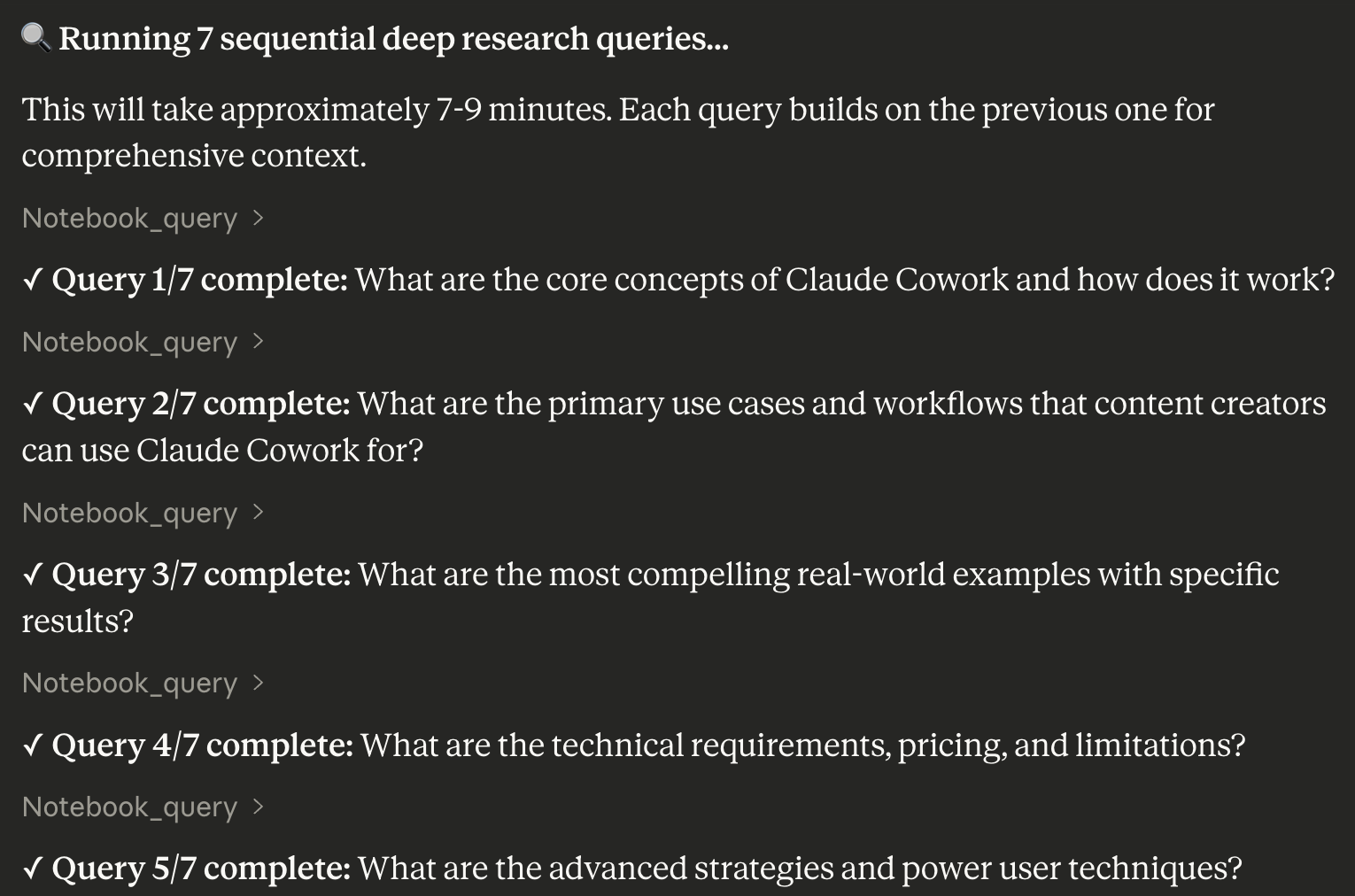
Claude autonomously queries my entire NotebookLM research library—running multiple sequential searches to deeply understand the material. Then it crafts a context-aware prompt based on everything it learned, and triggers NotebookLM to generate a presentation deck grounded in actual insights, not generic summaries.
I don’t manually prompt to learn from sources. I don’t write slide prompts hoping they’ll capture the right insights. Yet, I get a deck that reflects what actually matters from the research.
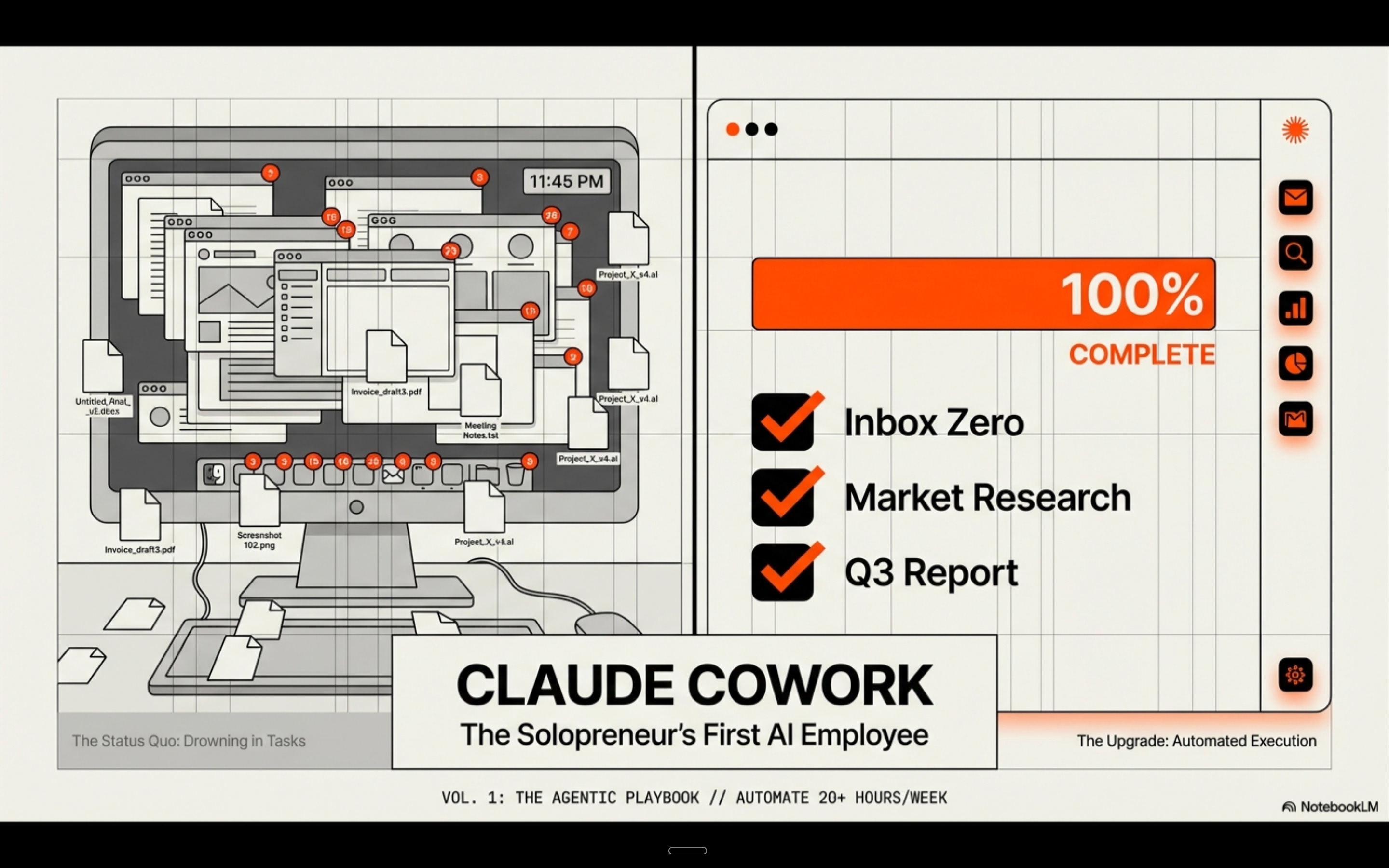
Now I can automate my research process, understand it deeply, and turn it into something valuable in a single deck — all in one space.
This has been my favorite duo combo over the past month 🔥
It’s such a liberating feeling, since I can now do more inside Claude as my primary agentic workspace.
What the NotebookLM + Claude Integration Unlocks
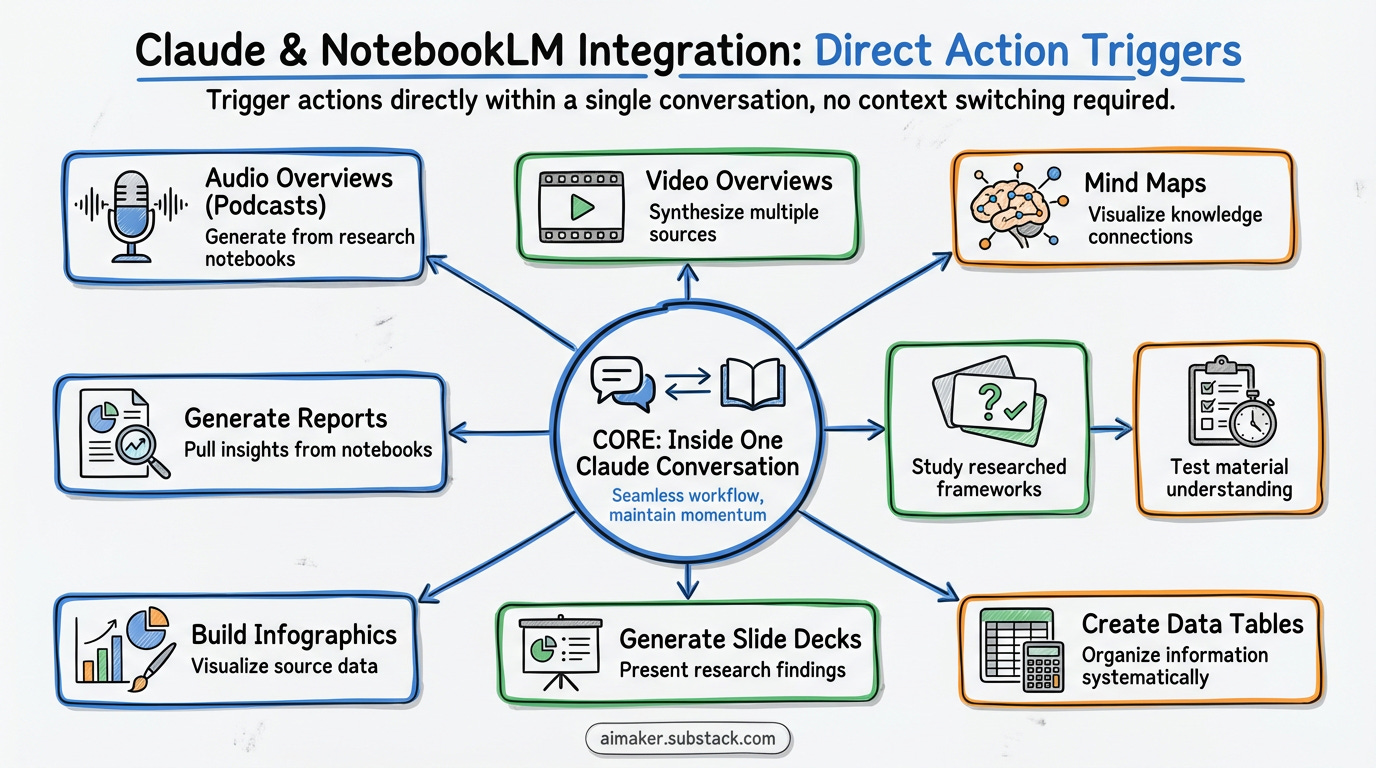
Everything you can do in NotebookLM—you can now trigger directly from Claude.
You’re no longer have to switch tabs. You don’t need to copy context anymore. You keep the momentum going.
Inside a single Claude conversation, you can tell it to:
Generate Audio Overviews (podcasts) from your research notebooks
Create Video Overviews synthesizing your sources
Build Mind Maps visualizing connections across your knowledge base
Generate Reports pulling insights from multiple notebooks
Create Flashcards for studying frameworks you’ve researched
Design Quizzes testing your understanding of the material
Build Infographics visualizing data from your sources
Generate Slide Decks presenting your research findings
Create Data Tables organizing information systematically
All nine NotebookLM studio features—now accessible without leaving your Claude workspace.
But here’s what makes this actually transformative:
You can actually combine NotebookLM’s research intelligence with Claude’s unlimited creation capabilities.
That same research sitting in your NotebookLM notebooks? You can now:
Build custom slides branded to your style from NotebookLM research
Generate interactive dashboards from your data sources
Create working apps based on user research insights
Design visualizations tailored to your exact specifications
Develop Claude Skills from frameworks you’ve studied
Everything Claude can build—now grounded in your NotebookLM knowledge base.
The research depth of NotebookLM meets the creation flexibility of Claude.
That’s the unlock.
What You’ll Learn in This Guide
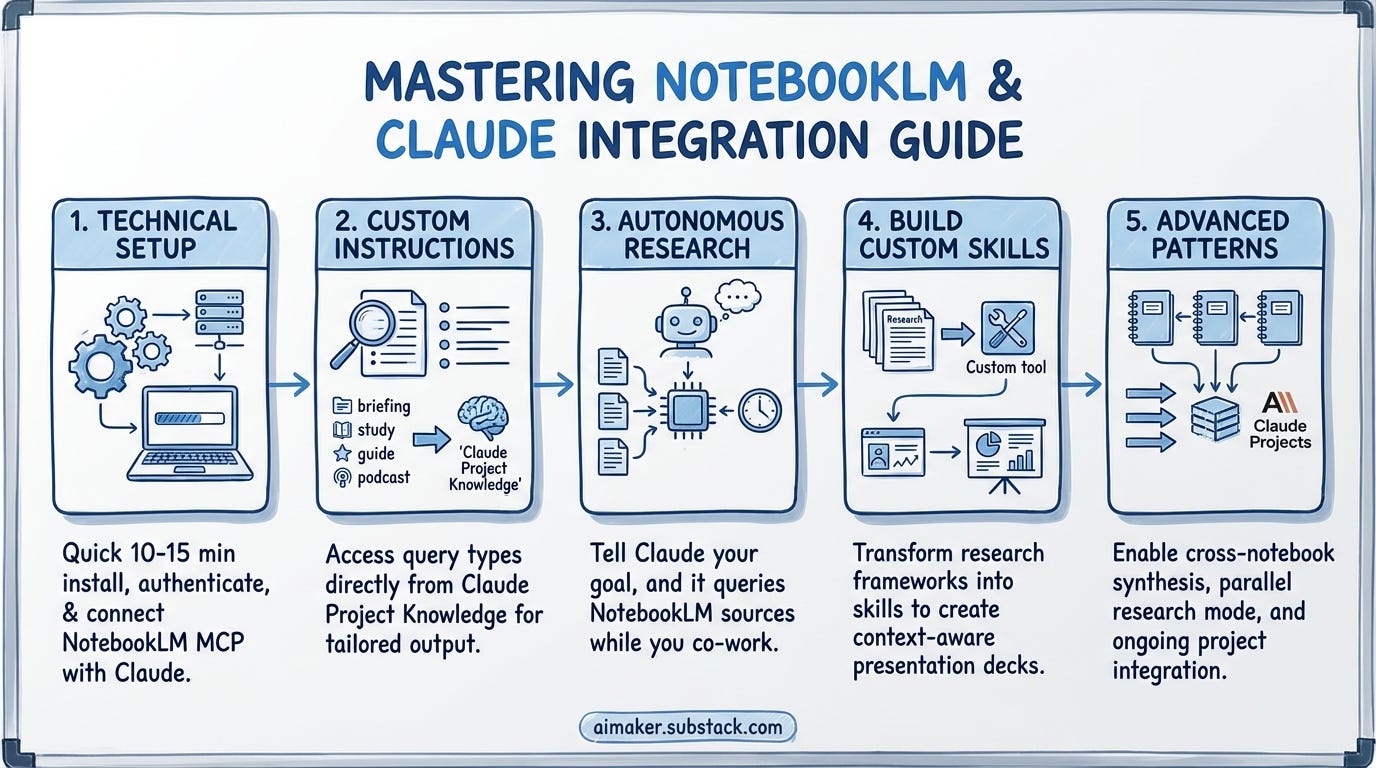
By the end of this post, you’ll have:
Complete technical setup (10-15 minutes): NotebookLM MCP server installed, authenticated, and connected to Claude Code and Desktop
Custom instruction integration: NotebookLM’s query types (briefing docs, study guides, podcasts, etc.) accessible directly from Claude Project Knowledge
Use Case #1 - Autonomous Research Synthesis: How to tell Claude your research goal and let it query NotebookLM sources while you work on something else (the Co-work research workflow that changed how I prepare newsletter content)
Use Case #2 – Building Claude Skills from Research Queries to Presentation Deck: Transform frameworks you’ve studied in NotebookLM into custom Claude Skills that run research queries and turn that content into a context-aware presentation deck
Advanced patterns: Cross-notebook synthesis, parallel research mode, integration with Claude Projects for ongoing work
Let’s build it!
How to Set Up NotebookLM MCP Integration with Claude Desktop
Look, I’m not going to lie—this requires using the terminal. But I’m also not technical, and I got this working in about 15 minutes. Trust me, it’s easier than you might think right now.
There are four different ways to install this thing. I’m going to show you the one that actually works and skip the alternatives that’ll just confuse you.
This process is also 10x easier if you ask Claude Code to do it. If you’ve tried it on my previous post, then this is the right time to test drive installing something technical.
Let’s get started by following this process so you can understand the details for troubleshooting later.
