Skip to main content

Powered by Discourse
- Jobs
- Gallery
- News

Product Visualization in Blender

Tetris animation for immersive experience

Get all your Blender add-ons on BlenderKit

Blender Jobs for January 24, 2025

Best of Blender Artists: 2025-4

Seamlessly Imperfect [$]

Making a 3D Pokémon Card in Blender

Blender Reel: Xeroflow

Behind the Scenes: Iron Sentinel

This Blender Shader is the Secret to Magical 3D Art
 10
10




You don’t really have to, because Blender will automatically delete unused materials when you save the file.
But if you really like to be organized all along, you can delete materials from the Outliner. Display Orphan Data, and look under Materials, where you can select any unused one and delete it.

Thanks piranha4D…I will try that from the outliner. I have saved this file many times but those materials have remained. I appreciate your replying.
There’s also FILE menu > Clean Up > Recursive Unused Data-Blocks.
I keep the whole Clean Up menu in my Quick Favorites.
None of these options are working. I did both but when selecting Orphan Data (the broken heart, it doesn’t show any materials.

And nothing happens when doing the Clean Up. Probably I am doing something wrong.
Never had this happen before
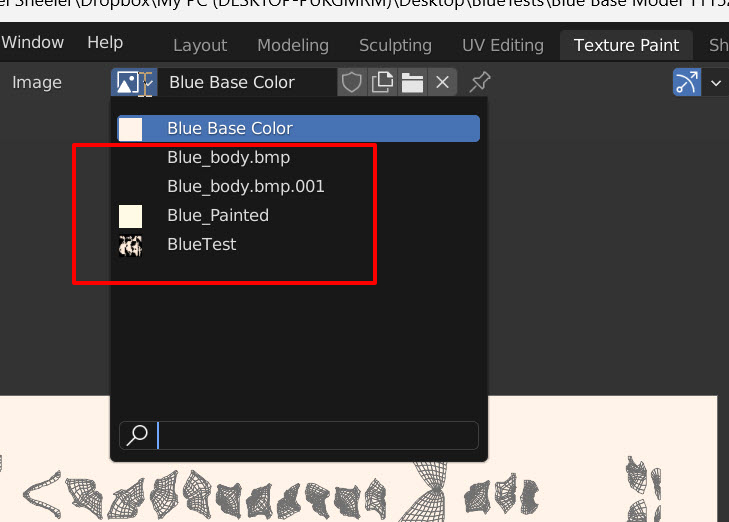
I found the solution! I select the material from the dropdown that I want to remove and Shift+Left-click on the X at the right that will orphan the material. That material now has the 0 to the left of it’s name meaning it is not assigned to anything. Then I can save and reload the file and that then cleared out all materials with the zero “0” to the left.

2 years later

Thank you, thank you, THANK YOU!!! You are a lifesaver. I was having difficulties with errors due to a material I tried to shade something with. That material was no longer needed and I couldn’t get rid of it UNTIL I saw your post. It worked like magic. Now my files are cleaned up and I can move on without error. Thanks again for sharing
2 months later

So many have helped me here on this forum. I’m glad I could in turn help someone!