The Olympus DR-2000 hand control microphone requires a firmware update in order to utilize the ‘A’ and ‘B’ buttons with Quikscribe Recorder. This is a fairly simple procedure:
- Plug the USB connection into the PC and wait until the PC recognizes the device.
- Run the Olympus DirectRec configuration program.
- Load the Quikscribe template file and apply the setting update.
Download the Quikscribe template file QS_DR_2000.drt and save it to your Desktop or a desired folder.
1. Plug the USB connection of the DR-2000 mike into the PC and wait until the PC recognizes the device.
2. Run the Olympus DirectRec Configuration Tool program. An image of the DR-2000 will appear as follows:
3. Select ‘File’, then ‘Import Template’, and select the QS_DR_200.drt template file.
4. At the prompt ‘Do you want to overwrite the settings for each button?” select ‘Yes’. A confirmation message will appear ‘Successfully uploaded settings’.
5. Then select the following:
6. When finished, the display should show the following settings for the A and B buttons:
Then close the program, and also right-click on the program icon in the system tray of the Windows task bar (lower right corner of screen), and select Exit to terminate the program.
If performing the configuration on multiple units, it is necessary to close the program completely and restart it for each device.
The Quikscribe Manager provides easy administration, monitoring, and management of the dictation files and folders waiting to be transcribed.
There are specific tools designed to assist an Office Manager or IT Administrator.
Office Manager tools include: - enterprise-wide file monitoring and management
- ability to change file status or assign priority
- ability to reassign file workload from one transcription queue to another
- a robust file search tool
- report generator for statistical analysis.
IT Administrator tools include: - a menu-based install script generator that provides fast deployment of Quikscribe Recorder and Player programs
- online licensing management; easy to move licenses from one PC to another
- centralized user profile editors; provides easy manipulation of user configuration settings without touching each user PC
- centralized profile editor for Philips Digital Pocket Memo portable recorders, including ability to link individual DPM recorder to QS Recorder user profile; this provides automated detection of DPM when docked with PC to download files and process instructions according to QS Recorder user profile settings
- global template settings for user profiles for both QS Recorder and Player programs
- ability to define priority table list and keyword table lists for organization
Would you like to view an video demonstration of how the Quikscribe Manager works? Please request to have a link emailed to you.
QS Manager provides the following features:
- A single graphical display of all dictation files and folders sent to transcription
- Color coding for files and folders to denote current status (red is URGENT, purple is OVERDUE, etc.)
- The table listing for each folder may be sorted quickly by clicking on the field heading
- Search for files based on certain criteria (date created, author name, patient/case number, etc)
- Move files from one queue to another to reassign work flow
- Change the priority or “required by” time
- “Locked” file status indicates the file is open by the transcriptionist. In case there is a network file issue that has left the file in a “locked” state, preventing access to the file, you can easily “unlock” the file using the edit feature
- Change File Completion Instructions (such as “Print out on completion”, “Archive Audio”, and notification options (“Call Author”, “Call Secretary”, “Email Author” (with completed document), and “Email Secretary” (with completed document)
- Check billable times for Author and Typist
All edits, changes, and moves are recorded in the Typist History, providing a complete historical record of all actions performed on the file. This provides comprehensive tracking of every individual that worked on the file, and if the file was reassigned from one transcriptionist to another.
Search for Files
The Search feature (under Tools) allows you to search for specific files using any set of criteria. In the example above, the search was performed looking for all records created by author “Smith” with the the Required Date before Jan. 31, 2008. The resulting list appears with the desired field criteria, and the file(s) may then be moved to another queue or edited.
Report Generator
Reports may be generated to produce statistical results based on desired criteria, with output to MS-Access database or Excel spreadsheet.
Please call us at 800-852-2526 for direct answers to your questions, or please click here to contact us.
There are special tools available to install Quikscribe Recorder and Player in an enterprise environment, where centralized management and easy deployment are time-saving features.
The major considerations for an enterprise installation involve the following:
1. If migrating from an existing Quikscribe installation that does not have centralized user profiles set up, you will need to rename each user profile to a unique name for the user. Click here for instructions.
2. Instead of using the standard qsrinstall.exe and qspinstall.exe installation programs, use the provided .msi script installation programs. There is a script process for QSR, and another script process for QSP. You will need to use a text editor to modify a script file that defines the registration code and the options to include for installation (for QSR: DPM drivers, Voice Recognition integration, IAF Management; for QSP: Voice Recognition integration, IAF Management, QS Viewer).
3. Running the script will quickly install the software with the desired options and set the registration key. Click here for instructions on how to edit and execute the scripts.
4. The QSR Profile Editor is a tool to manage and edit user profiles that are stored in a central network location. Click here for instructions.
VIDEO: Dave and Rick See A Dolphin
My old high school friend Dave Lawton and his brother Rick were out fishing with me one day when a visitor trailed our wake.
Please contact us today to assess your individual office needs - we’ll present a cost-effective, customized solution that meets your specific business requirements.
We don’t publish prices on this website, but we offer competitive pricing based on your requirements. As an authorized dealer for Philips and Olympus professional hardware products, we adhere to strict standards for product consistency, quality, and service. If you contact us directly, we can provide general product pricing, or custom quotes that meet your specific needs.
Telephone Numbers
For Immediate service call us at:
Toll Free: 1-800-852-2526 U.S and Canada
1-407-421-1208 (Outside U.S)
email .(JavaScript must be enabled to view this email address)
Quikscribe Pocket Recorder Dictation and Transcription Software Comparison Chart
Change recording mode on the fly (e.g. from Overwrite to Insert or Append mode)
No
-
Send files electronically via PC to transcription
(Requires cable connection)
-
Send files wirelessly via Bluetooth, WiFi or Broadband (cellular), using Email or FTP methods
No
-
Instantly Undo and Redo edits using non-destructive recording format
No
-
Insert markers and embed text, images and documents (Rich Audio)
No
-
Wirelessly manage & review transcribed documents
No
-
Fully customize user interface and buttons to suit users preferences
No
-
Record interviews in the (protected) Interview Mode which cannot be edited
No
-
100% hands-free dictation capabilities using custom Voice Commands
No
-
Dictate using template dictation or structured dictation for customized applications
No
-
Use a SINGLE device for everything (e-mail, phone, contacts, dictation)
No
-
Large color display with dynamic menu's, eliminating small cryptic monotone icons
No
-
Retain backup copies of sent files, with automatic timed housekeeping to eliminate storage clutter
No
-
Send
audio email messages automatically
No
-
Voice-activated recording settings
Varies
-
Menus and controls selectable for left-handed or right-handed users
No
-
Multiple
dictation modes, including non-destructible interview mode
No
-
Real
time file compression
Varies
-
Integrates
with other third party devices and applications
No
Interested in a new technology solution that synchronizes written or typed notes, audio recording, white board content, images, and Microsoft PowerPoint presentations, all in a single file that is completely indexed for immediate retrieval of any passage?
Meetings / Depositions / Trials Imagine instantly retrieving spoken passages from a previous meeting to resolve a dispute.
Seminars / Presentations / Classrooms Imagine being able to understand, capture and retain all the information presented at a seminar or classroom setting.
With our new technology platform for recording meetings, it is possible to capture unlimited digital input channels in real-time and store them within a single recording file, whereby all data captured is digitized and synchronized, and time is the common point of reference for all data captured:
Features Overview
Recording – record in a protected append mode, which means it is impossible to rewind and then re-record over a section of audio. Regardless of the current play position, if you select Record, the system jumps to the end of the file and appends all new recorded audio to the end of the file. Internally, the date/time is stored whenever the “Record” action is invoked and the date/time whenever the “Stop” action is invoked, thus keeping an internal log of the file’s recording process.
Video Support – capture live video streams from Webcams or via Composite Video Feeds. All common file formats such as AVI, WMV, FLV, VOB, MPEG2, MPEG4 are supported.
Real-Time Playback While Recording – simultaneously playback sections of the audio while still recording, thus making real-time review available if required. (A headset is recommended so the playback doesn’t disturb the meeting)
Digital Pen Notes – import digital pen notes and synchronise these notes with either audio or video, making review simple and seamless. Collaboration is supported, whereby two or more pens can be imported (for example, two attorneys working on the same case who want to share their observations with each other). The system has the ability to apply an audio offset, to take into account that notes are generally written after something is said. In addition, it is also possible to dynamically apply (positive or negative) offsets on the fly.
Text Annotation – Use a keyboard to enter text notes or comments
Rich Mark-Up Capabilities – apply rich mark-ups to the digital notes once imported. So rather than just having digital notes on the screen that are synced to the audio or video, you now can also add related links for Attachments, Web Sites, Images and even create embedded “Movies” (full motion video explanations for the topic at hand).
Bookmarks – add bookmarks inclusive of duration. So when a bookmark is selected, the bookmark jumps to the position in the file, starts playing and will automatically stop after the set duration.
Real-Time Bookmark Extraction – (with bookmark pre-emption controls) As you’re recording, you can easily bookmark a beginning and end point in the recording, so that you can immediately capture and identify the EXACT CONTENT that you want. If desired, that passage can be sent immediately to an offsite transcriptionist, who will transcribe the passage, and return the completed transcript passage to you. What’s amazing is the system retrieves the transcribed passage automatically, and the transcript is synchronized with the audio/video playback.
Playlists – You can organize Bookmarks to create custom Playlists, thus creating summarized audio / video highlights. When a Playlist is created two additional play controls are enabled. The first controls the actual active Playlist (as if it was a single linear file), whereas the reality is, it could be multiple different parts in no particular order from multiple files. The second play control is for the specific bookmark being played. If required the master play control can be locked (password protected) so a user can only access the resultant Playlist media without having access to master content which may contain sensitive or confidential content.
Synced Transcript – Import a Transcript file (in .rtf format) and pin (sync) the transcript to the audio or video recording. Once a file has been pinned, it is possible to quickly find any part within the video / audio, simply by selecting the appropriate text, which will inturn play the video / audio from this point. If you highlight a sentence or a paragraph the system will play this section and automatically stop when finished. This is a fantastic way to review the true meaning of a text statement, as full tonality, inflection and body language can be observed.
Highlighting – easily and quickly highlight portions of the transcript, and to use different colours to assign different meanings (or to identify different speakers). Additionally you may selectively print your highlights, thus making it possible to create very powerful text based summaries.
Search – Perform text searches within the transcript. Since the transcript is synced to the audio / video, it means the search results automatically move the current play position progressively within the file. Once you have found the desired section, you can simply press PLAY to review the actual video / audio.
Structured Interviews – Standandize interviews across an organization by creating “Best Practice” interview templates for different scenarios. A document template acts as a guide for the interview process. The interviewer simply double-clicks on a question and then asks the question. In doing so, each question is synced to video / audio. When the interview is finished, any questions can instantly be reviewed by simply clicking on the question, which will instantly playback the corresponding part within the interview. The benefits of this feature are:
1) All interviews can be consistent in format.
2) Interview can now be captured by a trained support person and relevant parts simply reviewed by the desired decision-maker (attorney, executive, etc.)
3) The review process is instant and 100% accurate.
4) The interview process is very efficient, no delays during the process while the interviewer is attempting to take detailed notes.
5) Highest and best use of resources and provides maximum flexibility.
Transcription Capabilities – You may use a triple-action foot switch to transcribe, which means a user can seamlessly Play, Stop, Rewind & Fast Forward using a foot switch. Which means any recording or part thereof can be easily transcribed to provide a verbatim text transcript. Once completed, the resultant transcript can be imported back into the original recording file and synced to the video / audio file, making future review even easier and faster.
Files are digitally time and date coded. These files can comprise of a single channel (i.e., digital hand written notes) or multiple channels (i.e. digital hand written notes as well as digital recorded voice). A voice recording can be by telephone, microphone, pocket recorder or face to face etc. You can also add any other channel type as long as it can be captured digitally. Because all recordings are part of a single file, you are now able to interact among them. For example, if you click on a digital hand written note, it will bring you to that exact point in time where the verbal recording took place. Alternatively, if you click on the verbal recording it will bring up the notes taken at that time.
The simple thing about the software solution is that you do not have to change the way you are currently doing things. Instead of using a regular pen and paper, you change to a digital pen and paper. This allows an electronic version of your notes to be synchronized by the software. Because everything is recorded and stored digitally you don’t have to worry about it taking up any space. This also means that the file is now searchable, as you have created an index with your written notes. If you prefer to also transcribe the voice recording, this will now make the voice recording fully indexable.
You may also record a verbal communication (e.g., a lecture or verbal presentation). Then we can add any presentations which may have been involved such as a video recording or PowerPoint presentation, as well as any loose-leaf information (handouts or digital hand written notes). You now have the complete information you have just received. All this information is stored into one file and time and date coded. This means that you are able to review any or all of these documents/recordings at any time.
Curious? Please contact .(JavaScript must be enabled to view this email address)
Quikscribe Pocket Recorder
The Quikscribe Pocket Recorder is a professional software solution for the Pocket PC platform under Windows Mobile 5.0 and later.
Eight years ago Quikscribe created a file system called an Intelligent Audio File. An IAF is special because besides containing audio content, it can contain relevant text, graphics, place markers, and web URLs.
So how is this relevant?
Technology has also progressed to the point where a device that is as powerful as a five-year-old desktop computer (but is about the same size as a mobile phone) can spend its day attached to your belt.
This device, known as a Personal Digital Assistant (PDA), allows you to record your dates and times of appointments, synchronises with the contacts on your Personal Computer, allows you to review word documents, listen to music, talk to other people, surf the Internet, watch movies and now - efficiently dictate and send audio files for transcription.
This is why the Quikscribe Pocket Recorder (QPR) was invented. To let you get out of the office and take back control of your time. Whether you are stuck in traffic or waiting in court or out shopping or down at the beach, you can continue working.
And with the appropriate data plan you won’t even need to go to the office. You can send your files from wherever you are if you have a WiFi (802.11b) or broadband connection.
- Programmable Hardware Buttons
Most Pocket PCs have hardware buttons to launch different Pocket PC applications. The Quikscribe Pocket Recorder provides the ability to re-assign these hardware buttons to specific recorder functions. This means you can customize the functionality to suit your needs. Additionally, it means you can keep recording while involved with other applications (assuming they don’t use the same set of buttons.)
- Phone
Some Pocket PCs also offer phone capabilities. These types of devices generally offer the highest level of value. If your Pocket PC does not have phone capabilities, you may be limited to WiFi (Wireless) connectivity requiring a dataplan and a wireless hotspot.
- Keyboard
Many Pocket PCs offer built-in keyboards, which makes text data entry easier. If a Pocket PC does not have a physical keyboard, you can use a software keyboard. Bluetooth keyboards are also available (such as the Stowaway) that are almost full size and allow for very fast alphanumeric and textual data entry (assuming you can type).
- Touch Screen Size, Resolution and Colours
Pocket PC screens typically come in Portrait or Square shapes. Portrait being either 240 x 320 (QVGA) or 480 x 640 (VGA) or Square being 240 x 240 or 480 x 480. Depending on your requirements - resolution or size may be important. Additionally the number of active colours displayed varies but is typically 65000 or greater. The higher the resolution and colour palette, the better the screen image will appear.
To create a new file, simply slide your finger from left to right to display the Left Main Menu, and select ‘New’. If you slide your finger from right to left, the Right Main Menu menu is displayed.
This is the basic interface for dictation:
- Record Place your finger, thumb or stylus anywhere on the screen and gesture upwards. (Note: in simple mode, recording will overwrite existing audio. If you start in the middle you will record over some of the middle. Advanced recording offers you two other recording modes.)
- Stop To stop recording, (you would be at the top of the gearbox) gesture down and recording will stop. If the file was playing rather than recording, (bottom of the gearbox) you would gesture up to stop.
- Play To play the audio, assuming the file is stopped (middle of gearbox), gesture down and to stop playing, gesture up.
- Rewind Gesture to the left (towards the double left facing triangles) and keep your finger pressed on the screen to keep rewinding. To stop, lift your finger from the screen. You will hear click sounds while rewinding.
- Fast Forward To fast forward, gesture to the right (towards the double right facing triangles) and keep your finger pressed on the screen. As above this will continue while you apply pressure to the screen. To stop, lift your finger from the screen.
Here’s the File Info screen:
Interview (Protected) Mode
Interview Mode is designed specifically to record interviews for risk-management purposes. All files recorded in Interview Mode can not be edited or modified in anyway internally.
It is for this reason the recording interface for Interview Mode does not display the Undo, Redo, Insert or Overwrite functions. Regardless of the current play position within the file, all new audio recorded is automatically appended to the end of the file.
Additionally, the date/time of any stop or start is recorded within the file, and QPR will not allow a recording to continue if the PDA clock is changed.
- To start recording, you need to gesture UP-RIGHT. To stop recording you need to gesture LEFT-DOWN. This unique gesture is to prevent accidental start or stop actions.
- Every time a recording is started or stopped, the current Data / Time information is stored as a date / time stamp with the following syntax YYYYMMDD_HH:MM:SS.S. This information is stored in an undeletable marker within the audio file at the exact position the file was either started or stopped. For example if an Interview is stopped for 5 minutes and then recommences, the internal time stamps will reflect this.
- Additionally if someone backdates the date / time on the Pocket PC and then attempts to record additional audio into the file, it is not possible and a warning message will be displayed.
The Philips Digital Pocket Memo 9600 series sets new standards in advanced functionality and style. The ergonomic design lends itself to unparalleled user friendliness to create dictations, and the intuitive controls are easy to use.
Fast charging via USB keeps you productive
New ergonomic design with large graphical LC display
4-position slide switch for single-handed operation
Robust metal casing for extra durability
Visual indicators for record status and record-level indicator
‘Smart’ buttons give you more intuitive menu choices
Package Contents:
Digital Pocket Memo
Philips Secure Digital (SD) memory card
2 rechargeable Philips AAA batteries 9154
USB Docking Station 9120
Power supply, USB cable, leather pouch
Quick reference guide
Battery type: two Philips AAA Ni-MHrechargeable batteries (LFH 9154) or
two AAA batteries (LR03 or R03)
Battery life (Standard Play mode):
17 hours with Philips Ni-MH rechargeable battery
15 hours with Philips alkaline battery
Charging time (full charge):
USB fast charging: 2.5 hours
Power supply: 2.5 hours
Recording time in Standard Play (SP) Mode: 21.8 hours with 128 MB SD card (included)
DPM 9600 integration also includes support for the following additional features: - Centralized management of DPM user profiles through QS Manager
- Ability to link DPM user profile settings to QS Recorder user profile
- Up to four keyword entry selections on the DPM to identify file characteristics such as Subject, Matter Number, Document Type, etc.
- Enable Pro Mode for High Quality recording and File Encryption on device
- Enable PIN password protection for device; provides security for power on
Please call us at 800-852-2526 for direct answers to your questions, or please click here to contact us.
1. License Management: the new license registration method allows you to easily transfer a license from one PC to another. A single license key for QS Recorder and QS Player is used for all installed copies, without the need to contact us for individual license keys.
2. File Management: QSR and QSP now have an integrated managment agent that updates file properties to track progress of work-in-progress. The amazing aspect of this feature is that it’s accomplished REAL TIME and without using an external database engine. Now you can easily check on files to see if they’ve been completed (or how much of the file is completed), where it was sent, and who worked on the file and for how long. Using this foundation, future enhancements will include a central control console for enterprise management and reporting. This method works for files sent using both Network and FTP methods.
3. File Properties: This is one of the most exciting additions to Version 6! From Windows Explorer, select an IAF file and right-click to bring up the menu, then select Properties:
With any other type of audio file, all you’ll see under Properties is the “General” tab, which gives you very basic information such as when the file was created. With the IAF, you’ll get two additional tabs - “Author” and “Typist”. Click on the Author tab, and this is what you’ll see:
The Author panel provides all the pertinent information about the IAF surrounding the Author’s perspective of creating and sending the dictation file to transcription. Clicking on the Typist tab provides details on the transcription perspective:
The data is imbedded directly in the IAF, and readily accessible when needed. There’s no requirement for an external database that can be out-of-synch or offline.
4. File Properties - double-click to open: From within Windows Explorer (or My Computer) you can browse to a folder and open an IAF file directly by double-clicking the file. The file will open with the default program assigned (QSR or QSP). You may also right-click on the file, then select the desired option:
5. File Properties - Add Attachment (QSR): You’ll also notice the new options to instantly create a new IAF file and add a file as an attachment. Just right-click on ANY file in Windows Explorer, then select “Add As Marker Attachment to IAF”. QS Recorder will initiate and create a new file, and automatically include the selected file attachment.
6. Installation Options (QSR)- during installation of QS Recorder, you may select the desired options to include during installation, including Voice Recognition integration with Dragon NaturallySpeaking, Detailed (table) View for file open and selection, Philips DPM integration and drivers, and integrated management features.
7. Philips DPM 9600 Integration (QSR): Version 6 includes integrated support for the new DPM 9600 portable digital recorder (as well as previous DPM models, Philips SpeechMike, Olympus DS-4000, Voice Input Station, and USB foot pedal as recording/playback control devices).
DPM 9600 integration also includes support for the following additional features: - Centralized management of DPM user profiles through QS Manager
- Ability to link DPM user profile settings to QS Recorder user profile
- Up to four keyword entry selections on the DPM to identify file characteristics such as Subject, Matter Number, Document Type, etc.
- Enable Pro Mode for High Quality recording and File Encryption on device
- Enable PIN password protection for device; provides security for power on
8. Windows Vista Compatibility: Version 6 provides compatibility with the new Microsoft Windows Vista operating system.
9. Added Doc Name and Doc Type fields to Detailed Views
10. FTP Target Directories Are Set Intuitively
Now you can easily browse to define the exact folder on the FTP file server.
With QS Player you can now download files directly from your FTP folders.
11. Send File Enhancements (QSR)
QS Recorder provides more flexibility for sending files using the Email Method by providing additional email configuration settings. QSR will link to the defined email program used, or link to SMTP settings if necessary (with user authentication).
‘Send File as .wav’ provides the option to send the recorded audio file in universal .wav format instead of Intelligent Audio File. The advantage with this feature is to be able to send an audio file (or audio email message) to an outside recipient who does not have the Quikscribe software installed.
12. Record Mode (QSR) Append Mode ensures that recording content is not lost. If you rewind and review the existing recording, then select ‘Record’, the position pointer will move to the end of the existing file and commence recording at that point. If the same thing were done in ‘Overwrite’ mode (as with a tape system), then existing content would be overwritten. You may also define the default recording mode to be used every time a new file is created.
13. Deleted Files Are Placed in Windows Recycle bin
When deleting files in Quikscribe Recorder, a copy of the deleted file is placed in the Windows Recycle Bin, allowing later recovery if necessary.
14. New Hot Keys Functions (QSR) Quikscribe Recorder functions are usually managed with a hand control device such as the Philips SpeechMike. QS Recorder now has the ability to be controlled using keyboard “hot-key” strokes, which are defined in the Settings panel. This provides greater flexibility to use other devices such as the ShuttlePro. The hotkeys can be defined for ‘global’ actions (engaged for QSR no matter what Windows application is active) or ‘local’ (engaged only if QSR is the active application).
15. New Hot Keys Functions (QSP) Quikscribe Recorder functions are usually managed with a foot pedal controller. QS Player now has the ability to be controlled using keyboard “hot-key” strokes, which are defined in the Settings panel. This provides fewer keystrokes (without using a mouse) for actions such as ‘complete file’ and ‘load next file’. The hotkeys can be defined for ‘global’ actions (engaged for QSP no matter what Windows application is active) or ‘local’ (engaged only if QSP is the active application).
16. Select screen region for capture from hand control button (QSR)
This is another assignable hand controller button function that allows you to quikly specify a region of the screen and capture the image as a marker in the IAF. This is a convenient tool to use for including visual examples with an audio explanation.
When the ‘Define Region on the Fly’ option is selected, you will be prompted to select the desired screen region each time. Otherwise you may assign static region coordinates to capture the same region every time.
17. File and Marker popup menus are assignable button functions (QSR)
The ‘File’ menu or ‘Marker’ menu will appear when the desired hand control function button is pressed.
18. Integration with Voice Recognition
The Quikscribe Voice Recognition feature provides a unique ability to integrate a voice recognition software package such as Dragon Naturally Speaking.
This unique feature will automatically produce a draft text document BEFORE the transcriptionist receives the audio file. The Voice Recognition option may be selected when the file is created, when it is sent, or as a default setting for all dictation files.
QS Player also has integration features for voice recognition that allow automated processing on demand.
Please call us at 800-852-2526 for direct answers to your questions, or please click here to contact us.
Why Should I Change from a Tape Dictation System to a New Digital Dictation System?
Thanks for taking the time to look at our Quikscribe system. There’s a lot of information here for the Quikscribe Recorder and Quikscribe Player, but don’t get intimidated by the volume of details we provide. You’ll see that the display interface for each product is fairly intuitive, and easy to learn. The amazing fact of Quikscribe is that it’s designed to be flexible for different individuals and different business environments.
So whether you just want a dictation system that’s easy to use and reliable, or if you want powerful tools to improve productivity - Quikscribe will do the job for you!
If you’d like to hear about experiences from other customers, please review our testimonials page - these happy Quikscribe customers were at one time inquisitive (and maybe skeptical?) about our products and services, just as you might be now.
Rest assured - our clients range from sole proprietors to 600-attorney law firms. The Quikscribe system is cost-effective for ANY size law firm. With the unique design of the Intelligent Audio File (IAF), you don’t need a dedicated server or a complex database management system. Quikscribe provides all the tools you need with the QS Recorder, QS Player, and the IAF, which serves as the conduit to provide the workflow capabilities between author and transcriptionist.
Quikscribe makes the transition from tapes to digital very easy. Many of our customers ask themselves after purchasing Why didn’t we do this sooner? You’ll find that you can quikly recap your investment by the timesaving features Quikscribe offers. No longer will you have to deal with getting tapes from one location or another, or losing dictation from lost or broken tapes.
Quikscribe is great software, but you also need great hardware components that are designed to work with the system. For the transcriptionist, all you need is the USB foot pedal that connects to the PC, and headset. For the author, there are different choices, depending on your personal preferences. For desktop recording, most attorneys prefer a hand control microphone, such as the Philips SpeechMike. You may also use portable digital recorders that integrate well with our Quikscribe recorder software. Some act as a hand control microphone when connected to the PC, and offer portability when not connected. We even have a wireless solution with our Quikscribe Pocket Recorder that runs on the Pocket PC platform with Windows Mobile.
We provide a total solution based on your specific requirements, and we fully support all aspects of the system. We provide technical support through our dealers and also directly. We can assess situations with online tools to quikly resolve any potential issue.
There are many aspects of Quikscribe that are appealing, the question is: What is important to you?
We have a solution foundation that fits many different scenarios, and we provide a consultative approach toward your desired solution. Just tell us what you’d like to accomplish, and we’ll do our best to recommend the most cost-effective options, design, and implementation.
If you like, we can provide an online demonstration of how Quikscribe works, and address your specific questions and requirements.
Our Risk-Free Trial Offer.
If you’d like to try Quikscribe, here’s our risk-free offer to you:
- We’ll provide the software for 30 days at no cost during your evaluation.
- We’ll help you get it set up and configured properly to your satisfaction.
- All we ask from you is to purchase the hardware that you will use, whether it’s the SpeechMike or a portable digital recorder. At the end of the 30 days you can decide if you want to continue with the Quikscribe system, or return the equipment for a full refund of your initial investment.
How much is it?
You may notice that we don’t prices on our website. Quikscribe is a cost-effective software solution, and we provide discounted prices on the professional dictation hardware products. We’ll be glad to send a price list on request.
How can I get started with the trial offer?
Simple- just call us at 800-852-2526 or send an e-mail request to .(JavaScript must be enabled to view this email address) and we’ll be glad to get you started. Please provide a description of your existing environment - if you use an existing dictation system and how many authors and transcriptionists you expect to engage. We will be glad to talk with you about your specific questions or help you decide which type of hardware accessories you might prefer. Please mention the TechnoLawyer “tapes offer” for a 10% discount on the Quikscribe software.
We look forward to working with you!
How can I effectively use voice recognition software to produce my documents?
I’ve heard that there are still problems with the technology.
Thanks for taking the time to look at our Quikscribe system. There’s a lot of information here for the Quikscribe Recorder and Quikscribe Player, but don’t get intimidated by the volume of details we provide. You’ll see that the display interface for each product is fairly intuitive, and easy to learn. The amazing fact of Quikscribe is that it’s designed to be flexible for different individuals and different business environments.
So whether you just want a dictation system that’s easy to use and reliable, or if you want powerful tools to improve productivity - Quikscribe will do the job for you! There are a lot of unique features to our Quikscribe Recorder and Player. Or maybe you’d like to jump directly to our presentation on how we’ve integrated voice recognition processing into the workflow.
If you’d like to hear about experiences from other customers, please review our testimonials page - these happy Quikscribe customers were at one time inquisitive (and maybe skeptical?) about our products and services, just as you might be now.
Rest assured - our clients range from sole proprietors to 600-attorney law firms. The Quikscribe system is cost-effective for ANY size law firm. With the unique design of the Intelligent Audio File (IAF), you don’t need a dedicated server or a complex database management system. Quikscribe provides all the tools you need with the QS Recorder, QS Player, and the IAF, which serves as the conduit to provide the workflow capabilities between author and transcriptionist.
Quikscribe makes the transition from tapes to digital very easy. Many of our customers ask themselves after purchasing Why didn’t we do this sooner? You’ll find that you can quikly recap your investment by the timesaving features Quikscribe offers. No longer will you have to deal with getting tapes from one location or another, or losing dictation from lost or broken tapes.
Quikscribe is great software, but you also need great hardware components that are designed to work with the system. For the transcriptionist, all you need is the USB foot pedal that connects to the PC, and headset. For the author, there are different choices, depending on your personal preferences. For desktop recording, most attorneys prefer a hand control microphone, such as the Philips SpeechMike. You may also use portable digital recorders that integrate well with our Quikscribe recorder software. Some act as a hand control microphone when connected to the PC, and offer portability when not connected. We even have a wireless solution with our Quikscribe Pocket Recorder that runs on the Pocket PC platform with Windows Mobile.
We provide a total solution based on your specific requirements, and we fully support all aspects of the system. We provide technical support through our dealers and also directly. We can assess situations with online tools to quikly resolve any potential issue.
There are many aspects of Quikscribe that are appealing - the question is: What is important to you?
We have a solution foundation that fits many different scenarios, and we provide a consultative approach toward your desired solution. Just tell us what you’d like to accomplish, and we’ll do our best to recommend the most cost-effective options, design, and implementation.
If you like, we can provide an online demonstration of how Quikscribe works, and address your specific questions and requirements.
Our Risk-Free Trial Offer.
If you’d like to try Quikscribe, here’s our risk-free offer to you:
- We’ll provide the software for 30 days at no cost during your evaluation.
- We’ll help you get it set up and configured properly to your satisfaction.
- All we ask from you is to purchase the hardware that you will use, whether it’s the SpeechMike or a portable digital recorder. At the end of the 30 days you can decide if you want to continue with the Quikscribe system, or return the equipment for a full refund of your initial investment.
How much is it?
You may notice that we don’t publish prices on our website. Quikscribe is a cost-effective software solution, and we provide discounted prices on the professional dictation hardware products. We’ll be glad to send a price list on request.
How can I get started with the trial offer?
Simple- just call us at 800-852-2526 or send an e-mail request to .(JavaScript must be enabled to view this email address) and we’ll be glad to get you started. Please provide a description of your existing environment - if you use an existing dictation system and how many authors and transcriptionists you expect to engage. We will be glad to talk with you about your specific questions or help you decide which type of hardware accessories you might prefer. Please mention the TechnoLawyer “voice recognition offer” for a 10% discount on the Quikscribe software.
We look forward to working with you!
How can I be more productive and utilize my staff better?
Thanks for taking the time to look at our Quikscribe system. There’s a lot of information here for the Quikscribe Recorder and Quikscribe Player, but don’t get intimidated by the volume of details we provide. You’ll see that the display interface for each product is fairly intuitive, and easy to learn. The amazing fact of Quikscribe is that it’s designed to be flexible for different individuals and different business environments.
So whether you just want a dictation system that’s easy to use and reliable, or if you want powerful tools to improve productivity - Quikscribe will do the job for you!
If you’d like to hear about experiences from other customers, please review our testimonials page - these happy Quikscribe customers were at one time inquisitive (and maybe skeptical?) about our products and services, just as you might be now.
Rest assured - our clients range from sole proprietors to 600-attorney law firms. The Quikscribe system is cost-effective for ANY size law firm. With the unique design of the Intelligent Audio File (IAF), you don’t need a dedicated server or a complex database management system. Quikscribe provides all the tools you need with the QS Recorder, QS Player, and the IAF, which serves as the conduit to provide the workflow capabilities between author and transcriptionist.
Quikscribe makes the transition from tapes to digital very easy. Many of our customers ask themselves after purchasing Why didn’t we do this sooner? You’ll find that you can quikly recap your investment by the timesaving features Quikscribe offers. No longer will you have to deal with getting tapes from one location or another, or losing dictation from lost or broken tapes.
Quikscribe is great software, but you also need great hardware components that are designed to work with the system. For the transcriptionist, all you need is the USB foot pedal that connects to the PC, and headset. For the author, there are different choices, depending on your personal preferences. For desktop recording, most attorneys prefer a hand control microphone, such as the Philips SpeechMike. You may also use portable digital recorders that integrate well with our Quikscribe recorder software. Some act as a hand control microphone when connected to the PC, and offer portability when not connected. We even have a wireless solution with our Quikscribe Pocket Recorder that runs on the Pocket PC platform with Windows Mobile.
We provide a total solution based on your specific requirements, and we fully support all aspects of the system. We provide technical support through our dealers and also directly. We can assess situations with online tools to quikly resolve any potential issue.
There are many aspects of Quikscribe that are appealing - the question is: What is important to you?
We have a solution foundation that fits many different scenarios, and we provide a consultative approach toward your desired solution. Just tell us what you’d like to accomplish, and we’ll do our best to recommend the most cost-effective options, design, and implementation.
If you like, we can provide an online demonstration of how Quikscribe works, and address your specific questions and requirements.
Our Risk-Free Trial Offer.
If you’d like to try Quikscribe, here’s our risk-free offer to you:
- We’ll provide the software for 30 days at no cost during your evaluation.
- We’ll help you get it set up and configured properly to your satisfaction.
- All we ask from you is to purchase the hardware that you will use, whether it’s the SpeechMike or a portable digital recorder. At the end of the 30 days you can decide if you want to continue with the Quikscribe system, or return the equipment for a full refund of your initial investment.
How much is it?
You may notice that we don’t prices on our website. Quikscribe is a cost-effective software solution, and we provide discounted prices on the professional dictation hardware products. We’ll be glad to send a price list on request.
How can I get started with the trial offer?
Simple- just call us at 800-852-2526 or send an e-mail request to .(JavaScript must be enabled to view this email address) and we’ll be glad to get you started. Please provide a description of your existing environment - if you use an existing dictation system and how many authors and transcriptionists you expect to engage. We will be glad to talk with you about your specific questions or help you decide which type of hardware accessories you might prefer. Please mention the TechnoLawyer “productivity offer” for a 10% discount on the Quikscribe software.
We look forward to working with you!
Multi-button Jog & Shuttle Multimedia Control Surface….
Sleek innovative design, pre-configured for many of today’s popular applications, advanced programmability, and ease of use… in short, the perfect marriage of form and function.
The ShuttlePRO V.2 is a powerful productivity enhancement tool for video and audio editors. The ShuttlePRO V.2 even comes pre-configured for many of the leading Audio and Video applications. You can also easily customize the ShuttlePRO V.2 for virtually any application.
The ShuttlePRO V.2 is designed for ergonomic integrity and maximizing productivity, allowing one-hand access to the fully programmable buttons and jog/shuttle knob. Nine (9) of the buttons have removable keycaps for easy labeling and referencing. The inner ring or ‘jog’ rotates through 360 degrees and provides precision frame by frame control. The outer black ring or ‘shuttle’ is rubberized and spring-loaded. It facilitates fast forward and rewind. You can also use the jog and shuttle for many other purposes such as scrolling, volume control, and sequencing.
Used with the Quikscribe Recoder, you can easily assign QS Recorder functions to the button, and the ShuttlePro allows almost unlimited assignments to each button. And the beauty of the unit is that it can be used for other applications besides QS Recorder.
Here’s an example of how the ShuttlePro buttons are assigned for Quikscribe Recorder:
Software Features
Pre-configured for dozens of applications
Monitors the application you are in and automatically switches settings
Multiple settings per application.
Easily add/edit your own custom settings
Hardware Features
Fifteen (15) fully programmable buttons on ShuttlePRO V.2
Super smooth jog knob for frame by frame navigation and control - ShuttlePRO V.2 features new alloy knob for professional feel
Spring-loaded and rubberized shuttle knob
Comfortable, ergonomic shape and design
System Requirements :
Macintosh Apple Powerbook, iBook, iMac, G3, G4, or G5 running Mac OS 8.6 through 9.x or OS 10.1 or later
Available USB port
10 Mb of free hard disk space
PC
PC Compatible running Windows 98, 98SE, Me, 2000 or XP
Available USB port
10 Mb of free hard disk space
The Quikscribe Viewer is a (free) program that plays Intelligent Audio Files (.iaf) created by the Quikscribe Recorder. Besides the audio track, the QS Viewer will also play visual content including screen shot images captured during dictation recording. The advantage of the Quikscribe Viewer is that an author using the Quikscribe Recorder can provide an audio explanation or presentation, and freely distribute the output to recipients using the Quikscribe Viewer.
IT DOESN’T COST EXTRA FOR THE QUIKSCRIBE VIEWER!
There are a couple of very important features with this announcement:
1. You can send an .iaf audio file to ANYONE and they can play it using the QS Viewer, as there is no license fee required for the QS Viewer.
2. You can send a multi-media presentation to ANYONE and they can play it using the QS Viewer. The advantage of this is that you can easily create a multi-media presentation with the Quikscribe Recorder, and capture screen shots or a PowerPoint presentation while you are dictating/narrating, and then send the file or distribute it as you desire. The file can contain just audio, or a combination of audio and images.
You can even provide links on your website to download and install the QS Viewer - so your associates and customers can easily use these powerful tools.
The QS Recorder now becomes a tool to quickly and easily create presentation and training materials, or to provide a fast method for client communications.
Installation Instructions:
1. Click here to download the QS Viewer installation program.
2. The installation program includes a trial version of the Quikscribe Player, which provides system files for the QS Viewer.
3. During installation, select the default settings when prompted.
4. To use the Quikscribe Viewer, go to Start -> Programs -> Quikscribe Player -> QS Viewer (you may also copy a shortcut to the QS Viewer to your desktop).
You’ve reached a part of our site that is not available for many users.
Quikscribe Voice Recognition
The Quikscribe Voice Recognition feature provides a unique ability to integrate a voice recognition software package such as Dragon Naturally Speaking.
This unique feature will automatically produce a draft text document BEFORE the transcriptionist receives the audio file.
The Voice Recognition option may be selected when the file is created, when it is sent, or as a default setting for all dictation files.
The image to the right shows the voice recognition option is selected using the Send File panel (under File Details).
Files are processed in the background to produce a draft text document that will be reviewed by the transcriptionist for accuracy, making the necessary corrections in the word processor (or entry screen) while listening to the dictation audio file. Click here for a video demonstration of the Quikscribe Voice Recognition feature.
No impact to author’s method of dictation
The author may dictate as usual using the Quikscribe Recorder (and portable recorders) without having to monitor the voice recognition processing, or be distracted by the processing activities and error-corrections.
When the file is sent to transcription, the Voice Recognition option is selected, and triggers the process to engage Dragon NaturallySpeaking to interpret the audio file (according to the appropriate user profile) and produce the draft text document.
Draft document is produced automatically
Dragon NaturallySpeaking produces the text file, and Quikscribe merges the text back into the Intelligent Audio File as the contents of a marker.
Transcriptionist receives notification of new dictation audio file
The Quikscribe Player alerts the transcriptionist if a new file has arrived and is ready to be transcribed, including priority notification if selected by the author.
The marker table in the bottom portion of the QS Player displays the list of markers in the file.
The first marker shows content labeled “Voice recognised text”, indicating the marker contains text generated by the voice recognition process.
By simply playing the audio file, the QS Player provides an audible alert that a marker is present. By simply pressing CTRL-V, the contents of the marker are pasted automatically into the word processing document. The transcriptionist can then simply listen to the audio file and make the necessary corrections on the screen.
Click here for a video demonstration of the Quikscribe Voice Recognition feature.
Quikly Produce Instruction/Training Manuals
The Quikscribe Voice Recognition feature allows you to incorporate images and other captured text while you are dictating. Using this method, you can capture screen and window images while you are dictating. After processing the audio file through voice recognition, you can easily build the draft document for a training manual that includes the images with text descriptions - all created automatically using Quikscribe.
Reduces Typing Effort
Reduces Document Turnaround Time
Improves Productivity
Reduces Production Costs
Please call us at 800-852-2526 for direct answers to your questions, or please click here to contact us.
Quikscribe Voice Recognition With Dragon Naturally Speaking
You’ll need DNS 9.0 Preferred or one of the Professional versions (including Medical or Legal) with the AutoTranscribe Agent, on a PC that meets DNS requirements. For the background DNS processing, we recommend installing the DNS software on a separate PC from the authors’ PCs. This PC acts as a transaction process server for the DNS voice recognition tasks. For smaller environments, the DNS software may be installed on a secretary’s PC, and processing will occur as a background task in Windows. For medium to larger environments, a PC dedicated to the DNS processing is recommended. DNS in general requires a good bit of ‘horsepower’, so a late-model PC with sufficient processing speed and ample memory is required. Please check with the DNS specifications to confirm what is needed.
In the new version of QS Recorder, there is a new page under Settings:
If ‘Enable Voice Recognition’ is checked, then QSR will create a .wav file to send to the VR Input Path.
NOTE: THE FILE PATHS ABOVE SHOW THE C: DRIVE DEFINED - IN MOST SITUATIONS, YOU WILL USE A MAPPED NETWORK DRIVE FOR THE INPUT AND OUTPUT FOLDERS INSTEAD OF THE LOCAL C: DRIVE
The VR Option is also available per individual file under File Details (which shows upon creating a new file if desired, or at the time the file is sent):
You should have your Record Quality setting to Medium 11khz, with Post Compression.
The VR Input Path and VR Output Path in QSR point to the same paths defined for the Input and Output directories in the DNS AutoTranscribe Folder Agent: (the default folder names are shown above, and are created by QSR on installation).
NOTE: THE FILE PATHS ABOVE SHOW THE C: DRIVE DEFINED - IN MOST SITUATIONS, YOU WILL USE A MAPPED NETWORK DRIVE FOR THE INPUT AND OUTPUT FOLDERS INSTEAD OF THE LOCAL C: DRIVE
Please refer to the DNS documentation regarding the Transcribe Agent and settings. Although the Agent can reside on the author’s PC, we recommend that it reside on the transcription PC or a separate DNS process server. If it’s on the author’s PC, then DNS tends to conflict with the audio volume settings on the PC, and becomes a nuisance with QSR to change them frequently.
Quikscribe Registration Procedure
Please register your Quikscribe Recorder and Player Dictation and Transcription Software within 30 days of installation, otherwise it will go into DEMO Mode. If the software goes into DEMO Mode, you will only be able to Record or Transcribe for up to 30 seconds.
Note: If you are using Windows NT, 2000, XP or Vista, make sure you are logged in with Administrator rights, otherwise you may encounter problems with the registration process below. Also, temporarily disable anti-virus and firewall software during the registration process.
Registration Process
To register, simply do the following within either the Quikscribe Recorder or Quikscribe Player.
1) Select the Help menu
2) Select the Register option
3) Locate the registration code (with dashes) provided upon purchase for the Quikscribe Recorder or Player.
4) Either Copy (CTRL-C) and Paste (CTRL-V) this registration code into the space provided or type the code into the entry panel, and type the user id or PC identification in the “User ID” panel, then select ‘Register’.
Enter a unique User ID for each PC - this will help identify the registration with the PC in case you have future questions about which PCs you have registered, or for future license transfers to another PC. The User ID field can identify who uses the PC, or an inventory tag for the PC.
Select ‘Register’ to confirm the entries:
The following panel will appear confirming the registration for the PC:
———————————————————————————————————————— Deregister Software License
Once the software is registered, you may deregister it and move the license to another computer at any time. To deregister, select Help, then License Info, then Go Online. Select the button “Deregister” and follow the prompts to completion. Once completed, the license is available to register on another computer. ————————————————————————————————————————
Registration Problems
The above registration process requires an Internet connection to validate the license. If an Internet connection is not possible, you can manually generate a registration reference code and email it to .(JavaScript must be enabled to view this email address). We will return a license key number for you to enter in the registration panel to validate the registration.
If you have any questions or problems with the registration, please use the Email Support Request function (under the Help menu), or call Quikscribe Technical Support at 800-852-2526 (option 2).
The Quikscribe Recorder has a built-in feature to provide a Hand Control Training customized for the specific hand control microphone you are using, including the various Philips SpeechMike models, the VEC Voice Input Station, the Philips Digital Pocket Memo portable recorder, and the Olympus DS-4000 portable recorder.
The Hand Control Training feature is available from the Help menu in QS Recorder.
By pressing on the button on the hand control microphone, or by using your mouse to select a button on the screen image, you can select one of the functions from the drop-down box to assign a specific function to the button on the hand control. You may assign functions to as many buttons as desired, depending on the model of your hand control and the number of buttons that are available for programming.
The items available within the QS Recorder to assign to hand control buttons include functions for file manipulation, play/record, markers, and there is also a ‘NIL’ function to disable a button.
Descriptions of each function follow:
FILE MANIPULATION FUNCTIONS
PLAY / RECORD FUNCTIONS
MARKER FUNCTIONS
Quikscribe Recorder has the unique capability of capturing text, images, or file attachments while you are recording, to provide an improved workflow during dictation/transcription. The various marker functions available are:
TO DISABLE A BUTTON - USE THE ‘NIL’ FUNCTION
The Quikscribe Recorder and Player provide a “normal’ view when opening files. By clicking on each file in the list, you are able to view the details of each file.
There is an additional module called Detailed View that provides a table-based view of files. By clicking on the column heading, you can quickly sort the list by that column, and quickly retrieve the desired file.
The Detailed View is especially desirable for environments that process a large volume of dictation files.
Please contact .(JavaScript must be enabled to view this email address) for more information
The Quikscribe Phone-In Buddy is a Windows based program that allows users to call in and leave dictation or audio reports. The system can be used by transcription agencies, health clinics and medical offices, police departments, law offices or for any centralized audio reporting requirements.
With Phone-In Buddy you spend less time writing or typing reports. Instead, justcall a central recording system that records your audio reports into a standard digital file. The audio reports are then transcribed by administration personnel. Use of the system provides better resource allocation, and saves time and money.
The system is easy to use, easy to configure, and easy to administer.
Central Console
One of the nice features of Phone-In Buddy is the central console that shows
- each phone line,
- it’s current status,
- who is connected, and
- the call duration.
You may download, install and evaluate Phone-In Buddy, at no cost, for 14 days. Evaluation copies are fully functional versions of the program, with the following points of interest:
- No more than 2 users who call in and leave dictation, may be defined to the system.
- No more than 2 input lines may be defined.
- The program will expire 14 days after it is installed.
- A voice modem or other TAPI device is required to receive incoming phone calls.
Note that while Phone-In Buddy is supported on Windows 98 / Windows Me /Windows 2000 and Windows XP, either Windows 2000 or Windows XP is recommended for professional users. The only hardware requirement of the PC is that it be equipped with a Voice Modem or other TAPI device.
Purchase Options for Phone-In Buddy 1-line system (supports 1 phone line)
- $400 software only
- $725 software and 2-port voice modem board
2-line system (supports 2 phone lines)
- $800 software only
- $1125 software and 2-port voice modem board
Enterprise Site License (supports up to 32 phone lines)
- $1325 software only
- $1800 software and 4-port voice modem board
- $2200 software and 8-port voice modem board
- additional 4-port modem board $495
- additional 8-port modem board $895
Phone-In Buddy Features and Usage
Phone-In Buddy allows users to call in dictation or any other type of report, using a standard telephone.
When a user calls into the system, they are prompted for an ID number and a numeric password. Both of these items are entered using the telephone keypad. The system then prompts the user to create a new recording or replay or update an existing recording.
Phone-In Buddy eliminates problems associated with written reports, such as managing stacks of paperwork, and the reading of almost illegible hand-writing. It can also lead the way in a migration from the reliance on tape recording devices towards new digital audio technologies. Because Phone-In Buddy records to standard PC files, these files can be moved and managed, just as any other standard file is moved and managed.
Audio recordings or portions of recordings can be sent almost immediately to your desired destinations. Installations can leverage the use of its communications facilities to assign the appropriate staff to generate timely and accurate transcripts of the recordings. Phone-In Buddy is a first step for many organizations in making better use of their existing technology infrastructures.
Phone-In Buddy Setup Overview
Phone-In Buddy is a standard Windows program that runs on a regular PC.
Along with the newer operating systems, we recommend higher quality voice cards from Callurl. Callurl voice cards replace the need for voice modems and provide higher quality sound recordings than are provided by a standard voice modem. Callurl cards are internal cards that come in PCI format. To install these cards, you must feel comfortable opening the PC case and installing internal hardware.
Regardless of the type of telephone interface used (modem or voice card) or the level of Windows operating system, the installation must provide one or more telephone lines to connect to the system. In most cases, these will be standard phone lines. Installations with a telephone switch or PBX can also connect to the system, with the appropriate Callurl card. Installations should obtain the number of telephone lines that are appropriate for the number of users who will leave reports or dictation. The number of telephone lines should also match the number of telephone interfaces (voice modems or Callurl card interfaces) that are installed on the PC. Finally, administrators should keep in mind that, using Phone-In Buddy’s default configuration, one hour of dictation will fit into about 14 mb of disk space. One Gig of hard drive space should hold more than 60 hours of recording, at the default levels. An appropriate amount of disk space should be provided for the application.
The end user who calls in dictation and reports, uses a regular touch-tone telephone and does not need any specialized equipment.
Instructions for the Phone-In Buddy User
Although configurations may vary, in most instances, the person calling into Phone-In Buddy to leave an audio recording will follow four simple steps:
1. Call the system using a standard touch-tone telephone.
2. Provide identification by specifying a numeric ID and password on their telephone keypad.
3. Using the telephone’s keypad, the user will select a button to create a new recording and then proceed with the recording by talking into the phone.
4. Once the recording is complete, pressing the pound key (#) on the telephone keypad will save the file to the desired location.
In more detail, the system administrator will have previously defined a numeric ID and associated password for each user. This information must be provided to the user, prior to their use of the system. Once they have this information and are ready to create a new recording, they will call the telephone number associated with the voice modem. Phone-In Buddy will answer the call and, using audio prompts, will ask the user for their ID and password. These will then be entered by the user on the keypad of their telephone.
Once the user has been identified, they will be prompted as to whether they want to create a new recording, or listen to and possibly update a previous recording. The user indicates their selection, by using the keypad on their telephone. Recordings for each user are saved in separate Windows folders. The file names may be assigned by the user or they may be generated automatically by the system.
Wallet Reference Card
A wallet-size reference card provides easy documentation for the novice user to beome accustome to the default telephone keypad settings:
Administrative Features and Options
Phone-In Buddy has a rich set of features to customize settings for your environment. The menus provide numerous options to meet a variety of requirements. However, the system is pre-configured to meet the needs of most businesses without much effort.
In general, the administrator will define Global parameters, define user IDs, and manage the telephone recording devices on the PC, using various Windows in the Phone-In Buddy program. Phone-In Buddy is started, like other applications, from the Start => Programs menu. Windows may also be configured to start Phone-In Buddy automatically, when the system starts.
By selecting the Options pull down menu, the administrator can select to define and update user ID entries, Configuration settings or telephone recording device definitions. Windows for these definitions are shown below.
Within the Global Configuration settings, the administrator can set:
- the type of compression to be used on the audio files,
- the base folder into which all of the recordings will be saved (user recordings may be directed into individual sub folders of this base folder),
- event logging options,
- user identification options, and
- alerts that may be issued, whenever a new recording is created.
Within the user settings, the administrator can assign:
- the ID and password to be used by a user,
- the folder into which this user’s recording will be saved,
- limits on the size of recordings that this user can create,
- the format of the file names to be associated with this user, and
- alerts that may be issued, whenever this user creates a new recording.
The value of the Support Plan is to ensure that our customers have the latest software updates and the comfort to know that we will assist with resolution of technical difficulties that may occur. The bulk of our support requests result from hardware and Windows operating system issues, but impact the performance of the Quikscribe software. We realize that Quikscribe may be a “mission-critical” application for your business environment, and it’s our goal to see that you maintain a productive work environment for dictation and transcription.
Under the Support Plan, all software upgrades for the Quikscribe Recorder and Player are included at no extra charge, and there is no extra charge for support calls via email or phone. License registrations for computer moves are included under the Support Plan.
Click here to view list of QS Recorder enhancements by version number.
Click here to view list of QS Player enhancements by version number.
Contents
- Philips Trade-Up Promotion
- C-Pen Scanner Promotion
- DictationGuru.com
- Quikscribe Recorder Tip
- Quikscribe Player Tip
Quikscribe Announcements from Digital Technology
Just a couple announcements that include special promotions from Philips and C-Pen.
If you’re using the Quikscribe Recorder software for dictation, the Philips portable recorders integrate well. The Digital Pocket Memo 9400/9450 will also function as a hand control microphone when connected to the PC. Check out the special promotion on these units.
The C-Pen is a great add-on tool that works well with the Quikscribe Recorder and Player, and any other Windows application. Read more about the C-Pen to see how it can help you and your staff with your day-to-day activities.
We’re constructing a programmed training method to help you learn the more advanced features of Quikscribe. We understand that our Quikscribe customers are busy professionals. We see many examples where the author is happy to just make the conversion from analog (tape) to digital, but then continue using the system without utilizing features such as copy/paste text, or undo/redo.
The new training program will gradually introduce you to these features, so you’re not spending a lot of time to learn things that will save you time!
We’re pleased to include information about a Philips
trade-in rebate for their professional portable
recorders. If you’re considering adding portable
recorders to your Quikscribe solution, here’s a great
incentive.
Besides providing discounted pricing on these
professional models, the manufacturer is also offering
an 11% rebate on all purchases between April 17 and
September 30. (This requires sending in your existing
portable recorder(s) with the rebate form).
Click here for more information on the Philips DPM.
C-Pen Scanner Promotion
We’re offering a 20% discount on every C-Pen
purchased from now until June 15th!
The C-Pen is a great way to capture text from a
hard copy source (paper) and convert it
electronically to insert in your Microsoft Word or any
other Windows application. The C-Pen scanner is also supported in the
Quikscribe Recorder.
There are a variety of ways that the C-Pen can help you…
DictationGuru.com
We’re pleased to announce our new website for online shopping!
DictationGuru.com provides a comprehensive shopping cart of dictation, transcription,
and other office technology products.
Please note: We offer discounted prices on “professional” dictation products from Philips and Olympus. We are required to post list prices only on our website. If you call 800-852-2526 or email sales@digidictate.com we can provide a custom quote for you.
Often a new Quikscribe owner is happy just to make the switch from analog (tapes) to digital. Just being able to move dictation files electronically is a big plus. However, there are additional features built into Quikscribe that are often overlooked. The Cut & Paste feature is unique to Quikscribe, and can help you save time and reduce your document turnaround time.
Click here to view this 3-minute demonstration that shows you how to use the Cut & Paste feature.
Quikscribe Player Tip
Audio Sounds Garbled During Playback
We sometimes receive reports of “garbled” dictation files, or that the author’s voice is “warbling”. Usually this is a result of the playback controls set to a slower playback speed, and the audio processor is not able to maintain the desired quality of sound. To get around this issue, select the option in the playback controls panel “Playback in Tape Mode”. This simulates analog playback, so you’ll hear the change in pitch when changing the playback speed, but you won’t hear the warble as you do when playing in digital mode. (Playback in digital mode does not change pitch).
Trade-Up to Philips for an 11% rebate!
Are you using a portable dictation recorder from Olympus, Dictaphone, Sony, Sanyo, Lanier, Norelco, Norcom - or Philips? If so, now is the time to trade up to the benefits of digital technology with Philips!
For a limited time*, get an 11% manufacturer-to-end-user rebate when you purchase either the Philips Digital Pocket Memo® 9400 or 9450 and trade in your current dictation recorder.
Here’s how it works: Purchase any quantity of DPM 9400 or DPM 9450. Gather up an equal number of portable recorders that you are replacing, and send them with the completed rebate form to Philips, and a copy of your invoice from Digital Technology. You will receive a rebate check of 11% of your purchase price!
Hurry—promotion ends September 29, 2006! * (Offer valid for purchases made from April 17 through September 29, 2006)
Please contact .(JavaScript must be enabled to view this email address) or call 800-852-2526 for more information.
New Quikscribe Feature for Philips DPM 9450 VC
The Philips Digital Pocket Memo model 9450 VC has the unique feature of capturing a spoken voice command for an identification code (patient number or case number), and converting the voice entry into text.
Now you can easily speak an identification code, the DPM 9450VC will convert it to text, and the Quikscribe Recorder will import the i.d. code automatically, and “stamp” the audio dictation file.
This provides easy identification of the file during the transcription process, as the Quikscribe Player will also retrieve the identification number captured by the DPM 9450VC.
and integrated support for the Quikscribe Recorder…
The C-Pen 20 is a unique pen-size scanner that scans printed text from any paper source, and places it automatically into any word processing, spreadsheet, database, email, or any other program that uses text. Just place your cursor on the location of your document and start transferring the data.
Although the C-Pen can be used with any Windows application, it’s features have been integrated into the Quikscribe Recorder to capture signficant text while you are recording or dictating. With Quikscribe’s unique “Intelligent Audio File” format, the scanned text is inserted in a “marker” that has the ability to hold text, images, or complete files.
With the Quikscribe Recorder, you may use the C-Pen for a variety of tasks:
- capture case # or patient # and place it in the Matter. No. field in the Quikscribe Recorder. Allows you to track the identifier for the matter no throughout transcription.
- capture relevant text from any document reference to include with your dictation recording
With the C-Pen, you may scan just the text you want, instead of an entire page. Scan business cards, articles, data, foreign phrases (C-Pen recognizes 167 different languages).
More information about the Quikscribe Digital Dictation and Transcription System is at http://www.digidictate.com
Warmest Regards,
Bruce Hause
Digital Technology LLC
407-421-1208
Text for the signup page.
Voice Input Station
The Voice Input Station is a desktop unit with a hand control microphone. The unit provides eight programmable buttons on the desktop station, and two programmable buttons on the microphone.
The VIS plugs into the PC sound card, and also has a USB connection that is used for the function controls.
An optional telephone recorder interface is available, so you can easily switch between dictation and recording phone calls.
Price is $159, or $189 with telephone recording adapter.
Unlike 1st generation array microphones which have a fixed “listen” direction, the Acoustic Magic Voice TrackerTM Array Microphone automatically locates and electronically steers toward the talker. FREEDOM OF MOVEMENT
For speech recognition applications, it is no longer necessary to sit rigidly in front of the microphone. The user is free to lean backwards, sideways, or even move around.
For teleconferencing applications, several talkers can take part since the Voice TrackerTM rapidly steers to the individual participants.
HEADSET-LIKE PERFORMANCE
The Voice TrackerTM improves signal-to-noise ratios in two ways. First, its digital signal processor creates a listening beam (like a searchlight) that focuses on the talker and spatially filters noise from other directions. Second, its proprietary noise reduction algorithms filter out background noise and reverberations that are present in the acoustic environment.
WORKS AT LONG RANGE
The Voice TrackerTM contains the largest number of array elements available today, which, when combined with its two stage noise reduction algorithms, give it the longest effective range of any array microphone.
EASY TO USE
Our patented steering technology employs digital electronics and proprietary embedded algorithms. There are no moving parts, so the Voice TrackerTM is rugged, reliable, and easy to use. Simply plug it into your computer’s sound card and a wall outlet. No software needs to be loaded, and there is no drain on your computer’s processing capacity.
SUPPRESSES INTERFERING SOUNDS
The Voice TrackerTM is also the only microphone to employ Location Dependent Squelch (LDSTM, Patent Pending) which de-sensitizes the microphone to sounds coming from pre-selected directions. Consequently, the array can reduce unwanted sounds coming from directions outside its field of view. FEATURES
Automatic electronic steering of “listening beam” to talker location
Selectable steering limits (60 degrees and 180 degrees) for speech recognition and teleconferencing modes
Selectable LDSTM to reduce annoying interference of additional talkers during speech recognition or feedback during teleconferencing
Two stage noise reduction (spatial filtering and noise reduction processing)
8 element, 18 inch long array for maximum range
5 element “in range” light to indicate location of chosen talker and sufficiency of signal
Microphone tilt capability to facilitate desktop or monitor top mounting
Weight: 2 pounds
Power: converter from 120V AC to 6V DC included
Philips SpeechMike
Philips SpeechMike
The Philips SpeechMike is an excellent hand control microphone that includes Record, Play, Stop/Pause, Rewind, and Fast Forward functions. It also includes several function buttons that are programmable within the Quikscribe Recorder interface.
The Philips SpeechMike Pro and Classic will work on almost any PC running Windows 98, 2000, or XP.
The Philips SpeechMike has a built-in sound card, providing excellent audio quality. Most PC’s and laptops already come with sound cards built-in, however often these sound cards are are built into the motherboard and as a result the audio quality is of poor quality, and suffer from line hum and distortion. By using a Philips SpeechMike Pro or Classic, you can record great quality audio and eliminate any chance of distortion.
The built-in speaker provides the option of personal playback, so you can listen to the audio more discreetly rather than playing the audio back via the PC speakers.
The SpeechMike connects to the PC using a standard USB connection.
Olympus DS-2300
Physicians, students and the like can enjoy the ultra-efficient features of the compact DS-2300. The supplied 16MB xD-Picture Card provides abundant memory and the durability and reliability you need in a removable media card, while superb sound, a large backlit LCD, file management options and other features supply the professional performance you seek in an easy to use, sleek and stylish package.
xD REMOVABLE MEDIA. Record up to 5 hours 30 minutes in LP mode with the supplied 16MB xD-Picture Card.
DSS RECORDING. DSS format provides highly compressed file size and superior clarity.
CONVENIENT FILE CREATION. End one dictation and begin the next with a simple press of the “New” button.
FILE EDIT. Take advantage of the ability to insert and overwrite on an existing recording file.
Record up to 5 ½ hours of audio in LP mode using the included 16MB xD-Picture Card removable media.
Never miss a beat - literally - with the voice activated Variable Control Voice Actuator feature that records audio as soon as it senses sound, conserving memory and battery life, too.
Directly connect to a PC for fast file transfers with convenient PC Link capability.
A full dot, backlit LCD provides for easy viewing, even in bright conditions, for clear and quick viewing of recording times, battery life status and more.
Save files in high-compression DSS format using the included DSS Player software.
Manage audio files in up to 5 customizable folders.
Use the easily accessible “Erase” button to quickly erase single files or entire folders.
Switch between “Conference” and “Dictation” settings.
Choose between SP and LP recording modes.
Finish one dictation and begin the next with a push of the “new” button.
Place index marks at specific points in passages for quick retrieval.
Compatible with voice recognition software.
Enjoy efficient battery power with up to 20 hours provided by two AAA batteries.
Compact and lightweight design for easy portability.
Specifications
Recording Format DSS (Digital Speech Standard)
Recording Media xD-Picture Card: 16 - 1GB (For type M and H xD card, the firmware 1.04 or higher is required. Please visit the Software Downloads section for the firmware update.)
Recording Time With included 16MB card:
SP mode: 2 hours, 30 minutes
LP mode: 5 hours, 30 minutes
Card Format N/A
Input Level -70 dBv
PC Interface USB
LCD Yes
LED Yes
Folders Messages 5 folders/199 messages per folder
Sampling Frequency SP mode: 12 kHz
LP mode: 8 kHz
Overall Frequency Response SP mode: 300 to 5,000 Hz
LP mode: 300 to 3,000 Hz
LP Mode Yes
Voice Activation Yes
Demographic Data Input Date/Time, Index, etc.
Practical Maximum Output 220 mW or more
Write Protection No
Speaker Built in ø28mm round dynamic speaker
Microphone Jack ø3.5mm mini-jack, impedance MIC 2k
Earphone Jack ø3.5mm mini-jack, impedance EAR 8 or more
Power Supply 3V
Batteries Two (2) AAA batteries or two (2) Ni-MH rechargeable batteries (BR401)
External Power Supply No
Battery Life Alkaline: Recording (approx. 20 hours); Playback (approx. 12 hours)
Ni-MH Rechargeable: Recording (approx. 15 hours); Playback (approx. 10 hours)
Size 4.3” x 1.9” x 0.7” (without protrusions)
Weight 101g (including alkaline batteries)
OS Supported Windows: Microsoft Windows Me/2000 Professional/XP Professional, Home Edition
Mac: Mac OS 10.1/10.2/10/3/10.4
CPU Windows: Intel Pentium II class 333 MHz processor or faster (Processor 500 MHz or faster is recommended)
RAM Windows: 128MB or more (256MB or more is recommended)
Mac: OSX 128MB or more (256MB or more is recommended)
Sound Board Windows: Creative Labs Sound Blaster 16 or 100% compatible card
Video Card and Display Windows: 800 x 600 pixels or more, 256 colors or more
Mac: 800 x 600 pixels or more, 256 colors or more
Removable Drive Windows: 2x or faster CD-ROM, CD-R, CD-RW, DVD-ROM drive
Mac: 2x or faster CD-ROM, CD-R, CD-RW, DVD-ROM drive
USB Port Windows: One or more free ports
Mac: One or more free ports
Audio Output Windows: Microphone input and earphone output or speaker
Mac: Earphone output or speakers
Package Contents
• DS-2300 Digital Voice Recorder
• 2 x AAA Battery
• USB Cable
• xD-Picture Card (16MB)
• DSS Player Ver.6 (CD-ROM)
• Instruction Manual
Olympus DS-2
The DS-2 is the high-performance instrument professionals need to get the job done. A built-in stereo microphone ensures crisp stereo sound and 64MB of internal memory supplies 22 hours of recording time (LP). Record via voice activation or from the easy-to-use buttons on the face of the recorder. With slow, fast, skip, and repeat playback options. Featuring DSS Player software for editing, archiving and more and a USB docking station for fast and easy file transfers.
BUILT-IN STEREO MICROPHONE. The built-in stereo microphone records in stereo to pick up both sides of a conversation with equal clarity.
22 HOUR RECORDING. Enjoy up to 22 hours of recording time for capturing lectures, meetings, interviews, notes and more in LP mode.
64MB MEMORY. With 64MB of internal memory, you can record up to 22 hours in LP mode, up to 4 hours in higher quality settings, and store, organize, and edit your recordings at will.
LARGE BACKLIT LCD DISPLAY. A large, full-dot, backlit LCD is easy to read so you can be aware of file information, recording time, events and more at all times.
Compact and ergonomically designed with rounded corners and easy to use buttons
Built-in Stereo Microphone
64MB Internal Memory
Up to 22 hours recording time in LP mode; up to 4 hours in higher quality settings
Large, backlit LCD screen
Files are saved in high compression DSS and WMA file formats
Five (5) quality modes
Included DSS Player Software enables easy archiving, editing and further processing of recordings
Twelve (12) different speed levels (8 in fast playback, 4 in slow playback)
Skip playback and Repeat playback options
Variable Control Voice Actuator (VVCA) setting saves time and battery life by recording only when sound is sensed
Timer recording
Five (5) folders are capable of storing up to 199 files each
Alarm playback can be set to notify you of important meetings, dates, times, and more
USB Docking Station for quick and easy downloading/uploading of files between DS-2 and PC/Mac
Long life AAA batteries supply up to 18 hours of continuous operation
Recording Format DSS(LP/SP)/WMA(HQ/SSP/SHQ)
Recording Media Built-in 64MB
Recording Time 22 hours 20 min (LP)
10 hours 25 min (SP)
4 hours 20 min (HQ)
2 hours 10 min (SSP)
1 hour 5 min (SHQ)
Card Format N/A
Input Level N/A
PC Interface USB cable
LCD Large, backlit LCD screen
LED N/A
Folders Messages Five (5) folders capable of storing up to 199 files each
Sampling Frequency SHQ 44.1kHz:128kbps
SSP 44.1kHz:64kbps
HQ 44.1kHz:32kbps
SP 12kHz:13.7kbps
LP 8kHz:6.3kbps
Overall Frequency Response SHQ 100-17000Hz
SSP 100-8000Hz
HQ 100-7000Hz
SP 200-5000Hz
LP 200-3000Hz
LP Mode Yes
Voice Activation Yes
Demographic Data Input N/A
Practical Maximum Output 200 mW
Write Protection No
Speaker 23 mm
Microphone Jack 3.5 mm/Impedance, 2 kOhm
Earphone Jack 3.5 mm/Impedance, 8 Ohm
Power Supply 2 x 1,5 V/AAA battery
Batteries AAA
External Power Supply No
Battery Life 18 hours
Size 4.8” x 1.5” x 0.7” (without protrusions)
Weight 80 g (including batteries)
OS Supported Windows - Microsoft Windows ME/2000 Professional/XP professional, Home Edition
Macintosh - Mac OS 10.1/10.2/10.3/10.4
CPU Windows - Intel Pentium II class 333 MHz procesor or more
Macintosh - Power Mac G3 233 MHz class processor or faster
RAM 128 MB or more (256MB or more is recommended)
Sound Board Creative Labs Sound Blaster 16 or 100% compatible sound card
Video Card and Display N/A
Removable Drive N/A
USB Port Yes
Audio Output Earphone output or speakers
• DS-2 Digital Voice Recorder
• USB Docking Station
• USB Cable
• Carrying Case
• Stereo earphones
• DSS Player Software CD
• Instruction Manual
• 2 x AAA batteries
Olympus DS-3300
Professionals looking for high-quality performance can now get it with the DS-3300. The sleek, compact recorder provides a simple push-button design so first class features and customizable options are quickly at your service. Combined with convenient benefits including a dual function cradle, PC link and our intelligent DSS Player Pro Dictation software, the DS-3300 quite literally puts the world of professional dictation at your fingertips.
DSS PLAYER PRO SOFTWARE. Included software helps automate, streamline, and manage tasks with ease and efficiency.
PROGRAMMABLE BUTTON. Customize the functions you utilize most for quick and easy access.
OVER 11 HOURS DSS AUDIO. Record up to 11 hours in DSS format for highly-compressed file sizes and superb quality.
DUAL FUNCTION CRADLE. Conveniently charge the optional Ni-MH rechargeable battery pack (BR402) and/or quickly upload and download audio to a PC.
HANDS-FREE RECORDING. Use the optional footswitch (RS-25) to record audio without lifting a finger.
• Easy push-button operation.
• Records up to 11 hours of high-quality DSS sound.
• Includes 32MB xD removable media, available in capacities up to 512MB.
• Access your favorite features via a programmable button you can customize.
• Use the DS-3300 as a USB microphone or USB speaker when connected to a PC.
• Included cradle provides dual capability for charging the optional Ni-MH rechargeable battery pack and for quick uploads and downloads to/from a PC.
• Hands-free recording with the optional RS-25 footswitch.
• Voice Activation mode.
• File/Edit function allows you to easily insert, overwrite, partially erase files.
• Large backlit LCD provides an easy-to-see view of information such as recording time and other functions.
• DSS recording format.
• PC Link enables you to directly transfer files to a computer for editing, listening, emailing, etc.
• Adjustable microphone sensitivity means you can set it to Conference mode or Dictation mode.
Specifications
Recording Format DSS (Digital Speech Standard)
Recording Media xD-Picture Card: 16 - 1GB (For type M and H xD card, the firmware 1.04 or higher is required. Please check with your dealer.)
Recording Time With included 32MB card:
SP mode: 5 hours, 13 minutes
LP mode: 11 hours, 00 minutes
Card Format N/A
Input Level -70 dBv
PC Interface USB
LCD Yes
LED Yes
Folders Messages 1 to 7 folders/199 messages per folder
Sampling Frequency SP mode: 12 kHz
LP mode: 8 kHz
Overall Frequency Response SP mode: 300 to 5,000 Hz
LP mode: 300 to 3,000 Hz
LP Mode Yes
Voice Activation Yes
Demographic Data Input Author ID, Work Type, Date/Time, Priority, Index, etc.
Practical Maximum Output 220 mW or more
Write Protection No
Speaker Built in ø28mm round dynamic speaker
Microphone Jack ø3.5mm mini-jack, impedance MIC 2k
Earphone Jack ø3.5mm mini-jack, impedance EAR 8 or more
Power Supply 3V
Batteries Ni-MH Rechargeable Battery Pack (BR402) or two (2) AAA batteries or two (2) Ni-MH rechargeable batteries (BR401)
External Power Supply No
Battery Life Alkaline: Recording (approx. 20 hours); Playback (approx. 12 hours)
Ni-MH Rechargeable: Recording (approx. 15 hours); Playback (approx. 10 hours)
Size 4.3” x 1.9” x 0.7” (without protrusions)
Weight 101 g (including alkaline batteries)
OS Supported Windows: Microsoft Windows 98/98SE/Me/2000 Professional/XP Professional, Home Edition
Mac: Mac OS 9.0 - 9.2.2/10.1/10.2/10/3/10.4
CPU Windows: Intel Pentium II class 333 MHz processor or faster (Processor 500 MHz or faster is recommended)
RAM Windows: 128MB or more (256MB or more is recommended)
Mac: OSX 128MB or more (256MB or more is recommended)
Mac: OS 9.x 64MB or more (128MB or more is recommended)
Sound Board Windows: Creative Labs Sound Blaster 16 or 100% compatible card
Video Card and Display Windows: 800 x 600 pixels or more, 256 colors or more
Mac: 800 x 600 pixels or more, 256 colors or more
Removable Drive Windows: 2x or faster CD-ROM, CD-R, CD-RW, DVD-ROM drive
Mac: 2x or faster CD-ROM, CD-R, CD-RW, DVD-ROM drive
USB Port Windows: One or more free ports
Mac: One or more free ports
Audio Output Windows: Microphone input and earphone output or speaker
Mac: Earphone output or speakers
Package Contents
DS-3300 Digital Voice Recorder
• Carrying Case
• 2 x AAA Alkaline Batteries
• DSS Player Pro Dictation Software
• 32MB xD-Picture CardTM removable media
• CR-3 Multi-function cradle/docking station
• KP-11 USB Cable
• User manual
• Quick Reference Guide
C-Pen Captures Text and Imbeds in Dictation File Announcing the C-Pen…and integrated support for the Quikscribe Recorder…
How to integrate scanned text from documents into your dictation file using the C-Pen 20 ($159):
The C-Pen 20 is a unique pen-size scanner that scans printed text from any paper source, and places it automatically into any word processing, spreadsheet, database, email, or any other program that uses text. Just place your cursor on the location of your document and start transferring the data.
Although the C-Pen can be used with any Windows application, its features have been integrated into the Quikscribe Recorder or Omina to capture signficant text while you are recording or dictating. With Quikscribe’s unique “Intelligent Audio File” format, the scanned text is inserted in a “marker” that has the ability to hold text, images, or complete files.
With the Quikscribe Recorder, you may use the C-Pen for a variety of tasks:
- capture case # or patient # and place it in the Matter. No. field in the Quikscribe Recorder. Allows you to track the identifier for the Matter Number field throughout the transcription process.
- capture relevant text from any document reference to include with your dictation recording
With the C-Pen, you may scan just the text you want, instead of an entire page. Scan business cards, articles, data, foreign phrases (C-Pen recognizes 167 different languages).
Olympus DS-2200 Digital Voice Recorder
Perfect for the professional user seeking first-rate sound quality and longer recording times. Removable media can be upgraded to provide extensive recording capacity while the included stereo microphone ensures high-quality stereo sound. All in a compact digital package whose high-performance and attractive looks stand out from all the rest.
HIGH-QUALITY STEREO RECORDING. Included stereo microphone enables over four hours of impressive stereo sound to be recorded.
FOUR RECORDING MODES. Select the mode that’s right for the situation from the available SHQ/HQ (WMA) and SP/LP (DSS).
REMOVABLE MEDIA. Experience extensive recording time with the included 128MB xD-Picture Card or expand your recording capacity even further with up to a 512MB xD-Picture Card.
Digital stereo recorder with removable media is perfect for interviews and other recording needs.
Over 4 hours of SHQ stereo quality recording available with use of included stereo microphone and 128MB xD-Picture Card (also included). Flexibility for nearly 180 hours of monoraul and close to 18 hours of stereo sound using the optional 512MB card.
Four (4) recording modes to choose from (SHQ/HQ in WMA format & SP/LP in DSS format).
Noise canceling feature for clear sound quality.
Remote control with built-in microphone.
Convenient PC data transfer via USB docking station.
Specifications
Recording Format DSS (Digital Speech Standard)/WMA (Windows Media Audio)
Recording Media xD-Picture Card: 16 - 1GB (For type M and H xD card, the firmware 1.05 or higher is required. Please check with your dealer.)
Recording Time SHQ mode: 4 hours 20 minutes
HQ mode: 8 hours 45 minutes
SP mode: 20 hours 55 minutes
LP mode: 44 hours 45 minutes
Card Format
Input Level –70 dBv
PC Interface USB
LCD Large backlit full dot display
LED n/a
Folders Messages 5 folders
Sampling Frequency SHQ mode: 44.1 kHz
HQ mode: 44.1 kHz
SP mode: 12 kHz
LP mode: 8 kHz
Overall Frequency Response SHQ mode: 300 to 8,000 Hz
HQ mode: 300 to 7,000 Hz
SP mode: 300 to 5,000 Hz
LP mode: 300 to 3,000 Hz
LP Mode Yes
Voice Activation Yes
Demographic Data Input n/a
Practical Maximum Output 180mW or more
Write Protection Yes
Speaker Built-in ø23 mm round dynamic speaker
Microphone Jack ø3.5 mm mini-jack, impedance MIC 2 kW , EAR 8W or more
Earphone Jack ø3.5 mm mini-jack, impedance MIC 2 kW , EAR 8W or more
Power Supply Rated Voltage: 3V DC
Batteries: Two AAA
External Power Supply: AC Adapter
Batteries Two AAA Alkaline batteries (LR03 or R03) or Two AAA Ni-MH batteries
External Power Supply AC adapter
Battery Life Voice Recording: Alkaline
Recording: Approx. 16 hours
Playback: Approx. 9 hours (based on our standard testing procedure)
Voice Recording: NiMH
Recording: Approx. 12 hours
Playback: Approx. 8 hours (based on our standard testing procedure)
Size 4.3” x 1.6” x 0.6” (without protrusions)
Weight 85g (including batteries)
OS Supported Windows: Windows 98, 98SE, ME, 2000 Professional, XP Professional, Home Edition
Mac: Mac OS 9.0/9.1/9.2/10.1/10.2/10.3 and 10.4
CPU Intel Pentium II class 333 MHz processor or higher
RAM PC: 64MB or more
Mac: 64MB or more
Sound Board Creative Labs Sound Blaster 16 or 100% compatible sound card
Video Card and Display 800 x 600 pixel or more, 256 colours or more
Removable Drive 2x or faster
USB Port one free port
Audio Output PC: Earphone output or speakers
Mac: Microphone input or Earphone output or speakers
Olympus DS-4000
Olympus’ most advanced professional digital recorder yet is slide-switch operated for ease of use and stacked with premium features for outstanding performance, and designed - inside and out - to provide you with first class conveniences and all the accessories you need for an easy, flexible, and productive dictation lifestyle.
SLIDE SWITCH OPERATION. Quiet and easy to use slide switch results in high performance, comfort, and increased productivity.
2 PROGRAMMABLE BUTTONS. Provides customized functions to suit your dictation needs. The recorder firmware can also be programmed for additional functionality and flexibility.
HANDS-FREE RECORDING. When used with optional footswitch (RS25).
OVER 11 HOURS DSS AUDIO. With the included 32MB xD-Picture Card, you can record more than 11 hours of superb quality DSS audio.
DUAL FUNCTION CRADLE. Recharges the Ni-MH battery pack and provides for fast and easy uploading/downloading of data to PC.
Slide Switch Operation is quiet and easy to use, resulting in high performance, comfort, and increased productivity.
Records in DSS (Digital Speech Standard) format, developed primarily to meet dictation and transcription needs.
Record more than 11 hours of superb quality DSS audio with the included 32MB xD-Picture Card and up to 179 hours, 30 minutes with a 512MB card.
Compact design and light metal finish combine for a recorder with a professional look and feel and large easy to read LCD with backlight
Dual function cradle for recharging of Ni-MH battery pack and downloading data to a PC.
Two programmable buttons, A and B, to implement functions per user dictation preferences.
Choose between two combinations of recording modes, SP or LP, and recording sensitivity, Dictate or Conference, to suit your recording needs.
The DS-4000’s automatic voice activation keeps recordings free from dead space and saves recording capacity and time during transcription.
Up to 10 users ID’s and 10 Work Types can be programmed on the recorder to support user environment where recorders are exchanged amongst professionals
Rechargeable Ni-MH battery pack for added convenience automatically charges when the recorder is placed in the cradle.
The DS-4000 allows for easy editing of existing recordings by appending, overwriting, inserting, and erasing or partial-erase of recording.
The DS-4000 recorder can categorically classify and store recording in any of the 7 different folders that can be programmed on the recorder. Each folder can store up to 199 messages per folder.
Designed to withstand the heavy usage of the professional user. Durable switches and connectors of the DS-4000 are designed to eliminate or minimize the down time.
When the DS-4000 is left unused and in stop mode for a set amount of time, it will automatically shut itself off.
The DS-4000 transfer rate of dictation from the recorder to PC or vise versa has been improved to reduce time spent waiting for the transfer process to finish.
The DS-4000 supports hands-free recording with the optional RS-25 footswitch. Connect the RS-25 to the cradle, place the recorder in the cradle and you are ready to go.
Multi-level alarms can be enabled and set to meet various needs.
The DS-4000 supports and displays language in English, French, and German.
Splash screen automatically displays default time of day greeting when DS-4000 is turned on, or you can program your own greeting (up to 20 characters).
Specifications
Recording Format DSS (Digital Speech Standard)
Recording Media xD-Picture Card: 16 - 1GB (For type M and H xD card, the firmware 1.11 or higher is required. Please check with your dealer.)
Recording Time With included 32MB card:
SP mode: 5 hours, 10 minutes
LP mode: 11 hours, 5 minutes
Card Format N/A
Input Level -70 dBv
PC Interface USB
LCD Yes
LED Yes
Folders Messages 1 to 7 folders/199 messages per folder
Sampling Frequency SP mode: 12 kHz
LP mode: 8 kHz
Overall Frequency Response SP mode: 300 to 5,000 Hz
LP mode: 300 to 3,000 Hz
LP Mode Yes
Voice Activation Yes
Demographic Data Input Author ID, Work Type, Date/Time, Priority, Index, etc.
Practical Maximum Output 180 mW or more
Write Protection No
Speaker Built in ø28mm round dynamic speaker
Microphone Jack ø3.5mm mini-jack, impedance MIC 2k
Earphone Jack ø3.5mm mini-jack, impedance EAR 8 or more
Power Supply 3V
Batteries Ni-MH Rechargeable Battery Pack (BR402) or two (2) AAA batteries or two (2) Ni-MH rechargeable batteries (BR401)
External Power Supply D-7AC AC Adapter
Battery Life Alkaline: Recording (approx. 20 hours); Playback (approx. 12 hours)
Ni-MH Rechargeable: Recording (approx. 15 hours); Playback (approx. 10 hours)
Size 4.3” x 1.9” x 0.7” (without protrusions)
Weight 103 g (including Ni-MH rechargeable battery pack (BR402)
OS Supported Windows: Microsoft Windows 98/98SE/Me/2000 Professional/XP Professional, Home Edition
Mac: Mac OS 9.0 - 9.2.2/10.1/10.2/10/3/10.4
CPU Windows: Intel Pentium II class 333 MHz processor or faster (Processor 500 MHz or faster is recommended)
RAM Windows: 64MB or more (128MB or more is recommended)
Mac: 64MB or more (128MB or more is recommended)
Sound Board Windows: Creative Labs Sound Blaster 16 or 100% compatible card
Video Card and Display Windows: 800 x 600 pixels or more, 256 colors or more
Mac: 800 x 600 pixels or more, 256 colors or more
Removable Drive Windows: 2x or faster CD-ROM, CD-R, CD-RW, DVD-ROM drive
Mac: 2x or faster CD-ROM, CD-R, CD-RW, DVD-ROM drive
USB Port Windows: One or more free ports
Mac: One or more free ports
Audio Output Windows: Microphone input and earphone output or speaker
Mac: Earphone output or speakers
Philips 9110 Docking Kit for Digital Pocket Memo
Includes docking cradle, Philips rechargeable batteries, power supply and USB cable
Philips Digital Pocket Memo 9450VC
Dictation benefits are now enhanced by the ability to assign patient/client IDs or work types to a dictation by simply speaking them. This unique feature allows fast and convenient marking of dictation files for better identification, transcription and archiving.
The Digital Pocket Memo® 9450 VC is ideal for use in dedicated application and workflow environments. It offers full system integration and many advanced, user-oriented features for faster and more efficient workflow.
Based on feedback from professional users, several new features have been incorporated such as centralized firmware upgrades, record-mode notification beep and an exchangeable Multimedia/SD Card.
Besides functioning as a portable recorder, the 9450 also acts as a hand control microphone with the Quikscribe Recorder software to control recording (when connected directly to the PC). This is the only unit that also is powered directly from the PC when connected using the USB cable. You can charge the (optional) Philips rechargeable batteries with the USB connection (or with the optional power supply). Very handy feature for travelers that want to leave the power supply at home.
Click here for a demonstration of the 9450VC with the Quikscribe Recorder software.
Product benefits of the Digital Pocket Memo® 9450
* The 9450 VC recognizes work type codes or patient/client ID numbers spoken by the author and transforms these into file headers. The author gets immediate visual feedback via the display. Up to five ID numbers or two different work types can be assigned
* 4-position-switch enables single-handed use, allowing you to continue working in the most familiar way
* Record notification beep: can be activated, for ‘recording in progress’ notification for intuitive operation.
* Exchangeable Multimedia/SD Card provides simple, efficient data transfer and flexibility when on the move. MMC or SD cards up to 2 GB can be used. A Philips Multimedia Card is included.
* Option to change storage mode allowing continuous recording similar to analogue tape-based recording.
* DSS file format, the industry-standard file format for recording devices, offers minimum file sizes while maintaining crystal clear sound quality.
* End-of-letter index marks a dictation file as complete and automatically generates a new file (button can also be disabled).
* Insert, overwrite and delete functions allow full editing and continuity of dictation (buttons can also be disabled).
* LC display shows creation time/date, size of the dictation file, operating mode and battery status.
* Direct download to PC
Package contents
Digital Pocket Memo® 9450 VC
Travel pouch
USB Download Cable
2x AAA Alkaline Batteries
Philips Multimedia Card
Technical data
Weight: 87 grams
Dimensions: 127 x 51,5 x 16,2 mm
Acoustic frequency response: 300 – 6,000 Hz
Output power: 140 mW
Earphones socket: 2.5 mm
Microphone socket: 2.5 mm
Data input / output socket: Mini USB 2.0 full speed
Power Supply socket: 6.3 V DC
File name: Automatic or user defined filename creation
Record time (e.g. for 64 MB): SP > 10 hours
Battery life: approx. 12 hours
Download time: 10 min. dictation in 3.2 sec
Philips Digital Pocket Memo 9400i
Philips now offers a sensational full dictation package for the professional user.
The Digital Pocket Memo® 9400i a Philips Multimedia Card. It brings together ergonomic, efficient functionality and system-integrated workflow management for the most complete professional dictation package. Besides functioning as a portable recorder, the 9400 also acts as a hand control microphone with the Quikscribe Recorder software to control recording (when connected directly to the PC).
Key benefits of the Digital Pocket Memo® 9400
4-Position switch enables single-handed use, allowing you to continue working in the most familiar way
Upload function: Database data/information can be uploaded to the device automatically
Exchangeable Multimedia/SD Card provides simple, efficient data transfer and flexibility when on the move
DSS file format, the industry-standard file format for recording devices, offers minimum file sizes while maintaining crystal clear sound quality.
Package contents
Digital Pocket Memo 9400
Philips Multimedia Card
Travel pouch
USB Download Cable
Technical data
Weight: 87 grams
Dimensions: 127 x 51,5 x 16.2 mm
Acoustic frequency response: 300 – 6,000 Hz
Output power: 140 mW
Earphones socket: 2.5 mm
Microphone socket: 2.5 mm
Data input / output socket: Mini USB 2.0 full speed
Power Supply socket: 6.3 V DC
File name: Automatic or user defined filename creation
Record time (e.g. for 64 MB): LP > 15 hours / SP > 10 hours
Battery life: approx. 12 hours
Download time: 10 min. dictation in 2.2 sec
Philips Digital Pocket Memo® 9350
Work efficiently, word for word, with the Digital Pocket Memo® 9350. Handy, powerful and efficient, you can comfortably operate the latest recording technology with the 4-position switch. With the exchangeable Multimedia or SD Cards, you have virtually unlimited recording time. Voice files can be easily and quickly downloaded directly to your PC via a USB cable for professional transcription.
The new Digital Pocket Memo (9350) with is a powerful easy-to-use dictation tool that allows automatic or manual transferal of voice data to your PC, while maintaining excellent sound quality. The ergonomically designed case is part aluminum for durability and includes a 4-position switch for single-handed operation as well as Voice Activated Recording for hands-free dictation.
Removable 16 MB (up to 128 available) memory cards provide around 160 minutes of recording in DSS (Digital Speech Standard -11 kHz sampling rate) and can download 10 minutes of audio in 1.5 seconds
Workflow software allows automatic download to the PC via USB connection. File information can include Date/Time/Job Type/Author Labels. Price is $249.
Key benefits of the Digital Pocket Memo® 9360
Single-handed operation with the 4-position switch
Backlit LC display with two display setting options
Exchangeable Multimedia/SD Card for unlimited recording
DSS file format creates minimum file sizes while maintaining crystal clear sound quality
Automatic PC download through PC USB cable or optional
Efficient handling of sound files makes job retrieval simple and fast
Package contents
Digital Pocket Memo 9350
Philips Multimedia Card
Travel pouch
USB download cable
Two AAA alkaline batteries
All items with with * are required.
Contact Form Thanks
Thank you for filling out our contact form. You’ll be hearing from us soon.
While you are waiting on hearing back from us, you may want to consider joining one or both of our mailing lists.
Quickscribe Player Info
The Quikscribe Player is currently the worlds most advanced PC based digital transcription solution, with many features, not found in any other product (view detailed comparison chart).The Quikscribe Player can work independently by itself or part of work-group, whereby the multiple typist work from a central typing queue.
Below shows an example of the Quikscribe foot pedal used by the typist. This foot pedal integrates into the Quikscribe player software, making it easier to use for the typist.
Foot-switch + Hot-keys
The Quikscribe Player uses a heavy duty, triple action Foot Switch. It can Play, Stop, Rewind and Fast Forward.
You can also vary the Back Space distance for the Foot Switch and you can vary the Seek Speed (Rewind and Fast Forward rate).
Note: The Quikscribe Foot Switch comes in both Serial and USB versions.
The Quikscribe Player also has global Hot-keys, which means you can control certain actions of the Quikscribe Player while working within other programs e.g. Microsoft Word or Word Perfect.
The Hot-Keys are user definable, which means if you ever encounter a conflict with other programs, you can easily change the associated Hot-keys to resolve the conflict.
Automatic File Notification
The Quikscribe Player has an option under the Settings Icon to automatically notify the typist when new files arrive. Depending on the current status of the Quikscribe Player and the type of file that has arrived, determines the visual feedback provided to the typist (as demonstrated and documented below)
Yellow speaker indicates that no files are currently waiting to be transcribed
Green stable speaker indicates that a file is currently open (being transcribed) and that one or more files are currently waiting to be transcribed
Green flashing speaker indicates no file is currently open (being transcribed) but one or more files are currently waiting to be transcribed
Purple stable speaker indicates that a file is currently open (being transcribed) and that one or more Overdue files are currently waiting to be transcribed
Purple flashing speaker indicates no file is currently open (being transcribed) but one or more Overdue files are currently waiting to be transcribed
Red stable speaker indicates that a file is currently open (being transcribed) and that one or more Urgent files are currently waiting to be transcribed
Red flashing speaker indicates that no file is currently open (being transcribed) and but one or more Urgent files are currently waiting to be transcribed
Note: This ‘Automatic File Notification’ feature works regardless if the typist has the Quikscribe Player open or closed. Which means files waiting for transcription can never overlooked or forgotten
Ability to import the following audio formats
The Quikscribe Recorder are able to import and open the following audio formats.
WAV (Wave)
The .wav file is an audio file format, created by Microsoft, which has become the standard audio format for PC’s. The .wav file format has been accepted as the preferred interchange medium for other computer platforms, such as Macintosh. This allows content developers and programs to freely move audio files between platforms.
DSS (Digital Speech Standard)
The .dss format is proprietary audio format used by Olympus and Philips range of portable digital voice recorders, which can produced very small (compressed) audio files for transcription.
The major benefit of these portable digital voice recorders is, that you have the freedom of full mobility, which is a feature that the Quikscribe Recorder can NOT offer, as it is PC based. However if used together (hybrid solution) you can have all of the advanced dictation and transcription benefits which Quikscribe offers and a integrated portable recording solution, which Olympus provides.
IAF (Intelligent Audio File)
The IAF format is a proprietary audio format created by Quikscribe Pty Ltd specifically designed for advanced PC based digital dictation and transcription. In addition to producing very small (compressed) audio files, the IAF format has several other advanced features. For example, it is able to insert text attachments, insert pictures and other files within itself. Lastly, it has a small database within every file, that keeps track of the files history for management purposes.
* MP2, MP3 (including files with VBR (variable bitrate))
* VOX (Dialogic ADPCM)
* RAW (PCM, ALAW, ULAW and others)
* G.721, G.723, G.726
* Mobile Voice
* Ogg Vorbis
Note: Whenever an audio file is imported and opened by either the Quikscribe Recorder or Quikscribe Player, they are automatically imported and converted to a IAF (Intelligent Audio File). The reason that this is done, is so the audio file now inherits all of the advanced features associated with the IAF format, such as the ability to embedd text, insert images, files and attachements and be encrypted. It also means that the file can now be fully managed by the Quikscribe Manager as it now has its own metadata within it, which both the Quikscribe Recorder and Quikscribe Player can write to and the Quikscribe Manager can interrogate.
Ability to insert Markers
The Quikscribe Player is able to insert location markers anywhere within an audio file.
This is a great time saving feature if you need clarification on a point or require more information from the author.
To insert a location marker, simply press CTRL 6 (the default Hot-keys under the Settings Icon).
Once you have inserted a location marker, it is possible to add a label or a comment for this marker.
It is also possible to move forward and backwards to different location markers very quickly, using other Hot-keys e.g. CTRL 5 for Previous Marker and CTRL 7 for Next Marker
Able to paste embedded text and images
Often when a dictation file is created, large amounts of reference material can be narrated verbatim from a source. If this source is in an electronic format e.g. a Word Document, Web Sites or CD-ROM, the Quikscribe Recorder can copy and paste this information into the .iaf (Intelligent Audio File).
When the Quikscribe Player finds one of these attachments (as illustrated in the above screen shot), the Quikscribe Player 1) Automatically stops playing the current audio file. 2) Copies the attachment (text or image) within the Marker to the Windows clipboard. 3) Provides the typist with an audio prompt, signifying that an attachment has been found and copied to the Windows clipboard.
At this stage, the typist can now paste the attachment (text or image) into their current document by pressing CTRL V (paste).
Note: This great time saving feature not only decreases overall dictation and transcription time but it also significantly reduces the chance for any introduced errors.
Note: The best way to fully appreciate this unique feature is to Download an evaluation copy of the Quikscribe Player and complete the 13 minute built-in interactive typing tutorial, which has both a text attachment and image attachment within it.
Works with any Windows based word processor
The Quikscribe Player is able to work seamlessly behind any Windows based word processor or application. To control the audio file, the Quikscribe Player uses a triple action Foot Switch to Play, Stop, Rewind and Fast Forward within the file. The Quikscribe Player also uses global Hot-keys to provide extra functionality, such as Inserting Location Markers etc.
Note: By default the Quikscribe Player will attempt to use Microsoft Word as it default Word Processor. If however you do not use Microsoft Word you can change this by selecting the Settings Tab under the Settings Icon and changing the Default Word Processor path.
Files are automatically queued based on priority
All files sent from the Quikscribe Recorder are automatically queued based on the files priority. When a file is sent by an author, the author has the ability to set a Required by time for the file to be completed by. For example, if 4 hours was selected, the Quikscribe Recorder adds this value (4 hours) to the current date and time and saves this information to the beginning of the file being sent for transcription. As a result, the file being sent, now has a prefix added, as illustrated below.
Note: If a file is sent as being Urgent, the Quikscribe Recorder automatically puts a 00 for the Year value. As a result, when listed within a directory, it will always appear first within the queue. Also because the file is Urgent, it is displayed in red text. If there is multiple Urgent files, the file that was sent first, will occupy the first position in the queue and so on and so forth. If at anytime a files requested turn around time is not achieved, the file will now be viewed by the Quikscribe Player from this point on as being Overdue, so rather than the file notification flashing Green, it will now flash Red additionally when displayed, it will be displayed in Red text also.
Built-in interactive training
The Quikscribe Player comes with a built-in interactive multimedia tutorial.
Being interactive, you do not need to read anything, just listen and follow the instructions. If you ever need to train someone, all you need to do is select Play Tutorial from the Help menu.
Note: If you have not already done so, go to our Download page and download and install a 30-day evaluation copy of the Quikscribe Player now.
Ability to add a comment to uncompleted work
Under the File menu it is possible to add a comment to an audio file. You would use this feature if you ever had to close a mid-file (not completed). When you select this option a Comments dialogue box appears, allowing you to enter a comment. When this file is opened up again by either you or another typist, a Comments History will appear detailing Date & Time the file was opened and closed last, the previous typists name and any comments or instructions. As a result, multiple typist can work on the same file over a period of time and a complete history of who has done what and when is maintained within the file.
Ability to link a document to an audio file
Under the File menu it is possible to link a document to an audio file. The benefit being that if the audio file being transcribed is closed, the associated document being typed is linked and saved within the audio file. When the audio file reopened by you or another typist, the linked document automatically opens up. Plus as mentioned above, the typist has the ability to add and view comments.
Ability to create dynamic custom document templates
Every IAF (Intelligent Audio File) used by the Quikscribe Recorder and the Quikscribe Player has an internal database within it, which keeps track of everything that happens to the file. This information can also be accessed by other 3rd party applications. For example we have a created a sample document called Quikscribe Template.dot. Which has every field within an IAF listed and documented.
If you download and install the Quikscribe Player, open up an audio file and then open this template document, it will automatically interrogate the current audio file open within the Quikscribe Player and populate the word document with all the relevant field values. If you then want to make your own custom templates, all you need to do is modify this sample document and save it with a new name.
Completed always visible in the Task-bar
When ever a file is being transcribed the percentage (%) completed is always visible in the Task-bar. The percentage completed is calculated by dividing the current file position by the audio duration. The benefit being that while a typist is transcribing, they can easily see how much they have done.
The other benefit of the percentage completed, is that this value is continually being updated within the .iaf (Intelligent Audio File), which means the Quikscribe Manager not only know the who is working on the file and their current position of the typist in the file, but the Quikscribe Manager is also able to calculate the E.C.T. (Estimated Completion Time) for the file.
Ability to normalise (amplify) low audio levels
Often when audio is recorded for dictation the audio level of the recording is very low, as a result it can make the task of transcription very difficult. If you are using a tape based transcribing machine your options are limited. However with the Quikscribe Player, it is possible to “Normalise” (amplify) the signal electronically as illustrated below. Often when audio is recorded for dictation the audio level of the recording is very low, as a result it can make the task of transcription very difficult. If you are using a tape based transcribing machine your options are limited. However with the Quikscribe Player, it is possible to “Normalise” (amplify) the signal electronically as illustrated below.
How it works is, the Quikscribe Player scans the audio file and calculates the maximum volume (peak) within the file. If the maximum peak is only 30%, it means the file can be amplified by an extra 70%. The Quikscribe Player then re-samples the audio file and amplifies it by this amount. Although this is not a perfect solution (as any background noise will also be amplified) it certainly a lot better than having no other option under such circumstances.
Able to insert or extract files or documents
Both the Quikscribe Recorder and Quikscribe Player have the ability to insert or exact files or documents from an .iaf (Intelligent Audio File). From a typist perspective, it means that rather than just leave a Comment for the next typist, it is possible save the current Word document that has been transcribed so far and insert this into the file as an attachment plus add a Comment. That way, typists can do a completed hand over.
The next typist to open the file up will automatically see the Comments history, detailing everything that has been done so far and any other instructions upon completion, the audio file will automatically open up at its last position within the file, and the actual document that was being transcribed can be found within the file as an attachment.
Able to use one queue with multiple typists
Multiple typists can transcribe from a common queue with the Quikscribe Player. The reason is, that when the Quikscribe Player opens a file, it automatically locks the file. When a file is locked, it no longer appears visible within the queue (even though it is still there). The reason that this is done, is so two or more typist do not accidentally transcribe the same file.
Note: Whenever a file is opened (locked) by a typist, the Quikscribe Player automatically copies within the .iaf (Intelligent Audio File) all of the typists details. So although the file is invisible to all the other typists within the queue, it is still visible to the WP Supervisor using the Quikscribe Manager.
Ability to load-share large files (if required)
Under certain circumstances a WP Supervisor may wish to have multiple typists transcribe a large file, in which case, the following instructions could be provided to 4 typists.
* Typist (A) to transcribe Client_Interview.iaf from 00:00:00 to 00:30:00
* Typist (A) to transcribe Client_Interview.iaf from 00:00:00 to 00:30:00
* Typist (B) to transcribe Client_Interview.iaf from 00:29:00 to 01:00:00
* Typist (C) to transcribe Client_Interview.iaf from 00:59:00 to 01:30:00
* Typist (D) to transcribe Client_Interview.iaf from 01:29:00 to 02:00:00
As mentioned previously, as soon as a file is open by the Quikscribe Player it is locked and can not be viewed by other typists. However if Display Locked Files is selected from the Open Audio Dialogue, it is possible to view and open a locked file.
Automatic email integration with MS Outlook
When audio files are sent for transcription via e-mail, rather than manually opening the attached audio files as they arrive from the e-mail, it is possible to automate the process with the Quikscribe Email Agent.
The Quikscribe Email Agent runs in the system tray and automatically scans the e-mail in-box every minute (default interval) searching any unread e-mail’s that contain attached IAF (Intelligent Audio Files). If it finds an e-mail with attached IAF, it automatically copies the IAF to a designated directory and then marks the e-mail as being read. Thus allowing transcription via e-mail to work the similar to a L.A.N
Automatically captures total transcription time
The Quikscribe Player automatically captures and saves the Date & Time the file was opened and the Date & Time the file was completed within the .iaf (Intelligent Audio File). In addition to this, the Quikscribe Player has an internal timer (clock) that keeps track of the total transcription time for each file. This duration is not the time difference between the file was first opened and when completed, nor is it the total time the file was opened for. This duration is the actual time the file was opened and being worked on.
For example, if the Quikscribe Player has a file open but does not detect any activity after 60 seconds, it turns the internal timer off and remains off until more activity is sensed. Which means if a typist opens and transcribes a file for 10 minutes and then accidentally leaves the file open over lunch for 45 minutes and then returns and completes the file after another 10 minutes of transcribing, only the time that was spent transcribing is recorded and saved, not the 45 minutes spent at lunch.
As a result, a WP Supervisor using the Quikscribe Manager can easily produce detailed historical reports, detailing the total amount of audio transcribed by each typist, the total time spent and by dividing these two values, the Quikscribe Manager is able to provide each typist with a ratio e.g. transcription time divided by audio transcribed For example, if a typist has a ratio of 2.4, it means for every hour of audio, it takes this particular typist 2.4 hours to complete.
Ability to slow audio down without pitch change
The closer you can match the transcription speed of a typist with the dictation rate by the author, the greater your productivity will be, since you do not need to start and stop as often. To help achieve this, the Quikscribe Player is able to dynamically vary the Play Rate (up or down) by up to 40% without vary the pitch (frequency). Up until now, this has never been possible with traditional tape based transcribing machines, because as illustrated below, as you decrease the play rate the pitch (frequency) also decreases.
The Quikscribe Player (being digital) is able to reduce the play rate without reducing the pitch (frequency) by re-sampling the file and doing some clever calculations on the fly. The only downside to this process, is that a small “warble” sound becomes noticeable the more you decrease the speed. However after a small period of time transcribing, you will find that you do not notice it and compared to the very noticeable pitch change experienced with a traditional tape based transcribing machine, it nothing.
Seamlessly integrates with the QS Manager
The Quikscribe Player seamlessly integrates with the Quikscribe Manager via the .iaf (Intelligent Audio File). Whenever a file is opened by the Quikscribe Player, it records the typists details into the file along with the date and time the file was opened. As the typist transcribes the file, the percentage (%) completed is continually being updated within the file.
As a result, whenever the Quikscribe Manager interrogates the .iaf (Intelligent Audio File) it automatically knows who is working on the file, when the file was opened and the current position within the file. From this information the Quikscribe Manager is able to calculate the E.C.T. (Estimated Completion Time) plus it adds the audio duration remaining, to calculate the queue backlog.
Able to be centrally controlled and configured
The Quikscribe Player and the Quikscribe Recorder do not need a central server to operate, due to the fact that everything that is needed to be known is stored within the individual audio files. As a result, the Quikscribe Transcription System does not have a “single point of failure”. However to provide maximum flexibility and manageability, both the Quikscribe Recorder and the Quikscribe Player have the ability to export and import their user profile and settings to a central location.
As a result, both the Quikscribe Player and Recorder can be configured and managed remotely by a WP Supervisor with the Quikscribe Manager. A WP supervisor can change just one setting within a users profile or can they can make a global change, which will update all profiles. The next time the user opens either the Quikscribe Recorder or Quikscribe Player, the new profile is automatically loaded.
No other digital dictation / transcription system in the world (that we are currently aware of) has developed an advanced audio file format equivalent to our IAF (Intelligent Audio File).
As a result, it is simply not possible for others to provide the same functionality we can.
With Quikscribe, you can record, edit & transcribe digital audio files, plus you can also insert text, capture screen shots, embed documents / files / images, provide encryption, store metadata, URL’s and e-mail addresses in a single IAF (Intelligent Audio File).
New Quikscribe Feature for Philips DPM 9450 VC
The Philips Digital Pocket Memo model 9450 VC has the unique feature of capturing a spoken voice command for an identification code (patient number or case number), and converting the voice entry into text.
Now you can easily speak an identification code, the DPM 9450VC will convert it to text, and the Quikscribe Recorder will import the i.d. code automatically, and “stamp” the audio dictation file.
This provides easy identification of the file during the transcription process, as the Quikscribe Player will also retrieve the identification number captured by the DPM 9450VC.
and integrated support for the Quikscribe Recorder…
The C-Pen 20 is a unique pen-size scanner that scans printed text from any paper source, and places it automatically into any word processing, spreadsheet, database, email, or any other program that uses text. Just place your cursor on the location of your document and start transferring the data.
Although the C-Pen can be used with any Windows application, it’s features have been integrated into the Quikscribe Recorder to capture signficant text while you are recording or dictating. With Quikscribe’s unique “Intelligent Audio File” format, the scanned text is inserted in a “marker” that has the ability to hold text, images, or complete files.
With the Quikscribe Recorder, you may use the C-Pen for a variety of tasks:
- capture case # or patient # and place it in the Matter. No. field in the Quikscribe Recorder. Allows you to track the identifier for the matter no throughout transcription.
- capture relevant text from any document reference to include with your dictation recording
With the C-Pen, you may scan just the text you want, instead of an entire page. Scan business cards, articles, data, foreign phrases (C-Pen recognizes 167 different languages).
More information about the Quikscribe Digital Dictation and Transcription System is at http://www.digidictate.com
Warmest Regards,
Bruce Hause
Digital Technology LLC
407-421-1208
Olympus DS2000 Digital Voice Recorder
Mobile digital recording has never been easier with the Olympus DS2000 and DS3000.
The DS - 2000 supports removable SmartMedia cards for up to 22 hours of recording time (on a 64MB SmartMedia card) and makes downloading speech files to a PC quick and easy, especially if the DS - 2000 is directly attached via the included USB cable. Once downloaded your .dds audio files can imported into Quikscribe, where they will be automatically converted a .iaf (Intelligent Audio File) thus enabling all of the advanced dictation and transcription features that the Quikscribe Recorder and Quikscribe Player offer.
Aside from the SmartMedia capability, the DS - 2000 is equipped with other features helping to enhance productivity such as two recording modes - SP and LP depending on your needs - and an LCD panel display to check recording mode, remaining recording time, and date and time. There’s also a Microphone Sensitivity Selector and voice activation for hands-free recording.
Test
Philips SpeechMike
The Philips SpeechMike is an excellent hand control microphone that includes Record, Play, Stop/Pause, Rewind, and Fast Forward functions. It also includes several function buttons that are programmable within the Quikscribe Recorder interface.
<<< SpeechMike Classic <<<(slide switch)
>>> SpeechMike Pro (buttons) >>>
The Philips SpeechMike Pro and Classic will work on almost any PC running Windows 98, 2000, or XP.
The Philips SpeechMike has a built-in sound card, providing excellent audio quality. Most PC’s and laptops already come with sound cards built-in, however often these sound cards are are built into the motherboard and as a result the audio quality is of poor quality, and suffer from line hum and distortion. By using a Philips SpeechMike Pro or Classic, you can record great quality audio and eliminate any chance of distortion.
The built-in speaker provides the option of personal playback, so you can listen to the audio more discreetly rather than playing the audio back via the PC speakers.
The SpeechMike connects to the PC using a standard USB connection.
Philips SpeechMike
The Philips SpeechMike is an excellent hand control microphone that includes Record, Play, Stop/Pause, Rewind, and Fast Forward functions. It also includes several function buttons that are programmable within the Quikscribe Recorder interface.
<<< SpeechMike Classic <<<(slide switch)
>>> SpeechMike Pro (buttons) >>>
The Philips SpeechMike Pro and Classic will work on almost any PC running Windows 98, 2000, or XP.
The Philips SpeechMike has a built-in sound card, providing excellent audio quality. Most PC’s and laptops already come with sound cards built-in, however often these sound cards are are built into the motherboard and as a result the audio quality is of poor quality, and suffer from line hum and distortion. By using a Philips SpeechMike Pro or Classic, you can record great quality audio and eliminate any chance of distortion.
The built-in speaker provides the option of personal playback, so you can listen to the audio more discreetly rather than playing the audio back via the PC speakers.
The SpeechMike connects to the PC using a standard USB connection.
Acoustic Magic Voice Tracker Array Microphone $249F.A.Q. (Frequently Asked Questions)
Overview
Why is digital dictation better than analog (tape) recording?
Analog audio tapes are physical. As a result, they can be lost, misplaced, accidentally erased, or broken. From a management perspective, they are hard to identify, and it is impossible to estimate the total number of files or audio duration.
Digital audio files allow you to store them right on your computer. They do not get accidentally erased, and do not wear out. Additional audio can be inserted within an audio file right where you want it inserted, without rewinding, or pressing a bunch of extra keys. Additionally, they can be instantly sent across a network or e-mailed around the world. They are easy to identify, the audio duration, and they are not easily lost or misplaced.
What are the unique advantages of Quikscribe?
Quikscribe provides 10 unique benefits (detailed below) which no other transcription solution in the world is currently able to offer. Quikscribe has been achieve this because it designed and developed a new audio format specifically designed to provide advanced dictation and transcription abilities called IAF (Intelligent Audio File). As a result it can provide the following unique benefits:
Cut and paste text attachments within audio files. Thus saving considerable dictation and transcription time if existing precedents or reference documentation is being used to create a document.
Capture and insert screen shots within audio files. A picture can be worth a thousand words, so instead of trying to explain something, you can now show it. This is ideal for creating user manuals or technical documentation.
Insert other documents or files within audio files. Which means, rather than make reference to other supporting documents and files, you can now insert the files within a IAF (Intelligent Audio File) and send the lot as a complete file.
Instantly Undo and Redo (unlimited) audio edits. Never again do you need to rewind within an audio file when you make a mistake. Simply press the Undo Icon or the Undo button on the hand control and remove your last audio edit (or multiple edits) instantly. Likewise, if you ever accidentally record over a section, simply press the Undo Icon or Redo button on the hand control and your original audio will still be intact.
Each file has a built-in database, which keeps track of the file's history. As a result, the Quikscribe Manager can interrogate any file, at any time and find out its current status. Or, it can interrogate an entire queue or multiple queues and give you status of every file plus the total backlog down to the last second.
Seamlessly produce web-ready C.B.T. (Computer Based Training) content in real-time behind any Widows-based application. Quikscribe is able to display BMP, PNG, JPEG and WMF images with a total of 113 different screen wipes. Plus it supports export and import abilities, which means post editing (audio or images) is also possible.
No single Point of Failure - Unlike other Enterprise Transcription solutions, Quikscribe is not dependent on a central server to operate. Therefore, it is basically impossible to stop Quikscribe from working, whereas if a server-centric solution fails the entire enterprise can be brought to a halt.
Flexible and Scalable - It is possible to install just one Quikscribe Recorder and Player or you can install ten thousand units across 50 cities in 10 countries and Quikscribe still functions effectively and efficiently.
Full Enterprise Application Integration - The IAF (Intelligent Audio File) used in conjunction with the supporting interfacing documentation, makes it possible (for the first time) for organisations to fully integrate their dictation / transcription system with all of their other enterprise systems so as to optimise their current business processes.
We listen to our clients and we are continually adding new features and functions based on the feedback we gain. Our aim is not to sell a product as such, but rather we aim to provide a total solution.
For example, when TAFE NSW decided that Quikscribe was the best digital transcription product for their needs, we were also able to save them a considerable sum of money by designing and manufacturing a special interface cable, to interface 1,440 existing foot switches to work with Quikscribe on a PC. We also co-ordinated, recorded and edited all of their new digital audio curriculum and designed a special training mode, so students could not delete files.
Desktop Recording
How do you record using the Quikscribe Recorder?
The Quikscribe Recorder uses the Philips SpeechMike to record and edit. This hand control has a built-in microphone. However if you wish, you can also use 3rd party microphones in conjunction with Quikscribe, such as the Acoustic Magic VoiceTracker array microphone for recording meetings and conferences. For more information about associated hardware that is compatible with Quikscribe, visit our Accessories page.
What naming convention is used when creating new audio files?
When the Quikscribe Recorder is installed, the author is required to enter a unique user name. Once this has been done, each new audio file created thereafter automatically begins with this user name as its prefix. e.g. Bill_Smith001, Bill_Smith002 etc.
Is is possible to save the authors details within a file?
YES - If an Author enters their contact details into the Authors Details Tab under the Settings Icon, the Quikscribe Recorder will automatically save these details within every new IAF (Intelligent Audio File) created.
The major benefit being that the file can now be easily be identified at anytime by any user. Additionally it provides the Quikscribe Manager with extra search and reporting criteria.
Note: Management data stored within any IAF (Intelligent Audio File) normally takes up less than 1K. Or put another way, within a 5 minute audio file, less than one tenth of one percent of file size is taken up by management data.
Can I enter other file details?
YES - When a new audio file is created, the author has the opportunity to enter, the following file details or select from customizable drop down lists.
Subject
Matter No
Doc Name
Doc Type
Note: If an author does not need enter file details as illustrated above, it is possible to disable the above dialogue from appearing when the New Audio Icon is selected. This is done by selecting 'Just create new audio file' option under the File Management Tab under the Settings Icon.
Does Quikscribe support Roaming Profiles?
YES - Quikscribe supports Roaming Profiles (WinNT4.0, 2000 and XP). The benefit being if a user logs onto another PC, Quikscribe will automatically load their personal profile.
Can I stop recording and pick up the file later? In the meantime will it be backed up in case of system failure?
YES - If you need to work on another recording, you can simply close your current file (which will be saved in your Drafts directory). When you are ready to recommence recording, you can open this file and recommence recording.
Note: When you do reopen the file to recommence recording, the Quikscribe Recorder will automatically open the file up at the exact position you left off at, plus retain all of your previous audio edits, which means you still have the ability to Undo & Redo audio edits.
How do you send a file to be transcribed?
Sending a file to be transcribed is easy. When the the Send Audio Icon is selected, the Send dialogue box appears.
From here the author has the choice to Send the file via LAN or e-mail.
The author also has the option to add instructions to the file. These instructions determine priority of the file and what is to be done by the typist once the file is completed.
Note: If an author does not need the ability to select a typist or add instructions as illustrated above, it is possible to disable the above dialogue from appearing when the Send Audio Icon is selected. This is done by selecting 'Just send the current audio file' option under the File Management Tab under the Settings Icon.
Do I keep a copy of the voice file for my own records? If so, for how long?
YES - Whenever an audio file is sent for transcription, a copy is always retained. This copy is retained for 14 days (default duration), but can be changed to any duration by entering in a new duration under the File Management Tab under the Settings Icon.
At what stage does the file get compressed? How long does this take? Can I continue dictation or performing other work in the meantime?
The Quikscribe Recorder is able to record, edit and compress all at the same time. This is know as 'Real-time authoring', which means the moment the file has been recorded, it is ready to be sent via the LAN or e-mail to be transcribed without the need to wait for the file to be compressed. Note: For backward compatibility reasons (slower PC's), the Quikscribe Recorder also offers the option to do Post Compression or No Compression.
Is it possible to recall a file once it has been sent for transcription?
YES - It is possible, providing no typist has actually started working on the file. Otherwise it is not possible as the file is now open, hence it can not be moved. However since the details about who has the file (such as telephone number, e-mail) is within the file, it is possible to contact the typist who is working on the file with additional instructions and/or have them close and release the file.
Is it possible to see when a file becomes work in progress, or when it will be finished?
YES -You can find out the current status e.g. Waiting in queue, In Progress with percentage completed or if it has been completed. Note: If the file is in progress, you can view the typist details and the E.C.T. (Estimated Completion Time).
What are the alternatives or contingencies for dictation if the network is down?
One of the unique advantages of the Quikscribe Transcription System is that it is NOT network or server dependant. Therefore if the network is down for some reason, files can still be manually moved around on floppy disks (similar to how tapes are moved now). On a standard floppy disk we can store up to 14.5 minutes of audio. Additionally, while the network is down, no management or historical data will be lost, as each IAF (Intelligent Audio File) has it's own internal database which keeps track of everything that happens to the file, similar to a black box recorder in a plane. As soon as the network is back up, all of the management data from each file can be instantly recovered.
Is it possible to INSERT audio mid sentence within an audio file?
YES - The Quikscribe Recorder can insert audio mid sentence within an audio file. This is one of the major benefits of digital recording compared to analogue (tape) based recording.
Is it possible to INSERT text into a voice file?
YES - The Quikscribe Recorder can insert text within an IAF (Intelligent Audio File). This is a great time saving feature for both authors and typists. Author can now cut and paste reference text or precedents directly within the audio file and typist can paste this text directly into their document when the embedded text is found within the file.
Note: This is an exclusive feature to Quikscribe, as no other dictation application offers this feature.
Is it possible to INSERT images or screen shots into a voice file?
YES - The Quikscribe Recorder is also able insert images and screen shots within an IAF (Intelligent Audio File). This is a great feature if you want to create technical documentation or manuals. Alternatively you can create web-ready C.B.T. (Computer Based Training) content in real-time.
Note: This is an exclusive feature to Quikscribe, as no other dictation application offers this feature.
Is it possible to INSERT other documents or files within a voice file?
YES - The Quikscribe Recorder is also able insert documents or other files within an IAF (Intelligent Audio File). This is a great feature if you have an existing document that you want modified or updated, as you can insert the original document that needs the changes and then record dictate changes. As a result, the typist receives a single file that contains everything they need to complete the task.
Note: This is an exclusive feature to Quikscribe, as no other dictation application offers this feature.
Is it possible to UNDO or REDO audio edits?
YES - The Quikscribe Recorder can Undo and Redo unlimited audio edits. What this means is if you make a mistake e.g. Insert audio at the wrong position or accidentally overwrite a section of your audio, you can press Undo and remove your last edit. Alternatively you can press Redo which will replace the audio edit you just removed.
Note: This is an exclusive feature to Quikscribe, as no other dictation application offers this feature.
Portable Recording
What are all of the portable options available to me? What are the physical characteristics of each option?
There is a great range of portable digital recorders that are currently available, however rather than attempt to discuss all of them, we have provided below detailed information on the solution that we believe is best.
It is our current opinion that the Olympus and Philips models provide the best functionality and quality. Both of these portable digital recorders use a proprietary audio format call DSS (Digital Speech Standard) and they can also export a .wav format and both these formats are compatible with Quikscribe.
What if the batteries go flat while I am recording, what happens to my file?
Nothing - All recorded audio is automatically saved to the internal memory on the handheld portable recorder.
In practical terms, how much memory do these portable solutions have? i.e. how many minutes of recording time do I have available before download?
The table below shows the audio recording duration using the Olympus SmartMedia
Memory Standard Play Long Play
16 MB 2 hr 35 min 5 hr. 30 min
32 MB 5 hr 10 min 11 hr. 10 min
64 MB 10 hr 25 min 22 hr. 20 min How do I seamlessly transfer files from my portable solution to be transcribed?
The Olympus and Philips digital recorders come bundled with software, which enables you to download your audio files to your PC. Once they have been downloaded, they can be transcribed with the Quikscribe Player, or additional audio can be added with the Quikscribe Recorder before being sent for transcription.
What alternatives are available to me if I don't have or use a computer?
If you do not have a PC, but your audio has been recorded and stored on a recorder with a removable memory card (such as SmartMedia), you can remove the SmartMedia Card from your digital recorder and provide this to your typist (as you would normally do with an audio tape). Your typist can then use a SmartMedia Card Reader to download and then transcribe the file(s).
How do I record minutes of a meeting with many people, i.e. what are the conference facilities available to me? Can the conference facilities have the ability to identify each speaker?
It is possible to record meetings or conferences, but from a transcription perspective, identifying individual speakers may be difficult as both the Quikscribe Recorder and the portable recorders record using a mono format. Using the Quikscribe Recorder with multiple microphones (up to 8 different sound tracks) allows you to identify each speaker by the microphone. The speaker identification stays with the individual tracks both during recording and playback for transcription.
Does the portable solution have the same 'insert' capability as the desk top recorder?
YES - The Olympus and Philips models have an 'Insert" feature, but do not have an 'Undo' feature.
Is it possible to record phone conversations and voicemails? Is there a facility to alert those on the telephone that they are being recorded, i.e. a beep every 30sec?
YES - Using a third party Phone Logger it is possible to record telephone conversations. Depending on what type you purchase (Active or Passive) will determine if beep tones will be recorded every 30 seconds.
Transcription Features
Is it possible to measure average transcription time per job?
The first time an audio file is opened by a typist, Quikscribe automatically saves the typist detail's within the file plus the date and time the file was opened. When the file is closed, Quikscribe automatically saves the date and time the file was closed. In addition to this, while ever the file is open, Quikscribe has a "Smart Clock" on, this clock monitors the activity and position in the file. In doing so, Quikscribe is able to measure the true actual typing time performed.
For example, let's assume a typist has opened a file and has been transcribing for 5 minutes and then the typist becomes distracted by another task and leaves the file open. After 30 minutes the typist returns and completes the file within another 10 minutes. Therefore, the actual typing time is only 15 minutes not 45 minutes. Below is an example of some of the data that is stored or can be calculated from the data file from within an .iaf.
Date & Time Opened
Date & Time Closed
Turn Around Time (Date & Time Closed - Date & Time Opened)
Actual Typing Time
Typing Ratio (Actual Typing Time / Audio Duration)
Is it possible to measure average typing time per operator?
YES - This is a simple calculation. However so that you have a better understanding how this information is gathered and presented, below is an overview of what happens to a file when it is transcribed.
Whenever a file is finished (Completed) by the Quikscribe Player, it moves the file from its current "Working" directory to a "Completed" directory. At the same time, Quikscribe exports the internal database (which contains the full history of the file) within the IAF (Intelligent Audio File) to a Reports directory in the form of a text file. It is from this location that the Quikscribe Manager can produce almost any type of report required. All reports that are created use industry standard Crystal Reports. Additional reports can be created by anyone, which means you have total control of how and what you want presented.
To view a report based on typing time per operator, you simply select the report called "Typist Summary" from within the Quikscribe Manager. You will be required to enter a Start and End Date for the Report. Once this has been done, Crystal Report will create a report, presenting the following information for every typist.
Typist Transcription Ratio
Total Audio Transcribed
Total Transcription Time
Number of Files Transcribed
Average Size per File.
Is it possible to measure average typing time per author?
YES - If you select a "Author Summary" report from with the Quikscribe Manager, the following information is provided.
Average File Duration
Average Recording Time
Recording Ratio (Recording Time / File Duration)
Average "Requested By" time
Total Files Sent for Transcription
Total Recording Time.
Is it possible to measure jobs produced on estimated delivery time, vs late? Number of jobs transcribed per shift, week or month? Reporting functions comparing statistics by months?
YES - All of the reports produced by the Quikscribe Manager use Crystal Reports and these reports are stored in an external folder within the Quikscribe Manager program directory. What this means, is that you can open any of the existing reports, modify it to provide the reporting information you want and save it as a new report.
User friendliness
How similar is the software to use to applications such as Word, and Outlook, i.e. are the buttons and menus in a similar format?
Quikscribe conforms to Windows standards and conventions for interface design.
How do I start, stop, pause, rewind, fast forward and so on?
With the Quikscribe Recorder, you can use the Quikscribe Hand Control or the on screen GUI (Graphical User Interface) With the Quikscribe Player, you can use the Foot Switch to Start, Stop, Rewind & Fast Forward or you can use the GUI or the Global Hot-keys.
How does the foot pedal operate?
The Foot Switch works identical to a traditional Foot Switch. The Play button is held down to Play the file and released to Stop the file. Note: Whenever the Play button is pressed, the audio will jump back a small amount in time (depending on Backspace Setting selected) and recommence Playing. The Fast Forward and Rewind buttons on the Foot Switch Rewind or Fast Forward as long as you hold them down and stop as soon as you release them.
Can I slow or speed the author's voice without altering the pitch?
YES - Plus or minus 40 percent with no pitch change.
Are we able to balance the foot pedal onto a typist foot stool?
YES - The Foot Switches we use are exactly the same as existing Foot Switches.
Work Flow Impact and Management
Are we able to give an estimated time of document delivery?
YES - As a file is being transcribed by a typist, the Quikscribe Player continually updates the file with it's current position (percentage completed). To provide an E.C.T. (Estimated completion time), the Quikscribe Manager needs to know the rate (speed) the file is being transcribed. It does this by interrogating every file within every queue once per minute, to determine its current position within the file. It then compares this value to where the file was one minute ago. The total distance travelled within the last minute, is the files current rate. Once the files rate (speed) is known, Quikscribe is able to calculate how long it will take to complete the file, by dividing the rate into the remainder of the file duration. This value is then added to the current time, to provide a WP Supervisor with a very accurate E.C.T.
Note: If a file is open by a typist but has not moved within the last minute, Quikscribe is not able to calculate the current E.T.C. as the rate (speed) for the last minute has been zero. As a result Quikscribe Manager display "Not Known" in the E.C.T field. However what is known is the current size of the file (HH:MM:SS), the current Percentage Completed and the details of the typist. As soon as the typist recommences transcribing and the Quikscribe Manager does it's next update, the E.C.T will resume. If a WP Supervisor ever wants to know the exact current status of a file, they can double click on the file which will automatically interrogate that specific file or they can invoke a manual update by pressing the "Refresh" button in the Quikscribe Manager.
Can we promote and demote jobs in the queue?
YES - It is possible for a WP Supervisor to Promote and Demote Jobs. Simply select the file that you want to Promote/Demote (providing the file has not been started) and select the "Change Priority" button in the Quikscribe Manager. Next change the priority (date or time) you would like the file completed by and select OK. As a result, the Quikscribe Manager will rename the file, which will automatically reposition the file within the queue.
Below is a brief overview of how the files within the queue work.
When a file is created by an Author (e.g. Bill Smith) files will be created and named BillSmith001, BillSmnith002, BillSmith003 etc.
When the author (Bill Smith) decides to send a file for transcription, he has the option to select a "Required by" time (default is 4 hours). Assuming that the time that Bill Smith sends the file is 12.15 PM, the Quikscribe Recorder renames the file when it sends it to 020126_1615_BillSmith001.
The number added to the file (prefix) is the Date and Time the file is required. At first glance, this may seem a bit confusing, but as you will soon see in the explanation below, this naming convention is very simple and powerful.
The first two digits 02 represent the year 020126_1615_BillSmith001
The next two digits 01 represent the month 020126_1615_BillSmith001
The next two digits 26 represent the day 020126_1615_BillSmith001
The next two digits 16 represent the hour 020126_1615_BillSmith001
The next two digits 15 represent the minutes 020126_1615_BillSmith001
Now when these files arrive in queue with possibly hundreds or even thousands of other files, it will automatically position itself in the correct order based on priority.
For example, if another author (e.g. Joe Black) sent a file to be transcribed 15 minutes later (e.g. 12.30 PM) but required the file to be returned in one hour the file files would look like this.
020126_1330_JoeBlack001 (Time Sent plus 1 hour)
020126_1615_BillSmith001 (Time Sent plus 4 hours).
Can this be restricted to the WP Supervisor?
YES - The ability to Promote/Demote files within the queue is restricted to the WP Supervisor using the QS Manager.
Can urgent jobs be flagged, as per Outlook?
YES - Both Urgent & Overdue files are flagged (represented) by RED envelope. If the file is being transcribed, then envelope is half RED and half GREEN.
Can non dictation work be integrated into the queue e.g. Word Processing work etc.?
YES - As mentioned previously, an IAF (Intelligent Audio File) can contain any type or number of other files within it. Which means, Quikscribe can be used as an integrated workflow management system. What's more, you can do this in-house as everything you need to know regarding communication with the IAF is provided in the "Interfacing Documentation for the .iaf".
Are WP Supervisors able to see clearly how a job has progressed?
YES - At anytime you can see the position in the queue and if the file is in progress you can see the typist details, the percentage completed and estimated completion time. If you double click on the file, you can view the file's complete history to date.
How can we identify the typist for a particular file after the document is finished, even if there has been more than one typist on a job?
The IAF (Intelligent Audio File) can track up to 99 typist per file. For each typist the IAF file records the typist's details, total time the file was open, total duration the file was actually being transcribed plus the date and time the file was opened and closed by each typist.
Is there clear visibility on the number and size of files in the queue?
YES - You can easily see every file within each queue, its position, size (HH:MM:SS) and current status. If a typist is currently working on the file, you can also see the typist's details the percentage (%) completed and E.C.T. (Estimated completion time). In addition the total backlog for the queue is visible.
Can the queue calculate how much dictation work there is to be done?
YES - The queue not only displays the individual size of each file but it also calculates the true total backlog for the entire queue. For example, if a queue has 10 audio files within it and each file is one hour in duration. The total amount of audio is 10 hours. However let's assume that there are also five typists currently working from the queue and each typist has completed 50% of each file they are working on. Therefore the total amount of audio in the queue is only 7.5 hours ((5 x 1) + (5 x 50%)) and this is the value that is displayed for the backlog in the QS Manager.
Note: The Quikscribe Manager by default updates (interrogates) all of the active queues once per minute. This information is then graphed to the Backlog and Overdue graphs under the Workload Monitor. As a result a WP Supervisor can instantly see the queues backlog and overdue history for the day and can even spot or predict future problems in the near future based on the trend of the queue.
What type of information is present from file within the queue? Is it possible custom design our own queue view?
The following information is available in the queue view and YES, you can custom design your own view.
Queue name and position within Queue
Current status e.g. Waiting, In progress, Urgent or Overdue
Filename and authors name
File details e.g. Matter No, Subject, Doc Type, Doc Name
Time Sent (HH:MM:SS), Time Opened (HH:MM:SS)
File duration (HH:MM:SS)
Typist's name and percentage (%) completed
E.C.T. (Estimated Completion Time - HH:MM:SS)
Total backlog for queue (HH:MM:SS).
Is it possible to split a very long recording into sub jobs to be distributed to different typists, if the job is urgent?
YES - However rather than split the job into multiple sub jobs, what we do is simply allow multiple typists to work on the same job simultaneously. So rather than the WP Supervisory splitting the job, the WP supervisor simply instructs each typist the start and end position for them to type, alternatively the WP supervisor can open the file and insert location markers with associated comments for each typist.
What is the disaster recovery plan? What will prevent files from being lost?
File redundancy is a built-in feature of the Quikscribe Transcription System. Whenever the Quikscribe Recorder sends a file for transcription, it makes and sends a copy of the file and it keeps the original file. Similar to how e-mail works. The copy that is kept, is moved into a "Sent" directory, where it remains for 14-days (default) before being deleted. The file that has been sent for transcription, remains in the queue until it is transcribed. Once the file has been transcribed, the file is moved into a "Completed" directory, where it remains for 14-days (default) before being deleted.
Can we send an unfinished transcription and voice file to a new typist? i.e. during shift change, and will the voice file pick up where it was stopped?
YES - Whenever a file is closed, Quikscribe automatically records the file's last position within the file, so when the file is opened up again by the next typist, it will automatically open up at the exact last position.
Note: In addition to this, the previous typist has the option to leave a comment for the next typist, detailing what has been done so far and what needs to be on completion. This comment is then automatically displayed when the file is reopened. The comment dialogue also displays the complete history of all typists, the time they opened and closed the file, and typist's comments for this file.
Lastly, the previous typist also has the option to embed a copy of the current document within the IAF, so when the next typist opens the file, the actual document that needs to be completed is already within the file.
Remote Access
Is it possible for a typist to work from home? How could this work?
YES - Since everything about the file is stored within the file, an IAF can be transcribed anywhere. Associated precedents can be embedded within the file, so all relevant information required to finish the file is within the file.
How quickly could the file be transferred to the typist's home?
Download duration is directly determined by the three factors listed below
1) File Length (HH:MM:SS)
2) Audio Sample (8Khz, 11KHz or 22KHz)
3) Typists Internet connection bandwidth (56K Modem, ADSL etc.)
Note: For remote transcription purposes, it is suggested that the 8 kHz sample rate is used. As a result, for every 1 minute of audio recorded, a total of 98 KB disk space will be used. For every hour of audio, 5.76 Mbytes of disk space will be used. Note typist connection bandwidth will determine how fast the file will be transferred.
Can a typist continue work while a voice file was being downloaded?
YES - Transcribing an audio file while downloading another audio file is not a problem.
Sound Quality
Is there an ability to minimize or reduce background noise?
The easiest way to minimise noise is to make sure that the microphone level is set up correctly and the author speaks directly into the microphone. That way the signal to noise ratio is kept to a maximum.
If however the recording environment is always very noisy, a Noise Cancelling microphone is recommended. Ask us for more information if you're interested.
Education and Training
How similar is the software interface to standard applications such as Microsoft Word?
Very similar.
How similar is the Help interface to standard applications such as MS Word?
Very similar.
How comprehensive the Help function?
The online help contains everything that the Quikscribe PDF User Manual contains.
How comprehensive is the Training Tutorial?
The Quikscribe Recorder has a built-in interactive audio-visual tutorial and the Quikscribe Player has an interactive typing tutorial. If a user completes these tutorials, they will know how to use the software.
Technical Features and Requirements
Does Quikscribe use .wav or a .dss file?
The .wav format is the Windows standard for audio, which can be either uncompressed or compressed. When compressed, they are very small. The .dss (Digital Speech Standard) format is a propriety audio format used by Olympus and Philips and they can produce files that are slightly more compressed than .wav files.
Note: Both the Quikscribe Recorder and the Quikscribe Player can use .wav or .dss audio files. However the downside with both of these formats is that they can only contain audio content. This is why Quikscribe developed it's own IAF (Intelligent Audio File) format, which can not only record and edit compressed audio but it can have text attachments, screen shots and other files within it, while maintaining an internal database that keeps track of the files history. Therefore whenever the Quikscribe Recorder or Player imports a .wav or .dss audio file, it converts it to a IAF (Intelligent Audio File), which automatically give the imported file access to advanced transcription features.
Note: For compatibility reasons, a compressed .wav file can be extracted from an IAF at anytime. Additionally the IAF can be easily interrogated or managed by 3rd party applications as the DLL and relating documentation that is responsible for communicating to the IAF is available.
To what extent does the voice file compress, explain the compression precisely?
Both compressed .wav and .dss audio files use a form of 'Perceptual Compression'. This means the audio file is compressed by removing actual audio content in such a way that the resultant file produced does not sound any different from the original file. In doing so, files can be significantly reduced in size (approx. 10:1).
At what stage does the file compress?
The Quikscribe Recorder is able to record, edit and compress all at the same time, which means the moment the audio file is finished, it can be sent.
How long does the file take to compress? Can I continue working while it does?
As mentioned above the Quikscribe Recorder can record, edit and compress audio files in real-time, which eliminates any time waiting for the file to compress.
Is it possible to send audio files via e-mail to be transcribed interstate, and overseas?
We have found e-mail an effective method for Sending and receiving files to remote users. However for better management control and larger volume of audio we recommend V.P.N. (Virtual Private Network) or FTP (File Transfer Protocol).
In your experience, what has been the effect of using the WAN to send voice files to be transcribed, interstate?
A large majority of our clients use WAN and V.P.N. to distribute audio files for remote transcription.
Is it possible to utilise our existing cabling to connect to the network and the relevant server?
YES - The Quikscribe Transcription System has been designed to have NO major impact on existing Networks or Servers.
To what extent can your Quikscribe be customised to suit special requirements?
Unlimited - The core functionality of the Quikscribe Management System is controlled by a single DLL. This DLL is responsible for reading and writing all information contained in the .iaf (Intelligent Audio File). The DLL and supporting documentation is available on request by any client who wishes to modify the management system for their own purposes. Which means, if you can think it, you can do it using Quikscribe.
What Operating Systems does Quikscribe support?
Windows 95, 98, ME, NT4, 2000 and XP.
Scenarios
Scenario 1 - A lawyer in Hong Kong is interviewing five clients in a room over a four hour period. They need the meeting recorded, transcribed, and the document sent back within a 24hr period so the client can approve it as an accurate record. How would you approach this opportunity.
An Acoustic Magic Voice Tracker array mircophone is recommended. It is a non-intrusive high-gain Omni-direction microphone, specifically designed for interviewing. To speed up the transcription process it is recommended that every 30 minutes or so, a new file is created (which takes about 2 seconds). In doing so, files can start to be sent for transcription via FTP or email while still recording. Before the interview is over, the first couple of transcripts should be back and within less than two hours of the completed interview, a full transcript would be available.
Scenario 2 - We have a lawyer who is unfamiliar with computers, but has a need to perform dictation outside of the office. They do not have a laptop or a computer at home. They do not like the idea of dictating over the phone. What is the digital solution for this person?
An Olympus or Philips portable digital recorder for outside the office, which integrates with Quikscribe Recorder installed on their office computer.
Scenario 3 - We have several WP Operators on sick and annual leave in our New York office, and they would like to send their dictation work to be done in Chicago. How can this be done.
A WP Supervisor using the Quikscribe Manager can handle this situation in one of two ways. The WP Supervisor can decide and select which files need to be sent, and use the Move Files function to move the files from New York to Chicago via either V.P.N. (Virtual Private Network) or FTP (File Transfer Protocol). Alternatively, the WP Supervisor can automate the process by setting Backlog limits on the queues. If at any stage a queue exceeds this predefined limit, the Quikscribe Manager will automatically move all excess files to Chicago.
Note: Every time Quikscribe performs a task, it records the event. Which means, although the files are no longer in the New York queue, there is a complete history of what happened to the files e.g. What files were sent, where they were sent to, why they were sent and the date and time they were sent.
The files that arrive in Chicago (from New York) will automatically position themselves within the Chicago queues based on their priority. Because the file that has been sent is an IAF(Intelligent Audio File), everything about the file is stored within the file. Which means when a typist opens the file, they will see that the file has been sent from New York, the date & time sent and the reason why e.g. Backlog Overload. Therefore the Chicago typist simply transcribes the file as per normal and will follow any instructions as per usual.
Scenario 4 - We operate with a decentralized WP and Secretarial structure, how does your system deal with this situation?
Centralized or decentralized, location or geography no longer matters. The power of the Quikscribe Transcription System is a combination of the IAF (Intelligent Audio File) and the bandwidth connecting the different locations. With these two ingredients, we can do anything..
Our
Guarantee"If
you find another PC based dictation and transcription system
(within 90-days of purchasing Quikscribe) that offers more advanced
features and functions than Quikscribe does, we
will refund 100% of your investment plus $100!"
Are we crazy to make such a guarantee?
We don't think so and the reason is, no other digital dictation / transcription company in the world (that we know of) has an IAF (Intelligent Audio File) or anything similar.
Therefore it is simply NOT possible to duplicate the same functionality that we can offer, since our audio format can record, edit & transcribe digital audio files, but can also insert text, capture screen shots, embed documents / files / images, provide encryption, store metadata, URL's and e-mail addresses all within a single IAF (Intelligent Audio File).
Both the Quikscribe Recorder and the Quikscribe Player can easily be integrated with 3rd party applications or management systems.
To make integration easy, we provide a range of development tools (with source code) that demonstrate how to programmatically communicate with the Quikscribe Recorder, Quikscribe Player and our IAF (Intelligent Audio File) as well as how to create management reports from internal metadata.
The Quikscribe Recorder and Quikscribe Player provide advanced digital dictation and transcription capabilities. As far as we know, no other digital dictation or transcription application in the world comes close to the power and functionality that we can provide with our custom built real-time record engine and our unique IAF (Intelligent Audio File).
At first glance, it may appear that our GUI is deceptively simple, however under this interface is a very powerful real-time record and playback engine that we wrote from the ground up in C++. Note: When we use the term real-time, we mean the ability to record, compress, insert, overwrite and instantly undo and redo unlimited audio edits in real-time. Then if you combine this with file format IAF (Intelligent Audio File) you now have the ability to insert text, documents, images, metadate etc, thus enabling you as an integrator to completely customize your solution according to your specific business needs.
It is for this reason, that Quikscribe is currently integrated into many different industries around the world e.g. Legal, Medical, Military, Loss Adjustment, Insurance, Banking, Educational, Courts, Police etc.
All current record engines (that we are aware of), simply record digital audio. YES they can record using deferent sample rates, YES they can insert audio and once these files are recorded, they can be sent electronically via e-mail, FTP or LAN, but all of these features are inherent benefits of digital.
If you want to fully understand what we mean by advanced features and functions, visit our comparison page to see a list of what Quikscribe can do compared to what the others can not do.
To make integration easy, we provide a range of development tools and SDK’s (with source code) and documentation that demonstrate how to programmatically communicate with the Quikscribe Recorder, Quikscribe Player and our IAF (Intelligent Audio File) in both VB6, C++ and .NET.
For more information, please click here to contact us, providing your contact details and description of what you would like to accomplish, and we will reply promptly.
About
Quikscribe
We produce
the World's most advanced digital dictation and digital transcription
system specifically designed for the legal industry. We do not
make this claim lightly, and we back it with one of the most potent
guarantees in the industry.
Our
Guarantee
"If you find another PC based digital dictation and digital
transcription system (within 90-days of purchasing Quikscribe)
that offers more advanced features and functions than Quikscribe
does, we will refund 100% of your purchase
price!"
The reason
that we are able to make the above guarantee is because we have
designed and developed a revolutionary new audio format called
an IAF (Intelligent Audio File). Rather than just be able to record
and edit audio like other digital transcription products the IAF
(Intelligent Audio File) can handle audio, text, images, databases
and much more. As a result we have taken dictation dictation and
digital transcription to a new level, with many unique features,
as detailed below.
Ability
to cut and paste text attachments within audio files. Thus saving
considerable dictation and transcription time if existing precedents
or reference documentation is being used to create a document.
Ability
to capture and insert screen shots within audio files. A picture
can be worth a thousand words, so instead of trying to explain
something, you can now show it. This is ideal for creating user
manuals or technical documentation.
Ability
to insert other documents or files within audio files. Which means,
rather than make reference to other supporting documents and files,
you can now insert the files within a IAF (Intelligent Audio File)
and send the lot as a complete file.
Ability
to instantly Undo and Redo (unlimited) audio edits. Never again
do you need to rewind within an audio file when you make a mistake.
Simply press the Undo button and remove your last edit or multiple
edits instantly. Likewise, if you ever accidentally record over
a section, simply press Undo and your original audio is still
intact.
Ability
to load share large audio files.If a large audio file is required
to be transcribed in minimal time, it is possible for multiple
typists to transcribe the same audio file, each transcribing different
parts of the same file.
Each file has a built-in database, which keeps track of the file's
history. As a result, the Quikscribe Manager can interrogate any
file, at any time and find out its current status. Or, it can
interrogate an entire queue or multiple queues and give you status
of every file plus the total backlog down to the last second.
Ability to seamlessly produce web-ready C.B.T.
(Computer Based Training) content in real-time behind any
Widows-based application. Quikscribe is able to display BMP, PNG,
JPEG and WMF images with a total of 113 different screen wipes.
Plus it supports export and import abilities, which means post
editing (audio or images) is also possible.
Built-in interactive multimedia training. The first time that
a Quikscribe Recorder is installed and started, a a built-in interactive
training tutorial that explains how to use the Quikscribe Recorder
Hand Control. As you select each button with either the Hand Control
or mouse, text appears explaining what and how the button works.
After a little bit of practice you will find that the hand control
becomes second nature, whereby you can record and edit audio,
while doing several other things at the same time. After completing
the tutorial, you can start creating and recording real files.
If at any time you want to access the Hand Control training again,
simple select the Help menu and then "Hand Control Training"
Able
to record, edit and compress at the same time. The Quikscribe
Recorder can record, compress and edit audio all at the same time.
The major benefit is that your audio files are kept very small,
which significantly increases your storage space the the time
to send a file. The Quikscribe Recorder also provides the option
for Post Compression and No Compression, depending on your circumstances
or requirements. For example, if you have an older type PC and
it does not have the resources (power) to record and compress
at the same time, then Post Compression can be used. If you are
making C.B.T (Computer Based Training) content and you plan do
do post-editing, it is recommended that you use No Compression.
Able
to send audio emails automatically. Quikscribe, with its real-time
compression, and email capabilities makes it possible for you
to use the program to send audio emails. This saves time since
most attorneys can speak faster than they can type.
Ability
to operate mobile. Quikscribe can operate on a laptop computer.
Quikscribe also imports formats created using other portable digital
recording devices.
No single Point of Failure - Unlike other Enterprise Transcription
solutions, Quikscribe is not dependant on a central server to
operate. Therefore, it is basically impossible to stop Quikscribe
from working, whereas if a server centric solution fails the entire
enterprise can be brought to a halt.
Flexible and Scalable - It is possible to install just one Quikscribe
Recorder and Player or you can install ten thousand units across
50 cities in 10 countries and Quikscribe still functions effectively
and efficiently.
Full Enterprise Application Integration - The IAF (Intelligent
Audio File) used in conjunction with the supporting interfacing
documentation, makes it possible (for the first time) for organizations
to fully integrate their dictation / transcription system with
all of their other enterprise systems so as to optimise their
current business processes.
This can be used for the main page instead of the main_page entry.
Voice Link 1~8 E1 High-Density E1 Digital Telephony Card
PCI high-density E1 card, with up to 8 E1 on single card and 8 cards per system. Suitable for carrier class Applications. (CompactPCI models available, contact CallURL Inc. for details)
TAPI driver to extand existing TAPI based application, running smoothly for large number of channels
Compatible with Contax IVR II 3.0.0, all call flow can be seamlessly migrated to large system applications
Configure multiple boards in a single PC for easy and cost-effective system expansion, capable of scaling from 30 to 1920 ports. (Use very LOW PC CPU power, due to task offloaded to multiple DSP’s)
Up to 2.9 GIPS digital signal processing power support, Caller ID detection,FAX, FSK SM, Conference etc.
Full duplex voice channels for VoIP gateway applications
Bundled with TAPI and wave drivers for Windows 2000, 2003 and Windows XP
Shipped with EasyTAPI 3.0.0 CD for simple driver installation and verification
Conference and channel switch features can be realized with Extension of Contax IVR II 3.0.0
Flexible parameter tuning for Media (Voice, DTMF, CPSignal, FAX, Half-duplex FSK message) via setting tool
Applications
Interactive Voice Response (IVR)
Automatic Call Distribution (ACD)
Unified Messaging System (UMS)
Unified Communication (UC) and Teleconferencing
TAPI-compliant AA, VM and Recording applications (Many available, consult your dealers for details)
Voice and Fax applications Deveploment
Technical Description
Configuration
VoiceLink E1 card provides E1 telephone interface for direct connection to matching systems. Protocal support includes E1 / PRI, SS1 & SS7. Up to 8 VoiceLink cards can be installed in PCI slots of a single PC chassis enabling port expansion up to 1920 ports per system.
Network Interface
VoiceLink supports CEPT E1 interface, based on user’s configuration, it will perform as parameters programmed. Standard H.100 style connector iprovides telephony bus connections. Software selectable local digital loopback plus remote testing utility allows fast troubleshooting and issue isolation.
Open Architecture
The VoiceLink E1 cards share a common driver architecture with other CallURL Talk Voice boards, this offered users and developers with the maximum in flexibility and scalability. All VoiceLink / Talk Voice products support standard TAPI and wave drivers for Windows 2000, 2003 and Windows XP (Home or Pro. editions).
Technical Specifications
General
Number of ports: 30 (each E1)
Number of E1s: up to 8 per board
Max. boards per system: 8
Digital signal processor: TI TMS 320 54 & 62 series cps
Host Interface
Electrical: Rev. 2.2 of PCI bus specification
Bus speed: 33 MHz maximum
Shared memory: 512 KB dual port static memory
?Address and interrupts configured automatically by PnP BIOS or PnP OS
Board ID: DIP switch to uniquely identify each board
Telephone Interface
?Line interface: CEPT E1 (BNC for 75 Ohm lines)
Connectors: Adaptor to RJ-48C for 120 Ohm lines
Support SS1, SS7 & DSS1 on per E1 basis. (Mix of different protocol for different E1 is allowed)
Support Caller ID, FLASH, ROUTER, Conference and FAX, FSK Messaging etc.
Audio Signal and Conference
Maximum parties per conference: 128 (2 to 127 groups)
Automatic gain control (AGC) or programmable
Maximum 3 X 128 conferences per system
?For high quality conference, conference resource needs to be estimated before constructing system.
Audio Encoding
DTMF digits: 0to9, *, #, A,B, C&D
Dynamic range: -60 dBm to 0 dBm per tone (default -3)
Tone duration: 80 ms (1 - 65535 range)
DTMF Break: 50 ms (1 - 65635 range)
Tone Dialing
Transmit level: normal at -6.0dBm (high), -8.0dBm (low), parameters programmable
Frequency variation: < 1%
Bundled Drivers and Software
Bundled with TAPI and wave drivers for Windows 2000, 2003 and Windows XP
Software Compatibility
Microsoft TAPI and wave driver compliant applications
Power Requirements
+5V @1.0A
+12V @200mA
-12V @200mA
Size
315mm (L) x 118mm (H); 12.40” (L) x 4.64” (H)
Certification
Telephone network: FCC Part 68
EMI: FCC Part 15, Class B
BSMI / TAIWAN
Environment
Operating temperature: 0 to 50 C (32 to 122 F)
Storage temperature: -20 to 65 C (4 to 149 F)
Humidity: 10 to 80%, non-condensing
Talk Voice 8LVF Voice Board with Integrated Fax
Features
Eight independent voice processing ports supporting low-to medium-density voice systems in a single PC (PCI Bus)
With MVIP-BUS connector, multiple 8LVF can be linked to share FAX resources
-law voice coding with selectable data rates 32 Kb/s or 64 Kb/s on a channel-by-channel basis
Configure multiple boards in a single PC for easy and cost-effective system expansion, capable of
scaling from 8 to 40 ports (FAX resources from 4 to 40)
Caller ID detection, supports FSK as well as DTMF
Full duplex voice channels for VoIP applications (Rev. B1 or after with Proper Drivers)
Bundled with TAPI and wave drivers for Windows 2000, 2003 and Windows XP
Shipped with EasyTAPI 3.0.0 CD for simple driver installation and maximum PC compatibility
Support LC Drop / Polarity Reversal detection
Detailed call progress setting (With Setting Option in TSP)
Applications
Interactive Voice Response (IVR)
Automatic Call Distribution (ACD)
Unified Messaging System (UMS)
Unified Communication (UC)
TAPI-compliant AA, VM and Recording applications (Many available, consult your dealers for details)
Voice and Fax applications Deveploment Technical Description
Configuration
The VoiceLink 8LVF provides eight telephone line interface circuits for direct connection to analog loop start lines. Up to 5 VoiceLink boards can be installed in PCI slots of a single PC chassis enabling port expansion up to 40 ports per system.
Network Interface
The VoiceLink 8LVF supports powerful call progress analysis, provides parameters programmable for country-specific regulation ,enhanced DTMF detection & cut-through, plus PABX-specific tone detections. Quality voice can be recorded in ADPCM, PCM or WAV formats.
Open Architecture
The VoiceLink boards share a common driver architecture with other CallURL Voice boards and boxes, offering users and developers with the maximum in flexibility and scalability. All CallURL Voice products support standard TAPI and wave drivers for Windows 2000, 2003 and Windows XP (Home or Pro. editions).
Technical Specifications
General
Number of ports: 8
Number of FAXs: 4 (or 8 for -8 model)
Max. boards per system: 5
Digital signal processor: TI TMS 320VC5402 @100 MIPS
Host Interface
Electrical: Rev. 2.2 of PCI bus specification
Bus speed: 33 MHz maximum
Shared memory: 256 KB dual port static memory
Address and interrupts configured automatically by PnP BIOS or PnP OS
Board ID: Assigned automatically by system
Telephone Interface
Line interface: Loop-start
Connectors: Two RJ-14 jacks
Return loss: 20 dB min (300 to 3300 Hz at 600 Ohms impedance)
Caller ID: International Caller ID capability via on-hook audio path
Audio Signal and Interface
Audio I/O jacks: Optional not available in standard model
Automatic gain control (AGC)
Silence detection: programmable (nominal: -44 dBm)
Call progress monitoring: standard and custom frequency based
Audio Encoding
Sample rate: 8KHz
32 Kbps OKI ADPCM
64 Kbps -law PCM
64 Kbps windows 8-bit PCM
DTMF Tone Detection
DTMF digits: 0to9, *, #, A,B, C&D
Dynamic range: -36 dBm to -3 dBm per tone
Tone duration: 40 ms (minimum)
Acceptable twist: 10 dB
Tone Dialing
Transmit level: normal at -6.0dBm (high), -8.0dBm (low), parameters programmable
Frequency variation: < 1%
Facsimile Specifications
Groupu 3 class 1 class 2 standards
Support multiple FAX at the same time
Data Rate : TX & RX @14,400 bps
Bundled Drivers and Software
Bundled with TAPI and wave drivers for Windows 2000, 2003 and Windows XP
Software Compatibility
Microsoft TAPI and wave driver compliant applications
Power Requirements
+5V @1.0A
+12V @200mA
-12V @200mA
Size
215mm (L) x 107mm (H); 12.283” (L) x 4.2” (H)
Certification
Telephone network: FCC Part 68
EMI: FCC Part 15, Class B
BSMI / TAIWAN
Environment
Operating temperature: 0 to 50 C (32 to 122 F)
Storage temperature: -20 to 65 C (4 to 149 F)
Humidity: 10 to 80%, non-condensing
LIST PRICE $450 for 10 users CALL OR EMAIL FOR SPECIAL PROMOTION
CALL 800-852-2526 FOR MORE INFO
Key Features
▪ Dual mode operation PSTN as well as IP Phone
▪ In-built VoIP Gateway & Gatekeeper functions
▪ Network based AA & VM enabled
▪ Personal Assistant & Follow me services
▪ Long terminal distances
▪ Easy to setup, administer and control using intuitive Web based interface
▪ Increased reliability with distributed architecture Analog
▪ Extension to extension calling
▪ Extension Transfer using Flash key
▪ Call Pickup using * key
▪ Outside calling national and international using the outside line access digit
▪ VoIP phone calling VoIP
▪ VoIP to extension calling
▪ Outside calling national and international using the outside line access digit
▪ VoIP phone to VoIP phone calling Voice Portal Web Services
▪ Time Service Time Report
▪ Yellow Book Service Caller ID display
▪ Circuit Check Service Voice Portal Quality test, Recording and Replay tests
▪ Customer Service Customer Service line
Personal Services
▪ Retrieve Voicemail
▪ Send Voicemail
▪ Receive FAX in personal mailbox
▪ Call Forwarding
▪ Call Recording
▪ System prompt language selection
▪ Personal Message auto-play
▪ Change Personal Settings
OSS and Administration
▪ Web-based interface for anytime, anywhere administration
▪ Monitor channels on-demand for Analog, VoIP and FAX lines
▪ Setup dialing rules for making different kinds of calls
▪ Configure channels for IVR, FAX, SMS and Mail Devices
▪ Setup extension table for Analog and VoIP extensions
▪ Setup user accounts for enabling web-access to their mail boxes
▪ Setup Voice Portal Services table and access rules
▪ Setup Call Routing tables for PSTN, VoIP, FAX and SMS calls
▪ TUI and GUI Multi-language Production Studio
▪ Monitor online VoIP endpoints on the gatekeeper
▪ Perform call-progress configuration for all the ETS ports
▪ Set the call-progress tones for all the ETS line ports
Features & Benefits Easy Installation
▪ LAN-based Voice boxes support TAPI-based PCX functions
▪ Add or remove Line and Phone Interfaces just like dealing with LAN devices; Plug and Play
▪ PCX software installs easily under MS-Windows
▪ Works with existing wired or wireless analog phones of your choice
Replaces Traditional PBX
▪ 3-4 digit extension, Call pick-up, Hold, Music on hold, Call transfer
▪ Outside line access with per extension access control
▪ User configurable access sequence and mode for outside lines
▪ Power failure transfer & Voice Portal Access (* 1)
Bundled with PCX software - Enjoy rich and useful voice communication features
Downloadable DSP and software code - Easy future upgrade
Microsoft Windows based TAPI devices ¨C For 3rd party value-add applications
CONTAX PCX Software (Voice Communication Center)
▪ Web-based System for Configuration and Monitoring
▪ Multiple Language Selection for Web-page and Auto Attendance Voice Greetings
▪ Auto Attendant & Automatic Call Distribution with customization capabilities
▪ Advanced Voice Mail (Access at extension, outside phones and wed browser)
▪ Support VoIP links with single numbering plan for multiple offices
▪ Services for Voice Mail, FAX and SMS with Save, Forward and Reply etc.
▪ Web User Operation ▪ Browse & Talk
▪ Message Center
▪ PIM for Personalization;
▪ Pop-up screen (for Incoming call) with Caller ID
▪ Follow-me
Value-add opportunity by licensing CONTAX IVR FlowDesigner tools Applications
▪ New Small Office / HO voice communication set-up and with Enterprise communication system to your customers
▪ Quick telephone system addition or expansion
▪ Link or establish remote branch offices
▪ Build small (movable) call center with customized IVR flow
▪ 3rd party TAPI-based Application software development
Technical Specifications
Our Telephony Solutions
We are the authorized North American distributor for the following CALLURL telephony products.
The cards are stocked in the U.S. and we support our customers directly throughout North America!
These cards support all TAPI applications for Windows, and each card is shipped with the EasyTAPI installation CD, that makes installation a breeze! Just follow the prompts to install the TAPI drivers with the card.
Please call 800-852-2526 or please click here to contact us for current pricing.
“Just want to mention how extraordinary I found the support for the 2LV+ card to be.
I had problems installing the card that were the result of it’s being defective. They had a number of people trying to determine what the problem was and they were prepared to work all night on it into their morning if necessary, it appears. On Friday it was determined that the card was bad and on the following Monday morning, about 9:30 AM, DHL was at my door with a replacement card. Just try to get such service from [another company]!
They determined what my requirements are for a full Caller ID and are presently looking into another request for me.
I’ll testify to anyone that a strong point in favor of purchasing this card is the fantastic customer support provided.”
Leo Burke
Brea, CA
▪ Eight independent voice processing ports supporting low-to medium-density voice systems in a single PC
▪ Two extra audio jacks allow voice monitoring and auxiliary audio input
▪ Will scale to 80 ports in a single PC for easy and cost-effective system expansion
▪ �-law voice coding with selectable data rates 32 Kb/s or 64 Kb/s on a channel-by-channel basis
▪ Caller ID detection, supports both FSK as well as DTMF
▪ Full duplex voice channels for VoIP applications
▪ Bundled with TAPI and wave drivers for Windows 2000 and Windows XP
▪ Support LC Drop/Polarity Reversal detection
▪ Detailed call progress monitoring & analysis
Applications
▪ Interactive Voice Response (IVR)
▪ Automatic Call Distribution (ACD)
▪ Unified Messaging System (UMS)
▪ Unified Communication (UC)
▪ TAPI-compliant applications
Technical Description
Configuration
The Talk Voice 8LV provides eight telephone line interface circuits for direct connection to analog loop start lines. Multiple Talk Voice boards can be installed in a single PC chassis enabling port expansion up to 80 ports per system.
Network Interface
The Talk Voice 8LV supports powerful call progress analysis, provides parameters programmable for country-specific regulation ,enhanced DTMF detection & cut-through, and PABX-specific tones detection. Quality voice recording in ADPCM, PCM or WAV formats.
Open Architecture
The Talk Voice 8LV boards share a common driver architecture with other Talk Voice boards, offering users and developers both, maximum flexibility and scalability. All Talk Voice products support standard TAPI and wave drivers for Windows 2000 and Windows XP. A CT32 voice and fax development kit is provided for application developers.
Technical Specifications
General
Number of ports: 8
Max. boards per system: 10
Digital signal processor: TI TMS 320VC5402 @100 MIPS
Host Interface
Electrical: Rev. 2.1 of PCI bus specification
Bus speed: 33 MHz maximum
Shared memory: 256 KB dual port static memory
Address and interrupts configured automatically by PnP BIOS or PnP OS
Board ID: Rotary switch to uniquely identify each board
Telephone Interface
Line interface: Loop-start
Connectors: Four RJ-14 jacks
Return loss: 20 dB min (300 to 3300 Hz at 600 Ohms impedance)
Caller ID: International Caller ID capability via on-hook audio path
Audio Signal and Interface
Audio I/O jacks: 3.5mm audio in & out jacks
Automatic gain control (AGC)
Silence detection: programmable (nominal: -44 dBm)
Call progress monitoring: standard and custom frequency based
DTMF Tone Detection
DTMF digits: 0 to 9, *, #, A, B, C & D
Dynamic range: -36 dBm to -3 dBm per tone
Tone duration: 40 ms (minimum)
Acceptable twist: 10 dB
Tone Dialing
DTMF digits: 0 to 9, *, #, A, B, C & D
Transmit level: normal at -6.0dBm (high), -8.0dBm (low), parameters programmable
Frequency variation:
< 1%
Bundling Drivers and Software
Bundled with TAPI and wave drivers for Windows 2000 and Windows XP
Optional CT32 voice and fax development kit for Windows 2000 and Windows XP
Software Compatibility
Microsoft TAPI and wave driver compliant applications
3rd-party applications based on CT32 voice and fax development kit
Power Requirements
+5V @1.0A
+12V @200mA
-12V @200mA
Size
312mm (L) x 107mm (H); 12.283” (L) x 4.2” (H)
Certification
Telephone network: FCC Part 68
EMI: FCC Part 15, Class B
BSMI / TAIWAN
Environment
Operating temperature: 0o to 50o C (32o to 122o F)
Storage temperature: -20o to 65o C (4o to 149o F)
Humidity: 10 to 80%, non-condensing
CONTAX IVR Supports E1/T1 digital trunk and TAPI-based analog voice boards.
It’s more than just an IVR
“Giving people access to the services and information they want, how and when they want it is a very powerful tool towards achieving a total customer satisfaction.”
CONTAX IVR is a total media exchange solution for interactive voice response, text to speech systems, computer telephony integration, fax extension routing, fax on demand, SMS and much more.
It is a PC-based software which promotes anytime, anywhere communication between your company and customers, employees, partners and investors because it provides self-service and real time access to information and transactions.
CONTAX IVR is a comprehensive solution, which allows your company to design, deliver and support, advanced interactive platforms for multitude of communications such as telephony, voice, fax, e-mail and mobile transactions.
It can run a call flow, which is a program structure that provides instructions on how to handle an incoming or outgoing call. Call flows are designed according to your needs and requirements. It is implemented using the software and through this, things you never thought possible with your call routing can now be done with CONTAX IVR.
What CONTAX IVR can do for you today 1. Fax Extension Routing
The fax messages received are directly routed into the e-mail inbox of the recipient.
2. Fax on Demand
Allows callers to retrieve specific documents automatically via fax
3. Inquiries
Gives callers self-service capabilities for account information, balances, inventories, etc.
4. Automated Marketing
Automatically calls people to advertise products and specials or to provide targeted informational messages.
5. Survey and Statistics Gathering
Automatically calls people up to ask them for their opinion on key issues.
6. Voice Mail
Allows callers to leave messages
7. SMS Application
Use Contax IVR to send SMS/text messages to any mobile phones.
8. Follow-Me
Automatically contacts the employee in his/her preferred mode when s/he is unavailable via phone.
Features and Benefits
With CONTAX IVR’s features and benefits, you can have a 24 x 7 call flow program. Attend to callers with a fast and reliable service. Give them what they want, a fax tone, operator assistance, voicemail box, retrieval of information, etc.
Visual Programming
Simple to use Flow Designer allowing fast, easy system setup and configuration of call flows.
Fax to E-mail Conversion
Fax messages can be routed directly to the e-mail inbox of the recipient without the need for a human fax operator, thus, confidentiality of the document remains.
Text to Speech System
Can read the data retrieved from databases or from running other programs back to the caller.
Database Integration
Database integration with MS Access, MS Excel and any OLE DB/ODBC data sources allows access and update of data over the phone.
SMS Capability
Allows you to send SMS messages using NOKIA mobile phones.
Multi Language Support
Conduct business globally because callers have the option to choose which language he/she will use.
Multi-Telephone Line Support
Several phone lines/extension can be handled by a single CONTAX IVR server.
Call Logs
Full logging of callers’ details including call duration and selections made can be monitored.
Caller ID
Advanced Auto Attendant features with monitored call transfers to other extensions optionally announcing the Caller ID will allow the recipient to accept or decline the call.
- Two/four independent voice processing ports supporting low-to medium-density voice systems in a single PC
- Two extra audio jacks allow voice monitoring and auxiliary audio input
- �-law voice coding with selectable data rates 32 Kb/s or 64 Kb/s on a channel-by-channel basis
- Configure multiple boards in a single PC for easy and cost-effective system expansion, capable of scaling from 2 to 16 ports
- Caller ID detection, supports FSK as well as DTMF
- Full duplex voice channels for VoIP applications
- Bundled with TAPI and wave drivers for Windows 2000 and Windows XP
- Support LC Drop/Polarity Reversal detection
- Detailed call progress monitoring & analysis
- Support line-echo canceller (LEC)
Applications
- Interactive Voice Response (IVR)
- Automatic Call Distribution (ACD)
- Unified Messaging System (UMS)
- Unified Communication (UC)
- TAPI-compliant applications
- Voice applications
Technical Description
Configuration
The Talk Voice 2/4LV+ provides two/four telephone line interface circuits for direct connection to analog loop start lines. Up to 4 Talk Voice boards can be installed in a single PC chassis enabling port expansion up to 16 ports per system.
Network Interface
The Talk Voice 2/4LV+ supports powerful call progress analysis, provides parameters programmable for country-specific regulation ,enhanced DTMF detection & cut-through, and PABX-specific tones detection. Quality voice recording in ADPCM, PCM or WAV formats.
Open Architecture
The Talk Voice 2/4LV+ boards share a common driver architecture with other Talk Voice boards, offering users and developers both, maximum flexibility and scalability. All Talk Voice products support standard TAPI and wave drivers for Windows 2000 and Windows XP.
Technical Specifications
General
Number of ports: 4 (4LV+)
Number of ports: 2 (2LV+)
Max. boards per system: 4
Digital signal processor: TI TMS 320VC5402 @100 MIPS
Host Interface
Electrical: Rev. 2.2 of PCI bus specification
Bus speed: 33 MHz maximum
Shared memory: 256 KB dual port static memory
Address and interrupts configured automatically by PnP BIOS or PnP OS
Board ID: Rotary switch to uniquely identify each board
Telephone Interface
Line interface: Loop-start
Connectors: Two RJ-14 jacks
Return loss: 20 dB min (300 to 3300 Hz at 600 Ohms impedance)
Caller ID: International Caller ID capability via on-hook audio path
Audio Signal and Interface
Audio I/O jacks: 3.5mm audio in & out jacks
Automatic gain control (AGC)
Silence detection: programmable (nominal: -44 dBm)
Call progress monitoring: standard and custom frequency based
Audio Encoding
Sample rate: 8KHz
32 Kbps OKI ADPCM
64 Kbps ?law PCM
64 Kbps windows 8-bit PCM
Line Echo Canceller (LEC)
Allow to compensate up to 16 milliseconds (ms) of tail-curcuit path delays.
DTMF Tone Detection
DTMF digits: 0 to 9, *, #, A, B, C & D
Dynamic range: -36 dBm to -3 dBm per tone
Tone duration: 40 ms (minimum)
Acceptable twist: 10 dB
Tone Dialing
Transmit level: normal at -6.0dBm (high), -8.0dBm (low), parameters programmable
Frequency variation:
< 1%
Bundled Drivers and Software
Bundled with TAPI and wave drivers for Windows 2000, 2003, and Windows XP
Software Compatibility
Microsoft TAPI and wave driver compliant applications
Power Requirements
+3.3V @1.0A
+12V @200mA
-12V @200mA
Size
215mm (L) x 107mm (H); 8.46” (L) x 4.2” (H)
Certification
Telephone network: FCC Part 68
EMI: FCC Part 15, Class B
BSMI / TAIWAN
Environment
Operating temperature: 00 to 500 C (320 to 1220 F)
Storage temperature: -200 to 650 C (40 to 1490 F)
Humidity: 10 to 80%, non-condensing
1. Click here to download the Quikscribe User Manual
Additional setup and configuration tips are shown online on the Tutorials page. ——————————————————————————————————————————————————-
2. To download and install the Quikscribe Recorder software:
Click here to download and install the Quikscribe Recorder software on the dictation PC, and also install the DPM software below.
Note: Select “Save” if you want to download the installation file and save it to your local PC or network drive for future installation. Select “Open” if you want to run the installation routine immediately.
Click here to download the installation software for the DPM 9350 and the DPM9400.
Save the file called QuikscribeDPMInstall.zip to your desktop, then double-click on it and extract the files to the folder called QuickScribeDPMInstall.
Within that folder, execute the installation program called QuikscribeDPMInstaller (.exe). Follow the prompts and then reboot your computer.
Recorder configuration tips:
- Select “System Settings” and change Comm Port from “Autodetect” to “SpeechMike/USB”
- Create a folder on a shared network drive and name it QSFILES, then create subfolders with names of your transcriptionists (e.g., S:QSFILESSALLY, S:QSFILESJOE, S:QSFILESBETTY). This is for sending files over your network - you need to do this step only once.
IMPORTANT!: Quikscribe Software Registration
The Quikscribe Recorder and Player software licenses must be registered within 30 days of installation. Don’t wait!!! CLICK HERE for registration instructions.
3. Click here to download and install the Quikscribe Player software on the transcription PC
Note: Select “Save” if you want to download the installation file and save it to your local PC or network drive for future installation. Select “Open” if you want to run the installation routine immediately.
QS Player configuration tips:
- Select “System Settings”, then “Preferences”, and change Comm Port from “Autodetect” to “USB” to recognize the foot pedal
- Set the default file path to the appropriate network folder created for the transcriptionist’s files
The Quikscribe Recorder and Player software licenses must be registered within 30 days of installation. Don’t wait!!! CLICK HERE for registration instructions.
Overview
Please register your Quikscribe Recorder and Player within 30 days of installation, otherwise it will go into DEMO Mode. If the software goes into DEMO Mode, you will only be able to Record or Transcribe for up to 30 seconds.
Note: If you are using Windows NT, 2000 or XP, make sure you are logged in with Administrator rights, otherwise you may encounter problems with the registration process below.
Registration Process
To register, simply do the following within either the Quikscribe Recorder or Quikscribe Player.
1) Select the Help menu
2) Select the Registration option
3) Highlight (with your mouse) and copy (CTRL-C) the 24-digit reference code (with dashes).
4) Create a new e-mail and paste (CTRL-V) the registration code into this e-mail.
5) Include the name and email address of each person “belonging” to the registration.
6) Send your e-mail to register@digidictate.com
Once your Reference Code has been received, we will create and return a Registration Code.
When you receive this registration code, do the following.
7) Copy (CTRL-C) and then paste (CTRL-V) this returned registration code into the space provided - Then select ‘Complete Registration’.
At this stage your software should be registered.
If you encounter a problem with the above process, please refer to the information below.
————————————————————————————————————————
Registration Problems
If you encounter any problems with the above Registration Process, please follow the steps below, that explain how to manually register Quikscribe by using an external registration file.
2) Attach to the e-mail a file called QSR_Registration.irf (if you want to register the Recorder) or QSP_Registration.irf (if you want to register the Player) and then press Send.
- The location for the above registration files should be found at the default paths below:
Player “c:Program FilesQuikscribeQuikscribe Player 5QSP_Registration.irf”
- Once your Registration file has been received, we will register the file and send it to you.
When you receive the file back, do the following:
3) Save the attached registration file to the same path from where you first got the file (in step 2)
- Windows will prompt you, “This file already exists, would you like to overwrite it?” -
- Select YES
At this stage Quikscribe should be registered, therefore start up Quikscribe and check the status of your registration by doing the last 2 steps.
4) Within Quikscribe select the Help menu
5) Select the menu option ‘License Info’
At this stage you should see that your software is fully registered.
Please use the following instructions as guidelines to install Quikscribe software and associated hardware components.
IF YOU ARE INSTALLING VERSION 6.2 or VERSION 6.3 ON AN EXISTING COMPUTER THAT HAS QUIKSCRIBE VERSION 5 INSTALLED, PLEASE UNINSTALL VERSION 5 FIRST BEFORE INSTALLING VERSION 6.
NEWS FLASH!The latest versions of QS Recorder and QS Player posted on this page provide a new feature to check for and install software updates automatically. To use this feature, select Help, then Check for Latest Version. The Check for Latest Version feature will provide incremental software patches and enhancements for the current software version, providing you have a valid subscription to the QS Support Plan.
———————————————————————————————————————————————————————— Quikscribe Recorder IS INSTALLED ON DICTATION PC - Version 6.3.0.73
To download and install the Quikscribe Recorder software, Click here to download and install the Quikscribe Recorder software on the dictation PC
Note: Select “Save” to download the installation file and save it to your local PC or network drive for future installation. Select “Open” if you want to run the installation routine immediately.
When prompted, select “Default” to install just the QS Recorder. Select ‘Custom’ or ‘Complete’ to install QS Recorder and other program options (Voice Recognition, Management, Philips DPM Drivers). If you purchased the Philips Digital Pocket Memo portable recorder, please install the DPM Driver option to use the integrated features provided by QS Recorder.
Click here to view list of QS Recorder enhancements by version number.
———————————————————————————————————————————————————————— Click here to download the Quikscribe Recorder User Manual
If using the Philips SpeechMike, you will also need to install the drivers from the CD that comes with the SpeechMike. The Olympus DR-2000 does not require additional software driver installation.
Recorder configuration tips:
- If your hand control device is not recognized in the QS Recorder Hand Control Training, select “System Settings” and change Hand Control Comm Port from “Autodetect” to the appropriate hand control device you are using.
- Create a folder on a shared network drive and name it QSFILES, then create subfolders with names of your transcriptionists (e.g., “S:\QSFILES\TYPISTS\SALLY”, “S:\QSFILES\TYPISTS\JOE”, “S:\QSFILES\TYPISTS\BETTY”). This is for sending files over your network - you need to do this step only once. When you send a file, you will have the option to add/modify your destinations.
- Also, create a subfolder called Management under QSFILES (such as S:\QSFILES\Management). Then in the QS Recorder Settings, under File Management, enter the Management Folder path for each QS Recorder. This allows the QS Player to update the management statistics for all files that are in process.
If you’re using the Philips Digital Pocket Memo (DPM) portable recorder, click here for detailed configuration instructions with QS Recorder.
Also, here’s a video demonstration of the QS integration features with the Philips Digital Pocket Memo portable digital recorder.
IMPORTANT!: Quikscribe Software Registration
The Quikscribe Recorder and Player software licenses must be registered within 30 days of installation. Don’t wait!!! CLICK HERE for registration instructions.
———————————————————————————————————————————————————————— Quikscribe Player IS INSTALLED ON TRANSCRIPTION PC - Version 6.3.0.171
To download and install the Quikscribe Player software, Click here to download and install the Quikscribe Player software on the transcription PC
Note: Select “Save” if you want to download the installation file and save it to your local PC or network drive for future installation. Select “Open” if you want to run the installation routine immediately.
When prompted, select “Default” to install just the QS Player. Select ‘Custom’ or ‘Complete’ to install QS Player and other program options (Voice Recognition, QS Viewer, Management).
Click here to view list of QS Player enhancements by version number.
Click here to download the Quikscribe Player User Manual
QS Player configuration tips:
- Select “System Settings”, then “Preferences”, and change Comm Port from “Autodetect” to “USB” to recognize the foot pedal (if necessary)
- Set the default file path to the appropriate network folder created for the transcriptionist’s files (under Settings -> Preferences -> Set Path Maps)
QS Manager and IT Admin Toolkit Multi-user installations will benefit from the Quikscribe Manager toolkit.
Office Manager tools include:
- enterprise-wide file monitoring and management
- ability to change file status or assign priority
- ability to reassign file workload from one transcription queue to another
- a robust file search tool
- report generator for statistical analysis of dictation/transcription efforts.
IT Adminstrator tools include:
- a menu-based install script generator that provides fast deployment of Quikscribe Recorder and Player programs
- online licensing management; easy to move licenses from one PC to another
- centralized user profile editors; provides easy manipulation of user configuration settings without touching each user PC
- global template settings for user profiles for both QS Recorder and Player programs
Click here to download the QS Manager installation program (install version 1.1.1.7). After installing, you will need a license key to enable the menu features. Select Help, then Register, to enter (or copy and paste) the license key, and then restart the program.
Silent Install (msi) Programs Used with QS Enterprise Manager: QS Recorder QS Player
Batch script to create network folders (use text editor such as Notepad or WordPad to edit drive letter mappings and/or folder name entries before executing script) ———————————————————————————————————————————————————————— Omina Viewer and Advanced Versions - Installation Program
This download installs the Omina Viewer program to play and review files created with Omina Advanced. A license key provided with purchase enables the Advanced version to create multi-media content using any combination of full-motion video, audio, MS-PowerPoint, digital pen input, and keyboard annotation.
Download Omina Video Tutorials
Note: Extract files from the downloaded .zip file and place them in the folder “C:\Documents and Settings\All Users\Omina\Video Tutorials” - then the videos are accessible from the Help menu in Omina.
Here’s a sample file that demonstrates full-motion video with a synchronized transcript, bookmarks, and playlists to control the review.
These videos show demonstrations how digital dictation can be integrated with other Windows applications. The movies demonstrate what is possible, with eDictation PLUS integrated with Quikscribe, but do not reflect the finished product which is still being developed. The final version is expected in March 2004.
Although the videos show preliminary development work, they present good examples how you can utilize Quikscribe features to best meet the specialized business requirements of any organization.
It can be case management or document management - Quikscribe doesn’t mind! With the Quikscribe Software Developer’s Kit (SDK), you can easily integrate Quikscribe functions into any Windows application.
The flash movies below are best viewed at 1400 x 1065 resolution, additionally sound card and speakers are required. If you have your screen set at a lower resolution, you will have to scroll peridodically to see different parts of the screen demonstrations.
Part 5 00:05:30 eDictation PLUS Administration Demo
Will only work in DEMO mode
If the Quikscribe Recorder or Player is not registered within 30 days of installation it will automatically go into DEMO mode. This means audio files can only play for a maximum length of 30 seconds.
1. Make sure an audio file is loaded into the Quikscribe Player. The easiest way to do this is to click on the Help file and then click on Play Tutorial. This will automatically open the Tutorial audio file.
2. Ensure the position indicator is moving while the file is being played. If not, then Quikscribe is not playing the file. The Foot Switch may not be plugged in.
3. Ensure your headset is plugged in and the volume is turned up.
4. Review the topic “Setting Up Your Sound Card”.
5. Contact your network administrator for assistance if the above does not help.
Help Menu
Quikscribe Player Help
Loads the online Quikscribe Player Help.
Play Tutorial
Copies and load the 14 minute interactive Quikscribe Player tutorial, which explains how the Quikscribe Player works.
About Quikscribe Player
Displays the Quikscribe Player Splash Screen, Quikscribe Contact Details and the Software Version Number.
Marker Menu
Add Marker
This will add a Marker within the audio file. The default Hot-Key for this function is CTRL 6
Remove Marker
Removes a Marker from the audio file
Go To Previous Marker
This will jump backward within your audio file to a Previous Marker. The default Hot-Key for this function is CTRL 5
Go To Next Marker
This will jump forward to the Next Marker within the audio file. The default Hot-Key for this function is CTRL 7
Copy Marker Contents
This copies the contents of the Marker file to the Windows clipboard.
View Marker Contents
This allows you to view the contents of a Marker file. If you have text within the Marker file, you can edit this text if you wish and then select the update button.
Enable Marker Notification
If this is Enabled (Ticked), the Quikscribe Player will notify you when it finds a Marker created by the Quikscribe Recorder. If this is Disabled (No Tick), the Quikscribe Player will NOT notify you when it finds a Marker created by the Quikscribe Recorder.
Reset Marker Notification
Once a marker has been found and the typist has been notified, a flag is set within the file, preventing this marker any future notification from this marker. That way if the typist happens to rewind past this point, they are not continually prompted. If the audio file is closed and then re-opened, all marker flags a reset.
Note: You must use the numbers above the alphabetical letters on the keyboard for the Marker default Hot-key Do not use the numbers on the numerical keypad on the right side of the keyboard as these will not work.
Understanding File Notification Icons
In the top left hand corner of the Quikscribe Player interface you will see a small yellow speaker. This Application Icon notifies the typist by changing colour when a new file arrives or if urgent or overdue files are waiting.
Yellow speaker indicates that no files are currently waiting to be transcribed
Green stable speaker indicates that a file is currently open (being transcribed) and that one or more files are currently waiting to be transcribed
Green flashing speaker indicates no file is currently open (being transcribed) but one or more files are currently waiting to be transcribed
Red stable speaker indicates that a file is currently open (being transcribed) and that one or more Urgent or Overdue files are currently waiting to be transcribed
Red flashing speaker indicates that no file is currently open (being transcribed) and but one or more Urgent or Overdue files are currently waiting to be transcribed
Understanding how file are queued
All files sent from the Quikscribe Recorder are automatically queued based on the files priority. When a file is sent by an author, the author has the ability to set a Required by time for the file to be completed by. For example, if 4 hours was selected, the Quikscribe Recorder adds this value (4 hours) to the current date and time and saves this information to the beginning of the file being sent for transcription. As a result, the file being sent, now has a prefix added, as illustrated below.
Original File Name: Bill Smith 123.iaf
Requested Turn around time: 4 hours
Date & Time Sent: 15th March 2002 at 10 am
Filename of file that is Sent: 020315_1400_Bill Smith 123.iaf
020315_1400_Bill Smith 123.iaf Year 02
020315_1400_Bill Smith 123.iaf Month March
020315_1400_Bill Smith 123.iaf Day 15th
020315_1400_Bill Smith 123.iaf Time (24 hour time) 14:00 (2PM)
020315_1400_Bill Smith 123.iaf Original File Name Bill Smith 123.iaf
Note: If a file is sent as being Urgent, the Quikscribe Recorder automatically puts a 00 for the Year value. As a result, when listed within a directory, it will always appear first within the queue. Also because the file is Urgent, it is displayed in red text. If there is multiple Urgent files, the file that was sent first, will occupy the first position in the queue and so on and so forth. If at anytime a files requested turn around time is not achieved, the file will now be viewed by the Quikscribe Player from this point on as being Overdue, so rather than the file notification flashing Green, it will now flash Red additionally when displayed, it will be displayed in Red text also.
Understanding “Percentage Completed”
The Quikscribe Player displays the Percentage Completed in the task bar while transcribing.
The Percentage Completed is continually updated in the file header. This means that either the Quikscribe Manager or Quikscribe Recorder can view the current staus of the audio file.
The Percentage Completed also provides the Quikscribe Manager the ability to calculate the E.C.T. (Estimated Completion Time) for the file. By comparing the current position within the file with the last recorded position in the file. The difference is a measure of how much has been completed within a given time (rate) which can then be divided into the remaining audio.
Lastly the Percentage Completed provided the Quikscribe Manager to calculate the true backlog for a typist or a queue, rather than add the duration of all files within a queue, the Quikscribe Manager looks at the current percentage completed for each file. Therefore if the a file is 10 minutes in duration but 50% completed, the duration remaining is only 5 minutes. As a result the Quikscribe Manager is able to display the real-time backlog value of any queue at anytime.
So at first glance, the percentage completed does not seem all that special, but it actually performs a major roll in providing E.C.T (Estimated Completion Time) and true backlog value.
How to add documents or link documents
With Quikscribe it is possible to add file or documents within the audio file or you can link files or documents to the current audio file.
If you wish to Add a file, do the following
Open an audio file
Select the File Menu
Select Add Attachment
Navigate and select the file you want to add
Select Open
Note: At this stage, in the button left hand corner you should see “# 1”, indicating that your file now has an attachment within it.
If you wish to Link a document, do the following
Open an audio file
Select the File Menu
Select Link Document
Navigate and select the file you want to add
Select Open
Note: The next time this audio file is opened it will automatically open the linked file.
How to paste attachments into your current document
A Marker can contain either text or a picture that has been copied and pasted into the audio file by the Quikscribe Recorder. When a Recorder Marker has been found within the Quikscribe Player, a musical prompt will be played.
This prompt means that there is either text attachment or a picture is on the Windows clipboard, waiting to be pasted into your document at this point.
To paste the contents of the marker within your document - press CTRL V on the keyboard. Whatever is on the clipboard will be pasted directly into the document you are working on.
It is possible to have multiple Recorder Markers within an audio file. Therefore every time you hear the musical prompt you should press CTRL V.
How to insert Markers
Markers are like electronic bookmarks. They can be inserted within the audio file using Hotkeys and instantly accessed by selecting the ‘Next’ and ‘Previous’ Hotkeys..
To insert a Marker:
1. While an audio file is playing, press CTRL 6 (the Default Hotkey to insert a Marker)
2. Repeat the above process two or three times within the audio file.
3. To move forward and backwards to the different marker positions, press CTRL 5 (the Default Hotkey for Previous Marker) and CTRL 7 (the Default Hotkey for Next Marker)
How to open .wav or .dss audio file
To import a .wav or .dss (Digital Speech Standard) file, do the following.
1. Click on the Open Audio Icon
2. From within the Open Audio Dialogue Box, select the Browse button.
3. In the drop down list, select the file type you wish to open e.g. wav or .dss
4. Browse your Hard Drive or Network to find the file you want to open. Select Open. Quikscribe will then import the audio file into Quikscribe.
Note: Quikscribe will now import the audio file into Quikscribe.
How to open an audio file
1. Click on the Open Audio Icon.
2. From within the Open Audio Dialogue Box, select one of the audio files from the list.
3. Click Open
Note: When you select an audio file, Quikscribe will automatically display the file properties for this file, providing the audio file is an .iaf file. If you have the little speaker Enabled, you can preview (listen) to the audio file before opening it.
How to use the interactive training tutorial
The quickest way to learn how the Quikscribe Player works is to do the following
1. Select the Help menu.
2. Select Play Tutorial.
Note: The Quikscribe Player will copy and open the tutorial for you. In this tutorial you will learn all of the main features and functions of the Quikscribe Player PLUS you will practice pasting text attachments and images directly into the audio file.
Connecting the Quikscribe Foot Switch
The Quikscribe Player Software requires a sound card and a headset (or speakers) to work correctly.
If you cannot hear any audio being played, here are four possible reasons:
1. Your speakers or headset may not be correctly plugged in. Check to see they are plugged into the correct output jack. If your sound card is colour coded, Green normally represents the speaker output, and Black means Line Out. It is preferable to use the Speaker output because the signal will be amplified, whereas the Line Out jack will require amplification
2. Your speakers or headset may not be working. To check, plug in a known working set and test again.
3. Your output volume level may be too low, which means you will have to adjust the audio level of your sound card.
4. It is possible that your sound card is not working, not installed or incorrectly installed. To resolve the issue, contact your Network Administrator to re-install or replace your sound card or sound card drivers.
Note: If you want to load an audio file that you know has good audio levels within it, select the Play Tutorial option under the Help menu.
Setting up and testing your sound card
The Quikscribe Player Software requires a sound card and a headset (or speakers) to work correctly.
If you cannot hear any audio being played, here are four possible reasons:
1. Your speakers or headset may not be correctly plugged in. Check to see they are plugged into the correct output jack. If your sound card is colour coded, Green normally represents the speaker output, and Black means Line Out. It is preferable to use the Speaker output because the signal will be amplified, whereas the Line Out jack will require amplification
2. Your speakers or headset may not be working. To check, plug in a known working set and test again.
3. Your output volume level may be too low, which means you will have to adjust the audio level of your sound card.
4. It is possible that your sound card is not working, not installed or incorrectly installed. To resolve the issue, contact your Network Administrator to re-install or replace your sound card or sound card drivers.
Note: If you want to load an audio file that you know has good audio levels within it, select the Play Tutorial option under the Help
Interactive image map of the Quikscribe Player Setting Tabs
Settings Tab
Click on different parts or the Quikscribe Settings tab below to find out more information
How to use the Quikscribe Foot Switch
The Quikscribe Player is control by a Quikscribe Foot Switch and there are two (2) different types of Quikscribe Foot Switches that can be used. Below is a description of how each type operates.
Single Foot Switch(view)
Press it once to start PLAYING
Press it once to STOP
Hold it down to REWIND
Triple Foot Switch(view)
Hold the PLAY button down to PLAY
Release the PLAY button to STOP
Hold the REWIND button down to REWIND
Release the REWIND button when you want to STOP
Hold the FAST FORWARD button down to FAST FORWARD
Release the FAST FORWARD button when you want to STOP
Note: When the audio file is STOPPED, Quikscribe will automatically jump back (BACK SPACE) a fixed distance. If you want to vary this distance, click on the Controls Icon and vary the Backspace distance.
Note: If you would like to change how the triple action foot switch works, click on the Settings Icon and then select the Preference Tab and select the Reverse Foot Switch tick box. (The REWIND function will then be on the left and the FAST FORWARD will be on the right)
Interactive image map of the Quikscribe Player interface
Click on different parts or the Quikscribe Player interface below to find out more information
Quikscribe Player Overview
The Quikscribe Player is specifically designed to replace tape based transcribing machines by playing audio files directly form your hard drive in digital format.
The Quikscribe Player is controlled via an external Foot Switch.
In addition to being able to Play, Stop, Fast Forward and Rewind, the Quikscribe Player can also insert location Markers plus it can paste embedded Text Attachments and Pictures, thus reducing overall transcription time.
The Quikscribe Player can receive files via the Network or Internet. Thus making remote transcription and dictation possible.
Clicking sound when recording
If a clicking sound is noticeable when playing back your recording, your sound card may need to be calibrated. To fix this problem click on the Settings Icon, then Record Controls Tab and then click on the Cal button.
Note: The clicking sound is created is if there is a DC offset on the sound card. By pressing the CAL button, the Quikscribe Recorder attempts to calibrate the sound card, by measuring the DC offset and then subtracting it from all calculations.
Note: If the problem persists, it is most likely your power supply under load is not providing a perfect DC voltage, whereby there may be a small ripple, which is causing the distortion. That being the case do the following.
1. Select the Setting Icon
2. Under the Record Control tab, select either “Post Compression” or “No Compression”
3. Create a new audio file and test again.
4. If this fixes the problem, it means your PC is incapable or real-time compression
Feedback when Recording
If you are experiencing audio feedback problems when recording with Quikscribe, it is because of the way your Sound Card is currently configured under Windows.
To resolve the problem:
1. Select File from the Menu Bar,
2. Then select Play/Record Levels
3. If the Microphone is ON , turn it OFF (mute it)
4. Then close the Volume Control dialogue box
5. Now create a new audio file and test to see if this resolves the problem when playing audio back.
Note: Muting the microphone under the Volume Control dialogue box will not turn of the microphone when recording. It will simply turn of the Microphone input when you playback the audio, so the audio doesn’t feedback into the microphone.
Will not Play or Record
Overview
If Quikscribe will not Play or Record, in most cases it will have nothing to do with Quikscribe as such but rather it will be related to how your Sound Card, Microphone, Speakers or your Windows Settings. But’s that’s OK, as we will simply apply a process of elimination until we resolve the problem for you.
Quikscribe will not Play
Make sure your speakers are plugged in to the correct output jack of your sound card.
Make sure your speakers are turned on.
Make sure your speaker output volume is turned up and is not muted
If still not working, it is possible that the system is actually playing the audio files. However if Quikscribe is not set up correctly to Record there will be no sound. To validate that the system can actually Play an audio file do the following:
1. Double click on the My Computer Icon
2. Double click on the Control Panel Icon
3. Double click on the Sounds Icon
4. Select an audio file from the file list
5. Press the PLAY button (to the right of Preview)
Note: If you cannot hear the audio, it would appear that you have a problem with your system. In this case ask your Network Administrator for support.
If Quikscribe will not Record
Confirm that you can Play audio as previously explained
Ensure that your microphone is plugged into your Sound Card correctly
Ensure that your microphone settings for your sound card are configured correctly as
explained in Setting Up And Testing Your Sound Card.
Troubleshooting Audio quality issues
Overview
Audio quality is determined by several factors, below is a brief overview of the main factors that determine audio quality.
Sample Rate
The sample rate is the rate that the sound card samples the incoming audio file. Needless to say, the higher the sample rate, the higher the audio quality. However, the higher the sample rate also means a larger files.
Bit Rate
When recording audio on a standard sound card you can use 8 or 16 bit. Quikscribe records using sixteen bit an we have not provided the option to change this.
Sound Card
The type of sound card you have in your PC or laptop has a major effect on sound quality recorded by Quikscribe. What we have found is that almost all sound cards can play audio back and it will sound good, but it is when you attempt to record, this you quickly sort out the good sound cards from the bad. If you do not have a sound card installed and you are planning to purchase a sound card, we highly recommend Sound Blaster sound card. They are record and play audio very good and they are reasonably priced. You can spend less money by purchasing a cheaper sound card, but from experience, you will wish you didn’t.
Microphones
Quikscribe Microphone - The Quikscribe Recorder comes with a built-in microphone. This microphone is a omni-directional (meaning it picks up everything). If you are wishing to dictate from transcriptional purposes this built-in microphone is great.
Noise Canceling Microphone - If you wish to record very high quality audio, we recommend that you use a noise canceling microphone. A noise canceling microphone helps eliminate background noise, which as a result helps to produce better quality audio. Note: The Quikscribe Hand Control has been designed that you can use different microphones rather than the built-in one.
Markers Menu
Insert Marker
Allows you to insert a marker within the current audio file. Note: You can achieve the same result by pressing CTRL 6 on the keyboard.
Paste Clipboard within Marker
Allows you to paste the current contents of the Windows clipboard (text or screen shot) into the a marker.
Import File within Marker
Allows you to import a file or document into a marker.
Export File from Marker
Allows you to export a file or document from a marker.
Marker & Paste Clipboard
Allows you to insert am marker and paste the current contents of the Windows clipboard at the same time. Note: You can achieve the same result by pressing CTRL 7 on the keyboard.
View Marker
Allows you to view the contents of the current marker.
Delete Marker
Allows you to delete the current marker.
Edit Menu
Undo Audio Edit
Allows you to instantly undo (remove) your last audio edit. Note: You can also undo audio edits by pressing CTRL Z on your keyboard, by pressing the Undo Icon on the Quikscribe Recorder Interface or by pressing the Undo button on the Quikscribe Hand Control.
Redo Audio Edit
Allows you to instantly redo (replace) audio edits. Note: You can also redo audio edits by pressing CTRL Y on your keyboard, by pressing the Redo Icon on the Quikscribe Recorder Interface or by pressing the Redo button on the Quikscribe Hand Control.
Overwrite Mode
Allows you to record in overwrite mode, similar to how a tape records.
Insert Mode
Allows you to record in insert mode, whereby you can insert audio mid sentence.
Append Mode
Places the position pointer at the end of the file when recording. This ensures that the original recording cannot be altered, as with Overwrite Mode. Append Mode is helpful to some individuals who may lose track of the position in the file when rewinding to review, and when using Overwrite Mode they may overwrite something that they didn’t intend to overwrite. Append Mode will always jump to the end of the file when the record button is engaged.
File Menu
New Audio
Allows you to create a new audio file.
Open Audio
Allows you to open an existing audio file.
Close Audio
Closes the current audio file.
Save As
Allows you to save the current audio file with a different name or different location.
Send Audio
Allows you to send the current audio file for transcription.
System Settings
Allows you to change or configure the system settings.
Play/Record Levels
Allows you to change or vary the Play and Record levels for your sound card.
Import Audio
Allows you to import a .wav file providing it the .wav is 16bit and either 8, 11 or 22 KHz. Also if the .wav file has an associated .txt file it will also import this with marker timings.
Export Audio
Allows you to export a .wav file from the current IAF (Intelligent Audio File). If the audio file has markers within it, a .txt file will also be exported with the marker timings in it.
Scan DSS Files
Scans the DSS default directory looking for DSS audio files. If it finds any, it converts them to IAF (Intelligent Audio Files).
Export Markers
Allows you to export all the markers within the current file e.g. Documents, Screen Shots etc.
Import All Markers
Allows you to import markers e.g. Documents, Screen Shots etc.
Add Attachment
Allows you to add a document or file as an attachment.
View Attachment
Allows you to view or extract attachments from the current file.
Exit
Allow you to close the Quikscribe Recorder.
How to record in education mode
When Quikscribe Player is used for training and educational purposes, it is important that the audio files are not deleted after the student or typist has completed them. For this reason Quikscribe has developed an option to record in “Education Mode” so the original files will not be deleted.
To record in Education Mode do the following:
1. Select the Settings Icon
2. From the Record Controls tab under the “Hand Control - Record Button” option select “Education Mode” from the drop down list
3. Create a new audio file and record as normal.
4. When you have finished dictating, press the Send Audio Icon as you would with a normal audio file.
Note: When a normal audio file is recorded and forwarded to the typist, the typist transcribes the audio file and presses the Completed Icon on the Quikscribe Player. This moves the audio file into a completed directory where it remains for 14 days (default) before being automatically deleted.
However, when the file is recorded in Education Mode, it is automatically detected by the Quikscribe Player. As a result the audio file will remain in the source directory, and the Quikscribe Player will open up a copy of that audio file (a temporary file). A student or typist can then work on the temporary file, press complete when they are finished and the temporary file will be deleted without affecting the original audio file. The original audio file remains available for the next student or multiple students to work on.
How to e-mail a file to be transcribed
Overview
Quikscribe can e-mail audio files as attachments providing you have a MAPI compliant e-mail client e.g MS Outlook or MS Outlook Express. Before sending an audio file via e-mail it is highly recommended that your audio file is compressed. Otherwise it will take ten (10) times longer to send the audio file and ten (10) times longer for your recipient to receive the file. To enable audio compression make sure you have either “Real Time Compression” or “Post Compression” set under the File Management Tab under the Settings Icon.
To e-mail an audio file, do the following
1. Click on the Send Audio Icon (which will bring up the Send Audio dialogue box)
2. Under the “Method Tab” make sure E-mail is selected
3. Select an e-mail address from the list box below.
4. Press Send
Note: If you do not have any e-mail addresses in the list box below, you will need to do the following.
1. Double click in the empty list box below.
2. Enter the e-mail address you would like to add.
3. Then select Add and then OK
4. Select this e-mail address from the list box.
5. Press Send
Note: If you are having problems sending audio files via E-mail with Quikscribe, do the following:
1. Create a directory within your QS file directory called “Email”
2. Create a LAN send to path to this directory in your Quikscribe Recorder
3. Send all files you wish to E-mail to this directory
4. Using your existing E-mail package, manually attach and send your audio files from this directory
How to send an audio file to be transcribed via the network
Overview
Sending audio files over a Network is very easy, providing you have already set up Quikscribe correctly. If you haven’t, you will need to read Setting Up To Send Files Via The Network first.
Assuming Quikscribe is already setup to send audio files via the network and assuming you have a finished an audio file that you would like to send, do the following.
1. Select the Send Audio Icon.
2. Under the “Method Tab” make sure LAN is selected
3. Select the typist you would like to send your audio file to
4. Select the Priority and any other options e.g Call Author on completion
5. Press Send
How to attach files or documents
Overview
The Quikscribe Recorder can attach other files and documents within an audio file. These files can then be Extracted by the Quikscribe Player.
To demonstrate, do the following
1. Create a New Audio File
2. RECORD some audio and then STOP
3. From the menu bar, select Insert and then Add File
4. Using the “Add Attachment” dialogue box, browse your Hard Drive or Network and attach a sample file and selected Open.
Note: At this stage, the file you selected should be attached within your current audio file. If you look down in the bottom left hand corner of the Task Bar, your should notice #1, signifies that you have one attachment.
If at any stage you want to Extract or Remove any attachments within an audio file, do the following:
1. From the menu bar, select Insert and then View Files
2. Select the file you want to Extract or Remove
3. The select either Extract or Remove
How to undo and redo dictation
This is a real time saver! With the Quikscribe Recorder, you can make as many mistakes as you like when dictating and remove them instantly by simply pressing the UNDO button (eliminates the need to rewind and find the position to re-record over a mistake). The REDO button provides the opposite function and recalls previously recorded sections. So if you made a mistake and pressed UNDO to wipe it, but then changed your mind, you could instantly recall the �wiped out� passage by pressing REDO.
To see how it works, do the following:
1. Create a New Audio File
2. RECORD “One” then STOP
3. RECORD “Two” then STOP
4. RECORD “Three” then STOP
5. RECORD “Four” then STOP
6. RECORD “Five” then STOP
7. Now press the UNDO button on the Hand Control twice.
8. Now REWIND to the beginning of the audio file and press PLAY.
9. You should hear “One - Two - Three”.
10. Now press the REDO button twice and then press PLAY.
11. You should hear “Four - Five”.
How to Record, Rewind and Play
Overview
The Quikscribe Recorder can perform a lot of advanced features such as the ability to Insert additional dictation, Undo and Redo dictation, Insert Markers with Text Attachments and Screen Shots plus attached other documents and files. However the aim of this tutorial, is to simply explain how to Record, Rewind and Play an audio file.
Do the following:
1. Click on the New Audio Icon.
2. Enter any file details that you wish to add e.g. Matter No, Subject etc.
3. Select Create. (This will create your new audio file)
4. Hold down the RECORD button on the Quikscribe Hand Control and speak to record (the microphone is built-in to the Hand Control). To STOP recording release the RECORD button.
5. Press REWIND to return to the beginning of the dictation.
6. Press the PLAY button to hear what you have just recorded. (If you cannot hear the recording, you may need to refer to the earlier section Setting Up and Testing Your Sound Card).
3. Follow the tutorial instructions, while using the Hand Control.
Note: If you would like to use a virtual interactive version online click here.
Setting up to send files via e-mail
Overview
The Quikscribe Recorder can easily send files across the Internet via E-mail providing you are using a MAPI compliant e-mail client installed e,e.g. MS Outlook or Outlook Express. But before this can happen, Quikscribe needs to be properly setup and configured.
To do so, do the following.
1. Click on the File Menu
2. Click on New Audio
3. Click on Create (this will create a new audio file)
4. Click on File Menu
5. Click on the Send Audio
6. Under the “Method Tab” make sure Email is selected
7. Next, double click in the empty list box below.
8. Enter the e-mail address you would like to add.
9. Then select Add and then OK
Note: Before sending an audio file via e-mail it is highly recommended that your audio file is compressed. Otherwise it will take ten (10) times longer to send the audio file and ten (10) times longer for your recipient to receive the file. To enable audio compression make sure you have either “Real Time Compression” or “Post Compression” set under the File Management Tab under the Settings Icon.
Note: If you are having problems sending audio files via E-mail with Quikscribe, do the following:
1. Create a directory within your QS file directory titled Email
2. Create a LAN send path to this directory in your Quikscribe Recorder
3. Send all files you wish to E-mail to this directory
4. Using your existing E-mail package, manually attach and send your audio files from this directory
Setting up to send files via the network
Overview
The Quikscribe Recorder can easily send files across a network. But before this can happen, Quikscribe needs to be properly setup and configured.
Note: If you have a Network Administrator or IT support person, you might like them to do the following steps. As all Networks are different and depending on security issues and permissions, you may have problems doing the following without there assistance.
Stage 1 - Setting up your Primary SEND destination location and sub-folders.
1. Using Windows Explorer, make a folder (directory) within a public shared folder on your File Server (one that everyone within your organisation has access to) and call this folder “QSFiles” or another meaningful name.
2. Then within this directory, make internal folders for each individual typist and name them accordingly e.g Mary Smith, Lisa Jones etc.
3. Then within these individually named folders, make a folder and name it “Completed”
4. Once completed, your file structure should look similar to this
Stage 2 - Setting up your Primary SEND path
1. Open the Quikscribe Recorder software
2. Click on the File Menu
3. Click on New Audio
4. Click on Create (this will create a new audio file)
5. Click on File Menu
6. Click on the Send Audio
7. Under the “Method Tab” make sure LAN is selected
8. Next, double click in the empty list box below.
9. Using the “LAN Location” dialogue box, navigate your way to the public shared folder on your File Server
10. Select the QS Files directory that you created in Step 1
11. Then select Add and then OK
Note: At this stage, you should see within the Typist list box, a list of all of the typist available within the QSFiles directory.
If at any stage you want to Add or Delete typists within the QSFiles directory, simply Add or R
emove them at anytime. The Quikscribe Recorder simply builds a list based on available typists within this directory.
If you have a large office or organisation and you would like to set up multiple typing directories, setup additional directories by following Step 1 & 2 again.
Audio
/ Visual Tutorials
(Quikscribe
Player must be installed to view tutorials)
Mail
merge tutorial that steps a user through the process of how to
join a Word document and Excel document to do a mail merge. A
total of 49 (800x600) screen shots plus embedded Word and Excel
documents containing data which is used within the tutorial.
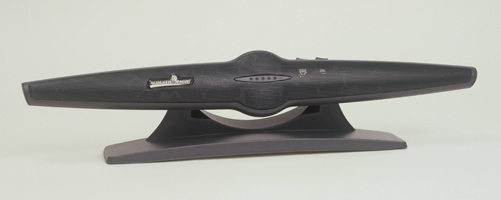

 F.A.Q. (Frequently Asked Questions)


